

BC AL Journey #3
Before we can start experimenting with code, we need to setup our laboratory. We are going to start with all our work being local and move up to using GitHub and other resources later.
Life is always easier when you can start with a template. I have a template that I find useful to organize my thoughts and keep my code managed. Other people prefer to group their code elements differently, and feel free to comment on what works for you.
You can download my template from GitHub: https://github.com/AardvarkMan/BC-Journey-Template
To download the template, open the link in your web browser and click the green “Code” button and select “Download ZIP”

Don’t worry about GitHub things like Branching and Forking, we will get there in time. There is an entire system of tools called “AL-GO” that we will implement as we progress.
In this structure we have represented each type of customization we can do, each with a Readme.al file to keep the folder from being empty and accidentally deleted by any folder cleanup routines.
With Visual Studio Code installed, which we did in step 2, you can right click in the folder space and select “Show more options”, then “Open with Code”.

If prompted, you can check the box to trust the authors of the files in the folder.

There are few files that are important, regardless of what your extension is doing, you will need to provide a few details in the App.JSON file.
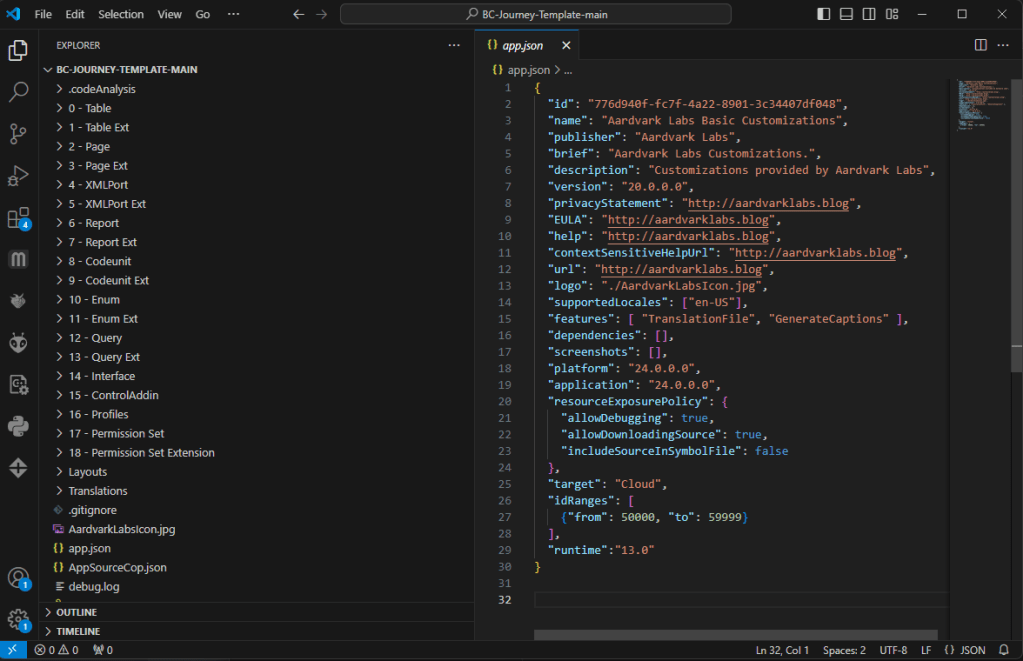
The file describes the Business Central Extension, and it has a few critical elements.
- The “id” value is a GUID that must be unique. This identifies your extension against all the other extensions in the world. You can generate a new GUID here: Free Online GUID Generator
- The “publisher” should be constant across all the extensions you create.
- The “name”, “brief” and “description” should be used to describe you and your extension.
- The Version value will be updated each time you release the software and should be broken down by release Major.Minor.Bug Fix.Build Number.
- “platform” and “application” specify the version of Business Central you are targeting.
- “runtime” identifies the version of the runtime the extension is targeting; you can use an earlier version of the runtime if you are dependent on features that are only available in that runtime. At the time of writing this, 13 is the latest runtime.
- “id ranges” are used to specify the object number values you are allowed to use. As a Per Tenant Extension, we can use 50000 to 99999. When we publish to the App Center we are given a range of number by Microsoft.
The other file that is important to us is the Launch.JSON found in the .vscode folder.

The Template is configured for Docker, which we aren’t ready for yet. Let’s add a configuration for a sandbox in the cloud.
Click the “Add Configuration…” button

Select the “AL: Publish to Microsoft cloud sandbox”
We need to make a few adjustments to the automatically generated text.
- Give it a name that means something to you.
- Set the “environmentName” value to the name of the Sandbox Environment you are connecting to. Your sandbox may be named sandbox, and that’s okay.
- Add a row named “tenant” and paste in the GUID of the tenant, you can see it in the URL for the Admin page.
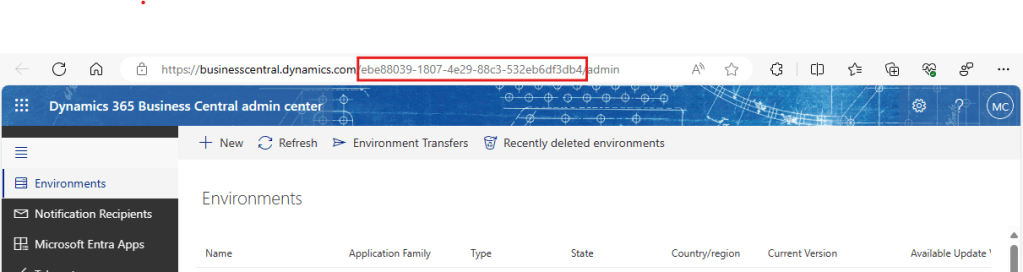
It should look something like this:

The last step is to download core dependencies from Microsoft.
Pressing CTRL+SHIFT+P bring up the action menu where we can type “AL: Download Symbols”

If we have done everything correctly, it will prompt you for which launch setting you would like to download from.
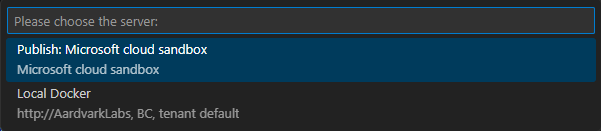
Select the one we created for the Cloud Sandbox.
Watch the lower right corner of your Visual Studio Code screen for a popup. Click the “Copy & Open” button.
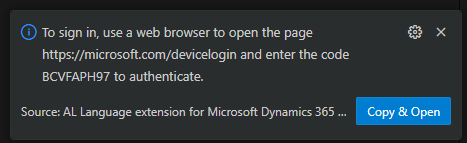
The next page will ask you to enter your code, it is already in your clipboard, just paste it and proceed to login with a user that has access to the Sandbox.
If everything goes well then you should see a bunch of files appear in the .alpackages folder.
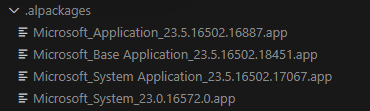
Note the numbers after these files will be different from the screen shot as Microsoft and the Business Central team are deploying updates quite often. If you run the Download Symbols routine again you will download the latest updates.
Congratulations! You are ready to dive in a start creating your first Business Central AL Extension. I realize it has been a bit of a journey so far, but you are doing it!



 Aardvark Labs
Leave a comment