

BC AL Journey #2
Business Central development requires several software tools and some important configurations. We are going to start with the basic tools and introduce more complex tools and features later. I am going to assume that you are using a Windows client, but many of these tools are available on MacOS and Linux as well.
The first thing you will need is a Business Central Sandbox. The best place to start is a Business Central Cloud sandbox. You can also use a Docker or Azure Container for your development sandbox, and we will look at that setup in a later post.
If you don’t have a Business Central instance to start with, you can sign up for a 30-day free trial. Sign up for a free trial – Business Central | Microsoft Learn
We write Business Central Extensions in a language call AL, in an application called Visual Studio Code. You can download it here: https://code.visualstudio.com/download
The install is pretty direct, but there is one option to watch for:

You will want to check the Add “Open with Code” options. It will make accessing your projects easier.
The advantage of Visual Studio Code is that it is extendable such that it can handle the needs of many different languages. It does this by adding Extensions to the system. We will need to install the Extensions for the AL2 Language as well as a few quality-of-life tools.
To install extensions open the extension browser:
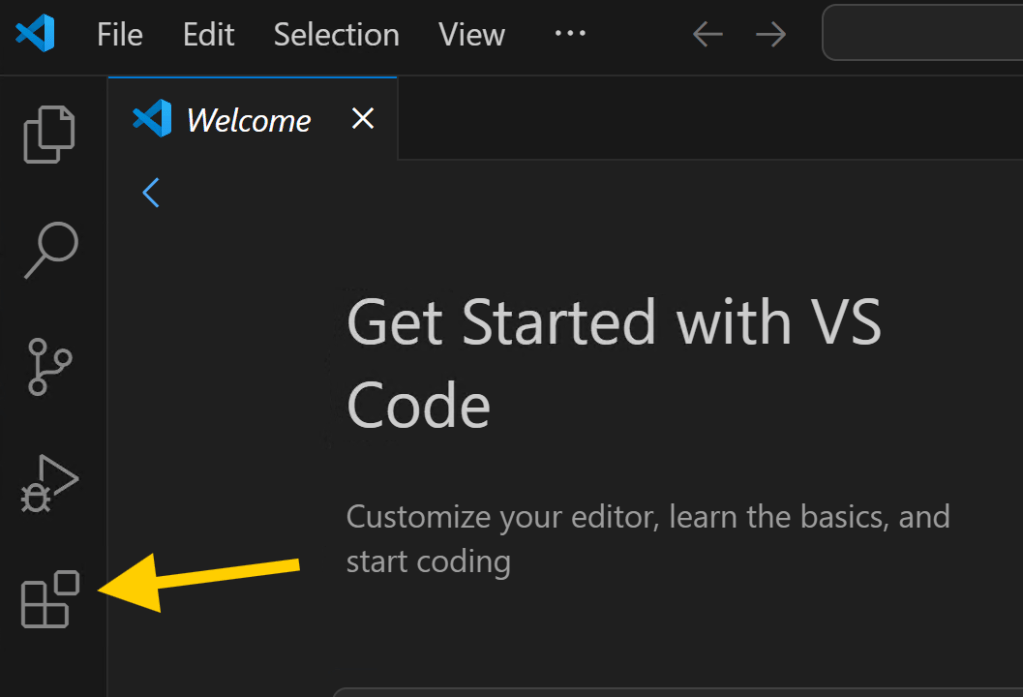
From here we can search for and install the extensions we need to support AL development. In the Search box at the top, enter “AL” to filter the list. We will be installing the following extensions by clicking the Install button.




A quick restart of Visual Studio Code and we are ready to go. There are more tools that we will need as we progress, but this is where we need to start.
As you explore extensions, let me know if there are others that you find that help accelerate your workflows.




 Aardvark Labs
Leave a comment