

There is nothing quite as aggravating as logging into Business Central to find your customization, process or report has gone missing. There could be a few different reasons for this, depending on how you deployed the extension, what dependencies it references, and what is happening in the Business Central world.
The first suspect specific to development of extensions in Visual Studio Code and working in a Sandbox environment. If you deploy your extension using the F5 button, or through the Run menu, it will deploy to the sandbox environment as a DEV release. If you read the debug console there is a warning: “Important: Extensions that have been published from Visual Studio Code are removed when the environment is updated or relocated within our service. For more information, see this article on sandbox environments https://go.microsoft.com/fwlink/?linkid=2153804 .”
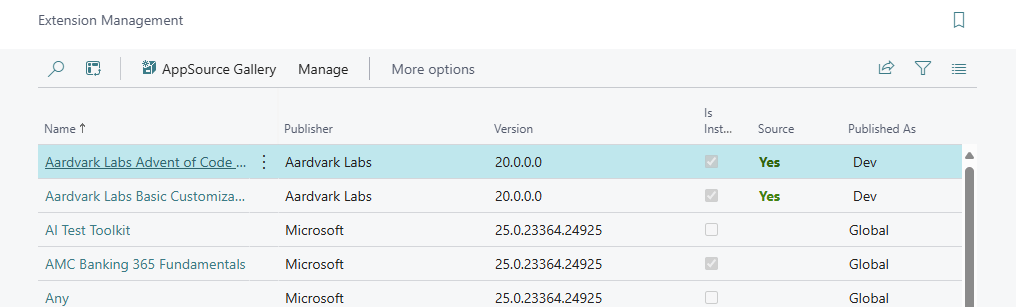
Even the most minor Business Central update can trigger the uninstallation of a DEV extension. When are these minor updates deployed? In my experience, the night before you have an important client walk through, or scheduled testing, or conference room review. These updates, while I’m sure they are published somewhere, are unpredictable, so it is best not to count on a DEV deployment for client facing testing and quality assurance.
If you take the same extension and deploy it through Extension Manager, like a proper and civilized developer, you are still not completely safe from our second suspect.
If your extension depends on another extensions, as we discussed in BC AL Journey #17, it will be removed if that dependent extension is removed. If this is a PTE extension, the developing party might remove it if they don’t feel the features are necessary anymore. In the case of a Global Extension, there have been cases where the publisher requests that you uninstall the existing extension and install a new extension.
In either case, if your extension has a dependency on the one being uninstalled, it will also be uninstalled. This is a good reason to isolate your extensions by dependency. With proper isolation, the only things lost in this case, would be features related to the uninstalled extension.
Another suspect in our search for the missing extensions Microsoft. Microsoft, or more specifically the Business Central Update Process, may uninstall an extension if it is not compatible with an update to Business Central. Mind you, before this extreme action is taken, there are emails and dashboard alerts indicating that there is an extension that is incompatible with the next release and is preventing the system from updating. However, if these warning are ignored long enough, drastic actions are taken, and the offending extensions are uninstalled.
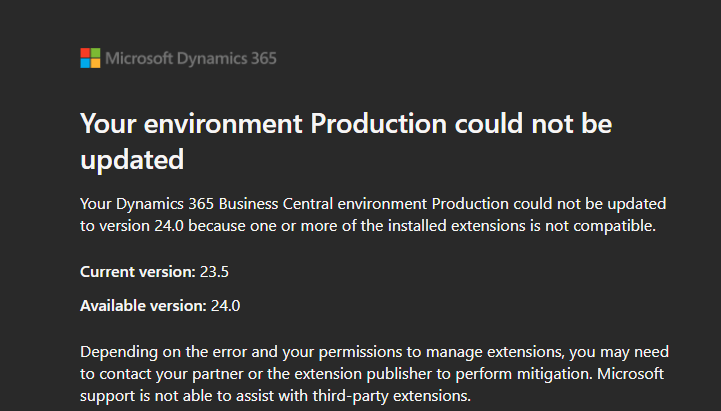
There are cases where the required fix is not compatible with the current release but required for the next release. This may sound like a quagmire; however, Business Central Extension Manager has an option for that.
First, build your extension with the next release dependencies, from either a Docker or a Sandbox of the next release. When you are ready to deploy to Production, select either Next minor version or Next major version in the Deploy to option set. Which version you select is based on the pending update. Look at the version number; if it is updating the whole number portion, then this is a Next major version, if it is only updating one of the decimal numbers, it is a Next minor version release.
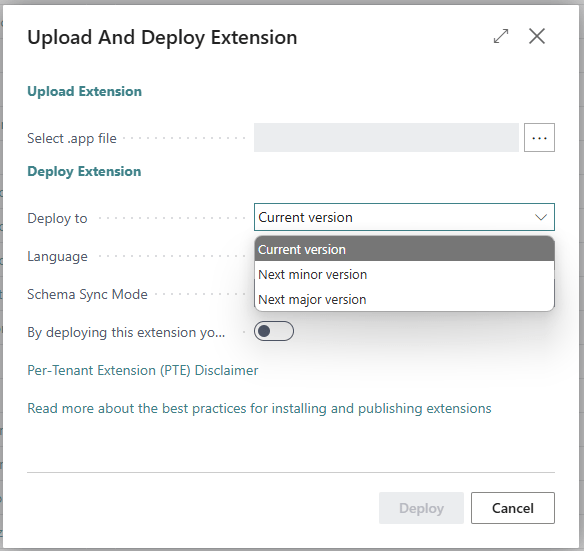
For example, an update from 23.5.23.1111 to 24.0.2.1211 is a Major version update. Version 23.4.22.1222 to 23.5.05.2221 is a Minor version update. More details here: Version numbers in Business Central and what they mean – Business Central | Microsoft Learn
This option queues your extension for deployment during the update process. A little peek into the Business Central update process; when the update starts, all extensions are uninstalled in order of the dependent extensions. The features are updated, then the extensions are reinstalled in reverse order. During this reinstallation phase, Business Central will swap in your queued extension.
The good news is that in many cases, table data is preserved. Once the extension is either redeployed, or updated and then redeployed, the data should still be in Business Central.
The last way an extension might go missing is if someone goes to Extension Management and clicks to uninstall the extension. When that happens it is less a chase of the missing extension and more of a “Who done it” murder mystery.
I hope this help you understand the means by which an extension might go missing and the suspects to check in that event. The best thing to do is understand the triggers which may result in an extension being uninstalled, and work to mitigate those by not counting on DEV deployments, Dependency Isolation in your extension development, and maintaining code compatibility with the next Business Central release.




 Aardvark Labs
Leave a comment