

BC AL Journey #18
Developers with a Database background learn about table Keys and Indexes as a part of basic Database Design. Super simplified; Keys provide a means to identify a row in a table and indexes provide a means to identify data important to searching and filtering to improve data retrieval speed. In a system as extensible as Business Central, we must maintain our Keys and Indexes in order to maintain system performance.
In a Business Central environment, where we don’t have access to the SQL database, how do we manage Keys and Indexes? We handle them in an Extension like everything else, with a little help from Business Central.
All the way back in BC AL Journey #6 we created a new table and added a PK value to the Keys section. At that point in time we noted that it was the Primary Key, it was important, and we moved forward. We were so young back then. Now it is time to dive deeper into what that means.
In Business Central, tables must have a primary key, abbreviated as PK. This is the value that will be unique and identify this row. In many of the Business Central tables the PK is the “No.” field. This is logical, as the No. field represents the unique identifier of the record. You don’t want two customers with the same Customer No. of AARDVARK.
It is most common for the PK to be a single field; however, it is not required. You can define a PK as a combination of several fields as a compound key. In the case of a compound key, the combination of fields must be unique, not each individual field.
An important thing to note; data in the SQL database is stored in ascending order, sorted by the PK. If you have a complex compound PK record inserts will take longer. By storing the data in an ordered structure data retrieval is much faster.
Once we have defined our PK, we can define Secondary Keys. All Secondary Keys are implemented in the SQL backend as an Index. Indexes act like the index in a book, they provide a faster way to find data based on key data elements, at the cost of data insert speed.
Secondary keys do not necessarily enforce the unique data requirement that a PK has. A secondary key can be identified as a “unique” secondary key, which will enforce the uniqueness of the key values, similar to a PK. At the time of writing this, this is only supported on Tables and not Table Extensions.
Okay, that is WHAT a key is, how about the WHY do we need to be able to define keys. Here are a few cases where secondary keys can make a big difference in your Business Central system.
- Supporting a Rollup field.
- Supporting Reporting Queries.
- Supporting user workflows that look at filtered segments of data.
All of these cases depend on finding a subset of data quickly. If we add the key filtering data to Business Central, we can speed up the data retrieval process. This comes at the cost of data inserts, and it is a tradeoff we must evaluate.
There is a lot that goes into choosing what goes into an index. Good news for us, Business Central tracks where an index might be missing.
In Business Central click the magnifying glass and enter “Missing Indexes” and select “Database Missing Indexes”
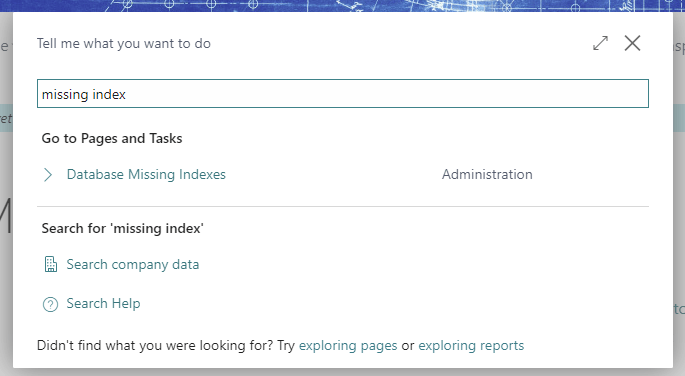
The page it displays shows a list of tables and index suggestions that it feels would improve system performance.
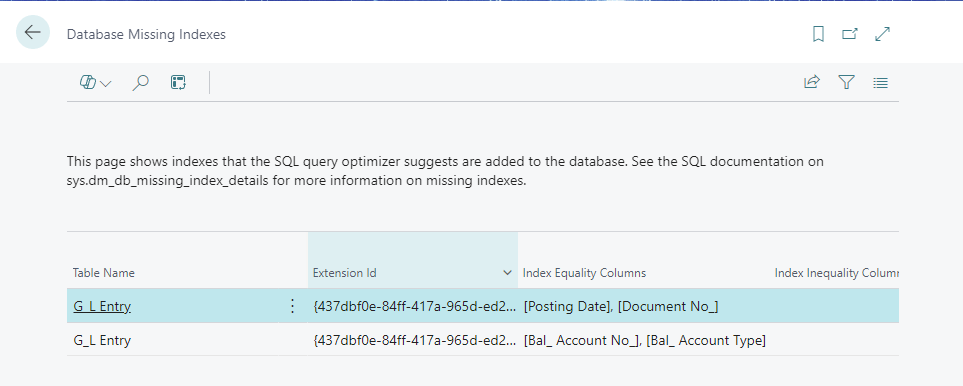
In this case we can see it is suggesting that I add two indexes to the GL Entry table. This BC implementation has several reports that leverage the Posting Date and Document No. as well as another process that looks at the Balance Account No. and the Balance Account Type. Adding these indexes would greatly speed up those functions.
To implement the Index, we will need to add a Table Extension for the GL Entry table. I will start by creating a ARDGLEntry.TableExt.al file. Typically, we would have a Fields section, but in this case we are only going to have a Keys section.
namespace BCJourney;
using Microsoft.Finance.GeneralLedger.Ledger;

tableextension 50003 ARD_GLEntry extends "G/L Entry"
{
    keys
    {
        key(ARD_Index1; "Posting Date", "Document No.")
        {

        }

        key(ARD_Index2; "Bal. Account No.", "Bal. Account Type")
        {

        }
    }
}
There were two Index recommendations, so we add two keys. The first parameter of the Key is a name, this can be anything, but should have a prefix or suffix, in this case “ARD”. After the name is a comma delimited list of fields we wish to add to the key. After deploying this customization, queries using these sets of parameters will be much faster.
This does not need to be a standalone table extension; you can include additional keys in an existing table extension or table definition.
Let’s take a look at another use case. If we want to create a flow field against the Item Ledger Entries that sums the quantity based on the item number and location, we will create a field like this:
field(34; ARDQtyOnHand; decimal)
        {
            Caption = 'Qty. On Hand';
            FieldClass = FlowField;
            CalcFormula = Sum("Item Ledger Entry".Quantity
                  WHERE("Item No." = FIELD("TMG_ItemNo.")
                        "Location Code" = FIELD(TMG_ItemLocation)
                  ));
            ToolTip = 'Current Quantity Available';
        }
There are going to be a lot of Item Ledger Entry records, we are going to need an Index to make this efficient.
key(ARD_QTY; "Item No.", "Location Code")
{
    SumIndexFields = Quantity;
    MaintainSiftIndex = True;
}
This Key is named ARD_QTY and is indexing the Item No. and Location Code fields. It also tells the system that we will be summing the Quantity field and that we want to maintain the sift index. The Sift Index creates an Indexed View of the data, including the Sum Index Field, making the calculation even more efficient.
Now for the last common case we have, include columns. We will look at another G/L Entry table in trouble.

In this case the Database Missing Indexes report lists additional fields that could benefit from indexes. The screen shot is difficult to read, but it lists tables in the “Index Inequality Columns” and the “Index Include Columns”. We can include these values in the Key using the IncludedFields parameter.
Key(ARD_Index3; "G/L Account No.")
{
    IncludedFields = "Posting Date", "Document Type", "Document No.", Description, "Bal. Account No.", Amount, "Global Dimension 1 Code", "Global Dimension 2 Code";
}
Adding these fields adds them to the database index for easy retrieval in reference to the Index fields. This furthers improves data retrieval performance.
All these things help improve data retrieval performance, but nothing is free. Now, let’s talk costs.
As you add indexes your retrieval speed improves, but data inserts and edits take longer because the indexes must be calculated for each and every insert and modification. Therefore, we must balance our indexes so that we utilize them to improve the speed of functions where speed is critical as to not overburden the system.
More information can be found here: Table keys – Business Central | Microsoft Learn
I hope this helps you improve the performance of your Business Central system. Maintaining database indexes is a critical element of supporting a Business Central system.




 Aardvark Labs
Leave a comment