

BC AL Journey #24
In BC AL Journey #23 we completed our dive into AL Page Triggers. We also took a look at Page Field Triggers, which we will complete here. This was a continuation of the BC AL Journey #10 where we introduced triggers. While Page Triggers focus on events related to the entire page object, the Page Field Triggers work on a single field.
An important thing to remember, while you can enforce data integrity and validation with Page Field Triggers, those activities are best left on Table Triggers and Table Field Triggers. First off, if you have several pages you would have to implement redundant code on each page. Secondly, your tables can be extended by other developers onto pages that do not include your data integrity and validation checks.
Page Field Triggers
Page Field Triggers interact directly with the users and can have a huge impact on the user experience. Several of these triggers add new functions to fields and can be useful in providing your users with access to records or data inside Business Central.
I’ve added several triggers to the our Trigger Happy customer card.

The first trigger, and the most common one used is the OnValidate trigger. I’ve added it to the “State Inscription” field, and it turns any text entered into all upper-case letters. Of course, this would be better done at the table level.
field("State Inscription"; rec."State Inscription")
{
    trigger OnValidate()
    begin
        Message('Card Field: OnValidate: Rec: %1, XRec: %2', Rec."State Inscription", xRec."State Inscription");
        Rec."State Inscription" := Rec."State Inscription".ToUpper();
    end;
}
When I change the value in the field from TEST to aardvark, we see the following message:
| Card Field: OnValidate: Rec: aardvark, XRec: TEST |
| Card: OnModifyRecord: Rec: 10000, XRec: 10000 |
We can see that OnValidate trigger fires, with the XRec holding the old value and the Rec holding the new updated value. We also see our old friend the OnModifyRecord from the Card fires.
Note that I’m changing the value of the record, but I don’t have to call the Modify procedure. Validation happens on the way to being modified, so changes we make to the record here will be saved to the database.
This trigger can be used to lookup related data to populate screen defaults, roll values down to related records, and other processes that you want to run specific to a change on that page.
The next trigger is OnLookup, which allows us to turn any field into a look up to a list. We saw this trigger in the previous BC AL Journey as it has a counterpart Page trigger. There is also an OnAfterLookup trigger, which fires after the OnLookup trigger.
Here is the page field that populates a global VAR Text called CustomerLookup. This is the first time in the BC AL Journey that we have seen something that isn’t a table field as a page field, this will display the selected text but not save it to the table.
field(ARD_CustomerLookup; CustomerLookup)
{
    Caption = 'Customer Lookup';
    ToolTip = 'Lookup Customer';
    ApplicationArea = All;
    Lookup = true;


    trigger onlookup(var Text: Text): Boolean
    var
        CustomerRec: Record Customer;
    begin
        Message('Card Field: onlookup: Rec: %1, Text: %2', Rec."No.", Text);
        if Page.RunModal(Page::Ard_TriggerHappyQuery, CustomerRec) = Action::LookupOK then
        begin
            CustomerLookup := CustomerRec.Name;
        end;
    end;
}
When I view this card the “Customer Lookup” field has the tell tail “…” of a lookup field.
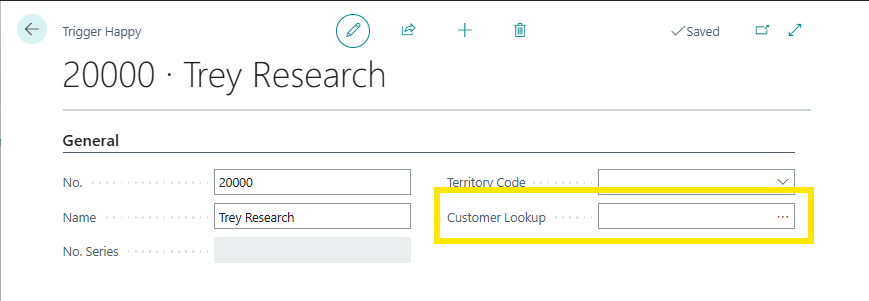
Clicking the “…” brings up the Ard_TriggerHappyQuery page.

When I select a record and Click “OK” we return to the previous card and the Customer name is populated into the text value that is displayed on the field.
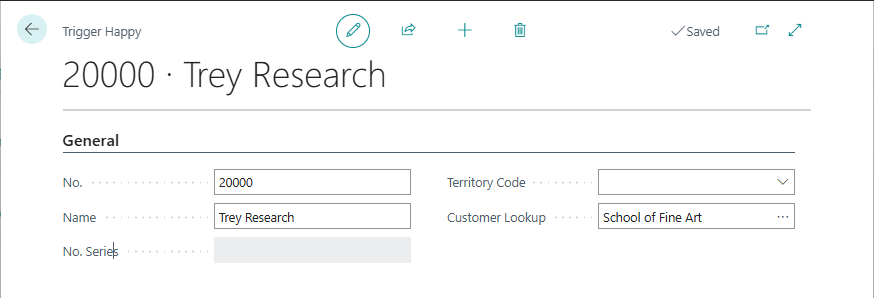
The events that fired during this process are:
| Card Field: onlookup: Rec: 20000, Text: |
| Query: OnQueryClosePage: Rec: 30000, XRec: 30000, CloseAction: LookupOK |
What we can see is that clicking on the “…” triggers the OnLookup event of the Page Field Trigger, where we can then display a list page for the user to make a selection. When our selection is complete and the page is attempting to close, the OnQueryClose page fires giving us an opportunity to validate the user selection and handle any issues.
The next trigger on our list is OnDrillDown. A drill down action is typically used to move from one record to another related record. Addint the OnDrillDown to a field, in our example the Name field, adds a series of “…” inside the field.

The code associated with the OnDrillDown trigger opens the related Customer card.
field(Name; Rec.Name)
{
    trigger OnDrillDown()
    begin
        Message('Card Field: OnDrillDown: Rec: %1, XRec: %2', Rec."No.", xRec."No.");
        Page.RunModal(Page::"Customer Card", Rec);
    end;
}
Clicking the “…” shows the message we specified and opens the associated customer card.

The last Page Field Trigger we are going to cover is the OnAssistEdit trigger. The goal of an Assisted Edit is to provide the user with prompts that result in editing the record.
The Customer Table has an assisted editing routine for changing the customer number series. We can take a look at an implementation of that code here.
field("No."; Rec."No.")
{
    trigger OnAssistEdit()
    begin
        Message('Card Field: OnAssistEdit: Rec: %1, XRec: %2', Rec."No.", xRec."No.");
        if Rec.AssistEdit(xRec) then
            CurrPage.Update();
    end;
}
We have an OnAssistEdit trigger which shows our message, then calls a procedure on the table with the previous record state. Because the edits are done at the table level, the trigger uses CurrPage.Update() to refresh the data on the page so we can see what was edited.
When implemented we see a “…” box outside the text box.

This is different from the Lookup or DrillDown triggers we have been working with, and indicates an assisted edit function to the users. When we click on the “…” button we see the following.
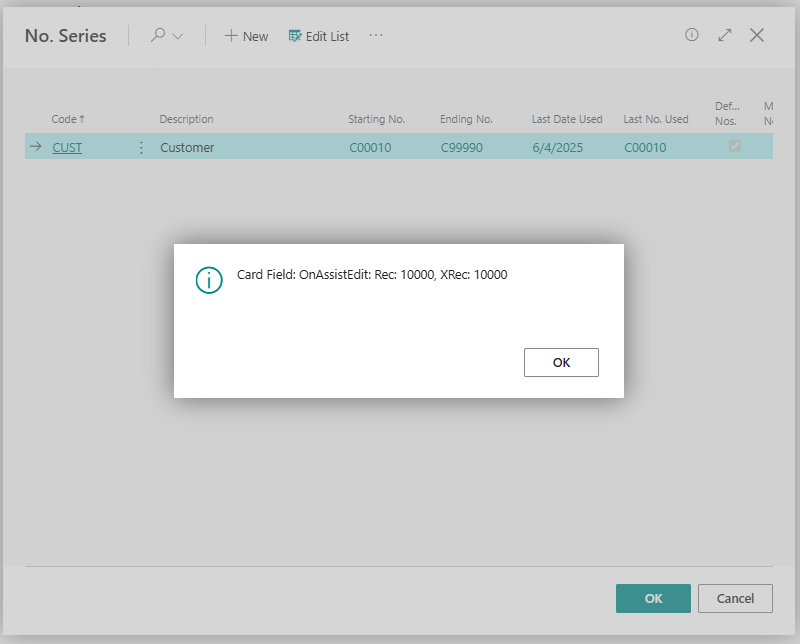
The No. Series card we see in the background is the result of a procedure on the Customer table. When we close the No. Series card, with either OK or Cancel we see the following messages.
| Card: OnAfterGetRecord: Rec: 10000, XRec: 10000 |
| Card: OnAfterGetCurrRecord: Rec: 10000, XRec: |
These triggers are the result of the CurrPage.Update(); procedure in the last line of our trigger. The goal is to retrieve the updates generated by the page displayed by the Assisted Edit.
Those are the essential page field triggers. I hope you’ve learned some new ways to interact with your users as well as have an understanding of how these triggers interact with the other triggers we have explored so far. This concludes our current exploration of triggers, but we will see them again when we dive into Reports later. Thank you for joining me on this Journey, I’ll see you again soon.
This trigger exploration is available in GitHub here: AardvarkMan/BC-AL-Triggers




 Aardvark Labs
Leave a comment