

Living in the current remote working world, many of us are expected to be on video calls. Including video in your calls fosters a better bond with the participants, it can also help people focus and stay on task.
Now most people use tools like Microsoft Teams or Zoom for their meeting system. These show everyone as a floating head in a box, like the introduction to the Brady Bunch. There are things we can do to help improve that appearance and add a little personality to our little box.
I use an open-source program called OBS Studio (Open Broadcast Software). OBS is a favorite application for streamers, but it has great application in the video meeting space.
Let’s get this installed and working!
Download the installer for your platform, in my case Windows.
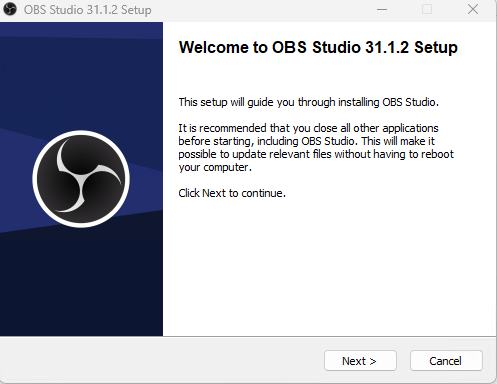

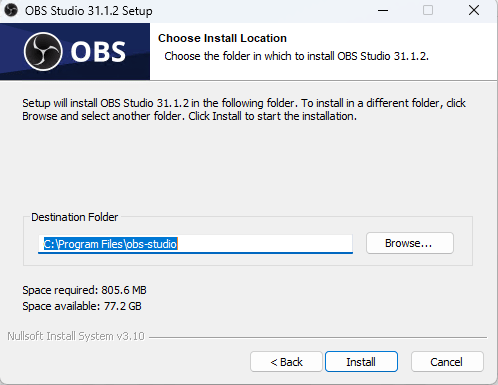
Three screens and we are installing!
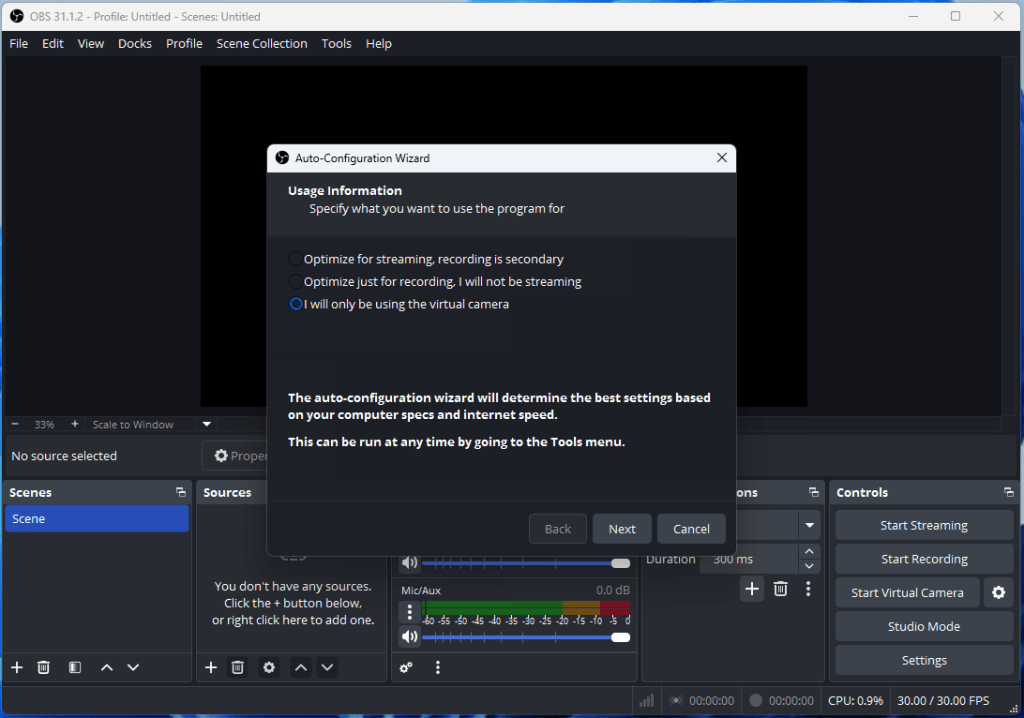
When you first launch OBS you will be prompted to run through the Auto-Configuration Wizard. Check the radio button for “I will only be using the virtual camera”, then click Next.
Here are the default settings I get, don’t worry if yours are different.
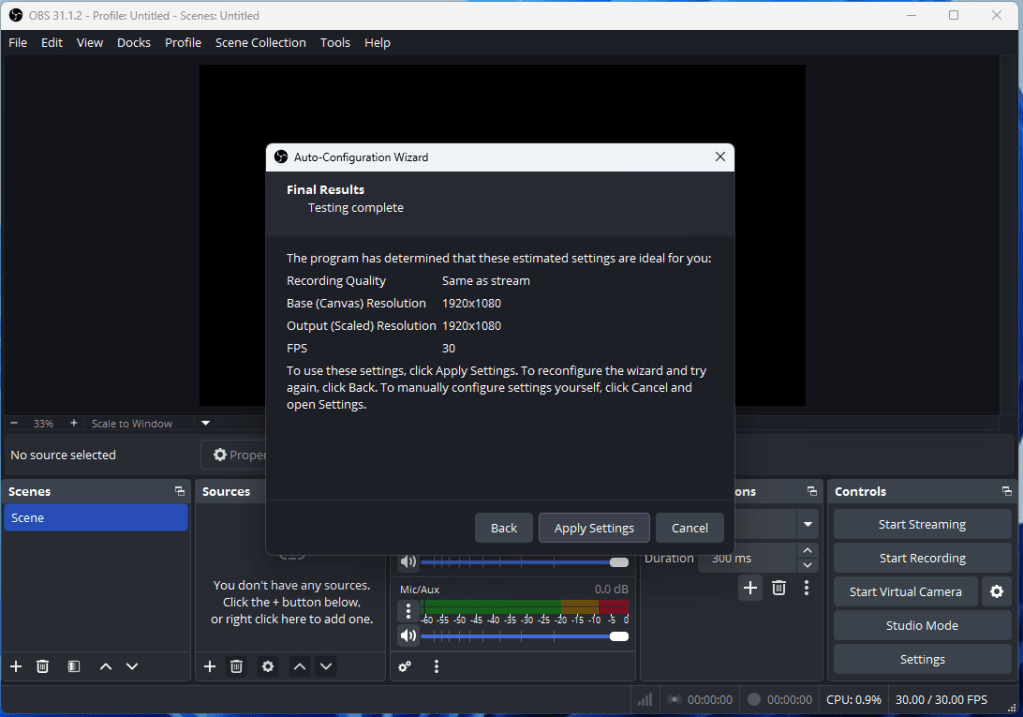
Click Apply Settings.
We now have a blank studio.
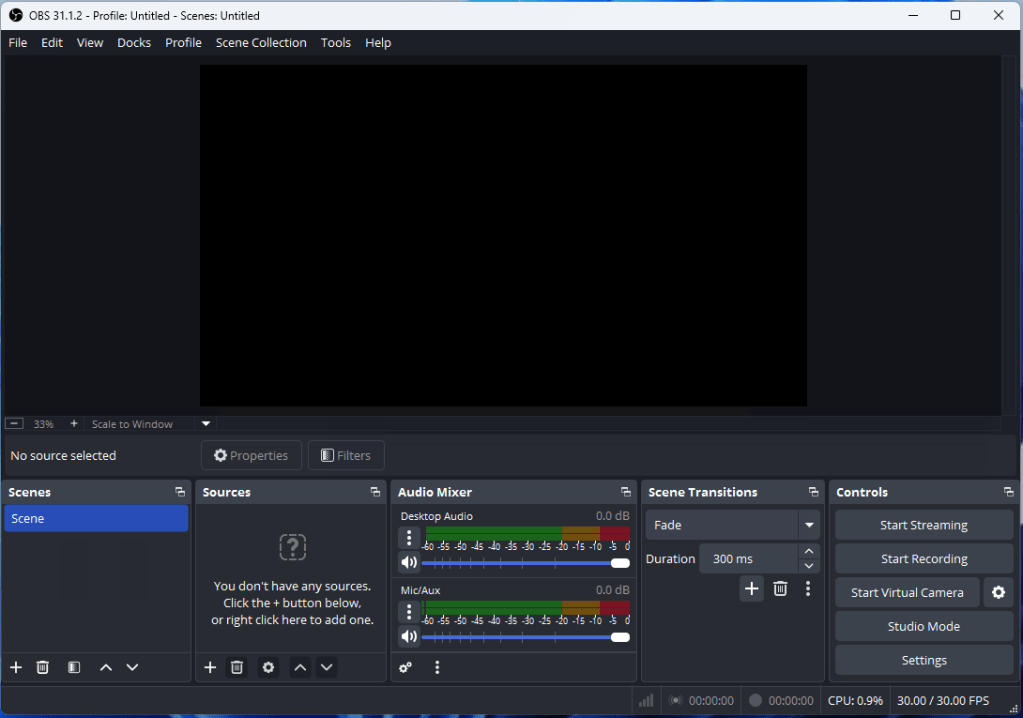
We need to add the sources for this Scene, I’ll start with a video source.
Click the + under the Sources block and select “Video Capture Device”.
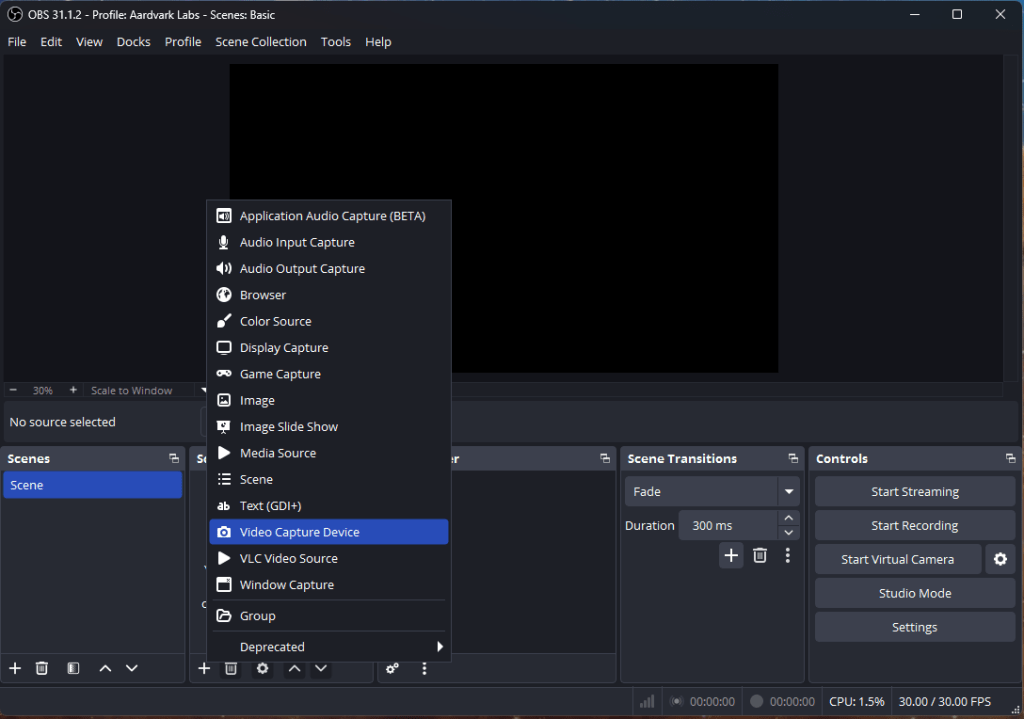
We are going to create a new source.
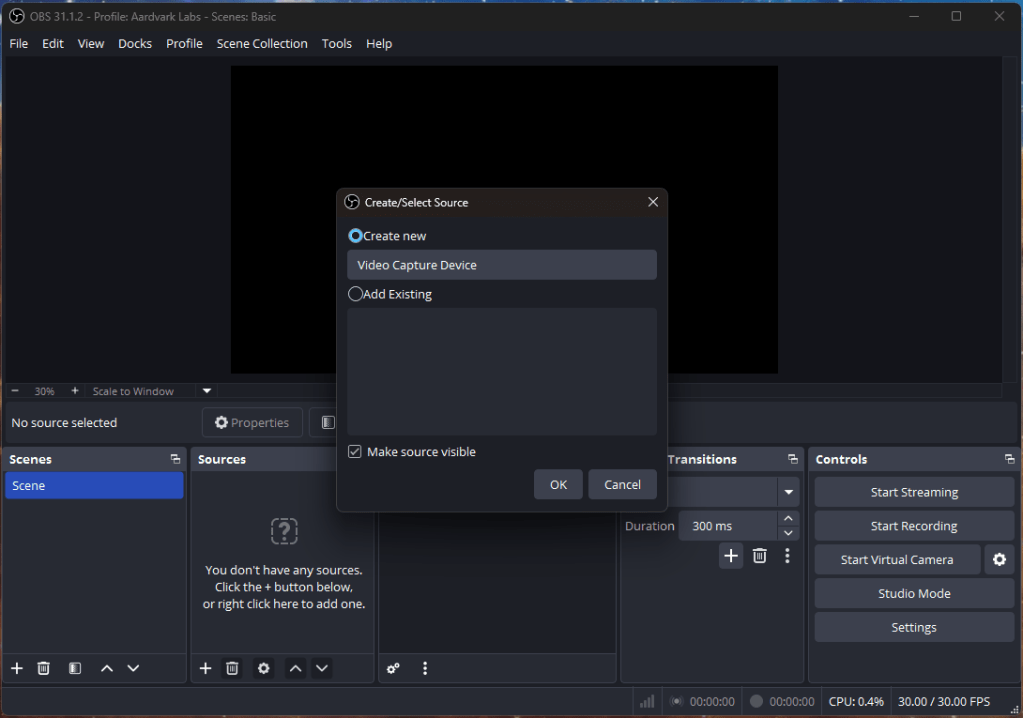
After I click OK, I can select what device I want and do the basic configuration.
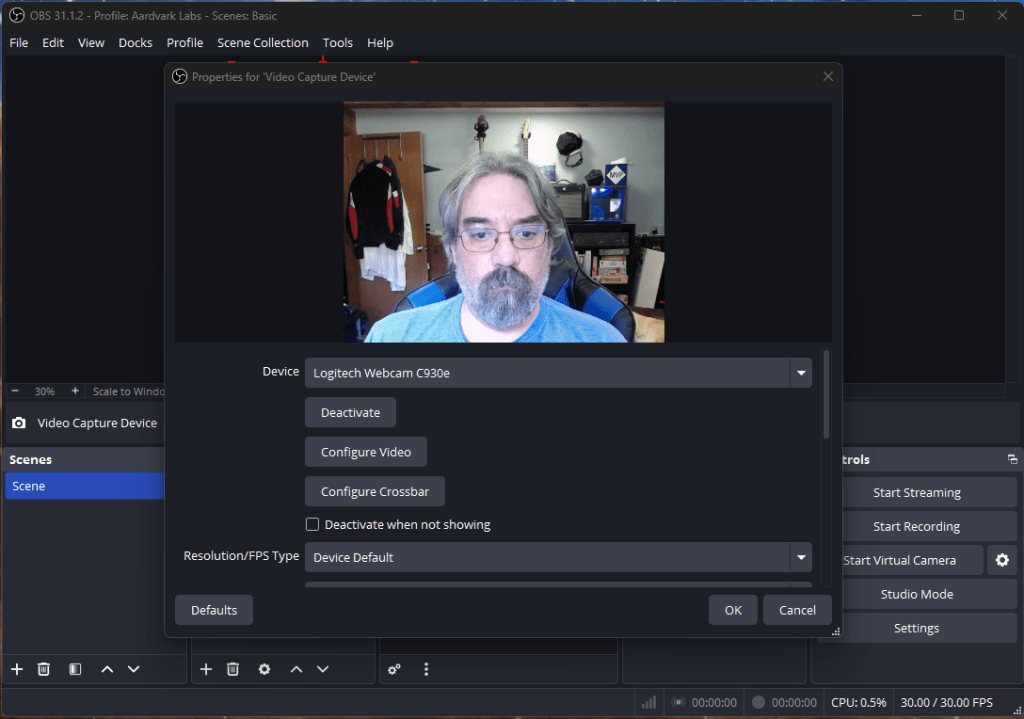
The defaults settings are good for me, so I click OK.
I can now resize and place my video source within the scene.
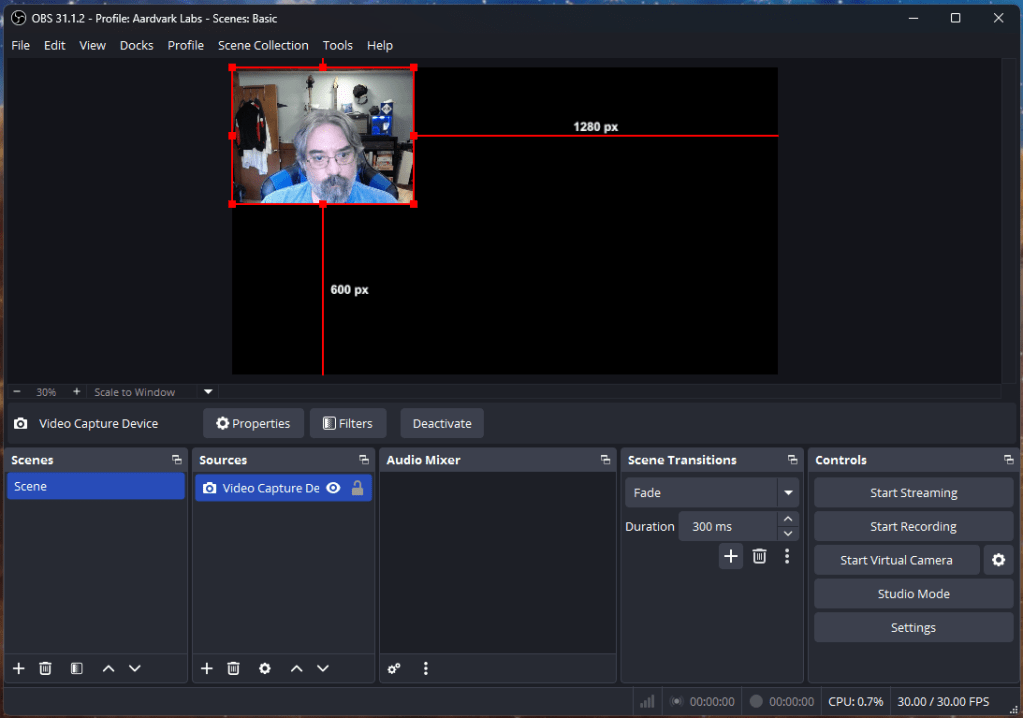
After dragging and scaling my video I need to add an audio source. Back to the + in the sources box. This time select “Audio Input Capture”.
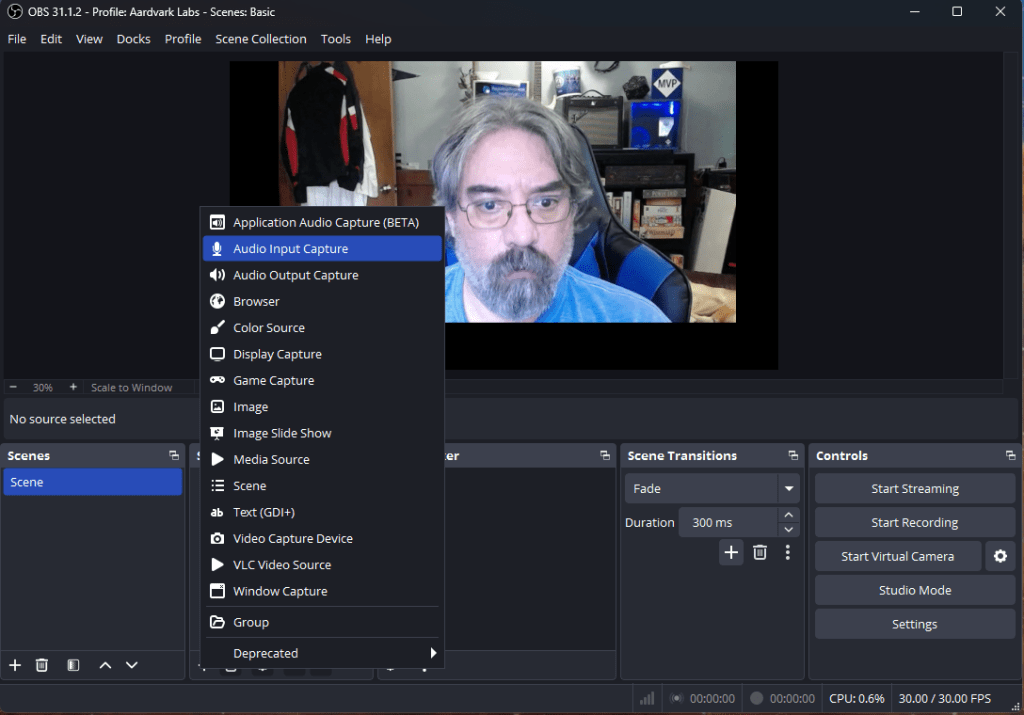
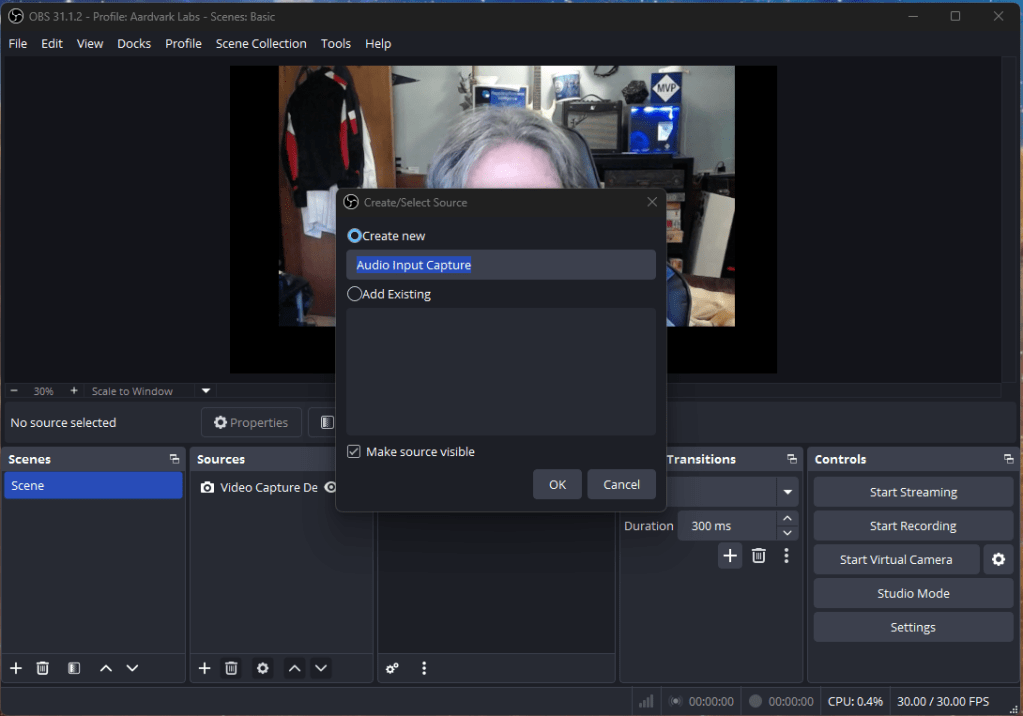
Create a new source again.
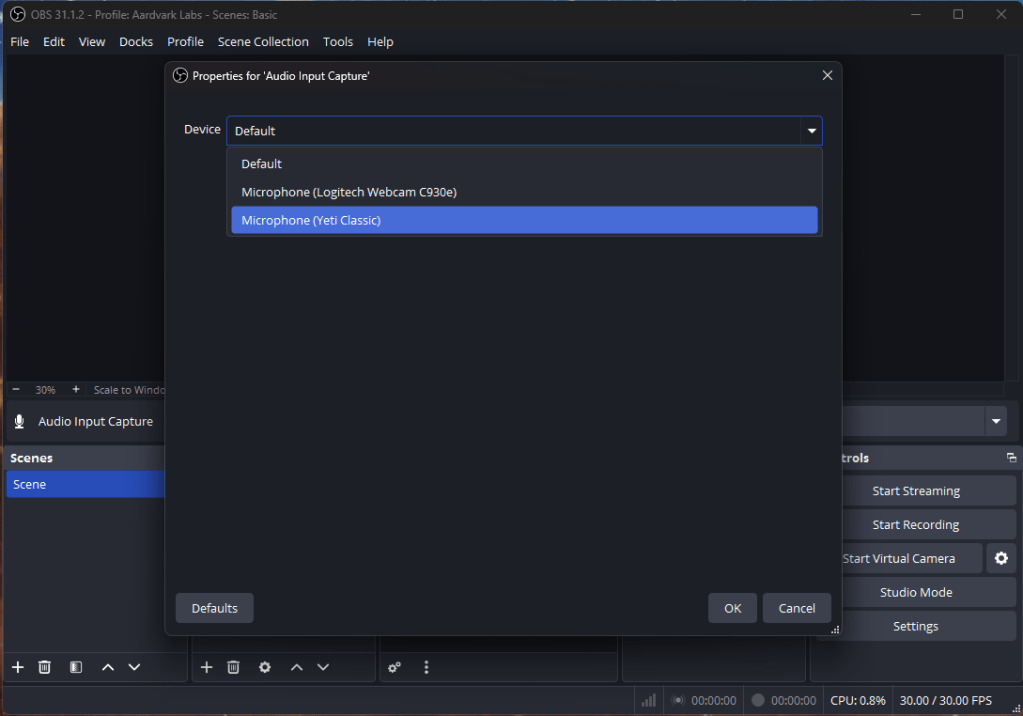
Click OK to be presented with a list of Audio Input Devices. I’m going with my Yeti Classic for those pear shaped NPR tones.
Click OK and we are back to our scene.
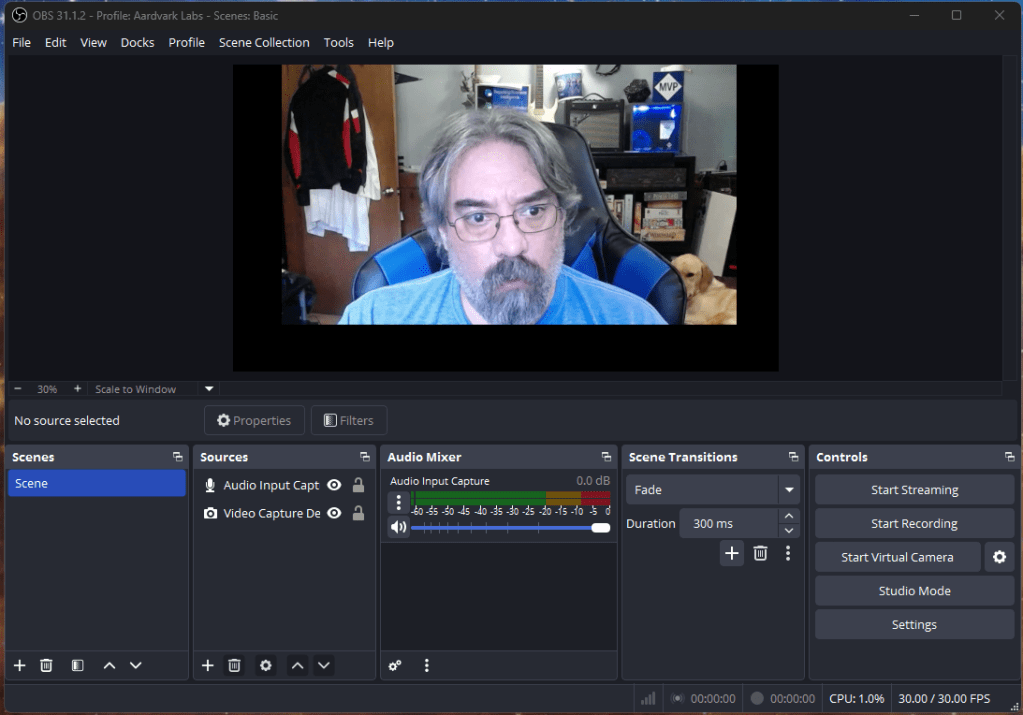
We are still looking like a basic web camera feed, let’s start adding some cool things to the scene. The same process we have followed of clicking the + in the scene, we can add an Image.
I’ve added 2 Images and a Text, and this is what I’m looking like.

Now I’ll stand out in my meetings!
Personally I don’t typically mask my background in a casual meeting. I’m the mad scientist, my natural office background supports that. Also, I’m not personally a fan of the “smart” background removal. It makes my hair look funny, I pop in and out of existence, and I get a strange halo around my head.
When I do want to remove my background I use a green screen. I purchased a cheap green screen from Amazon and the quality of the background masking is so much better.
Let’s go a step further and add in that Green Screen.
With a Green Screen we can do something called a Chroma Key Filtering. This lets us select a single color and remove it from the video. It is more accurate than the background remove in Teams or Zoom.
Here is my video feed with the green screen behind it.

Yeah, I need to iron it. We need to add a filter to the video capture. Select the video capture device and then click Filters.
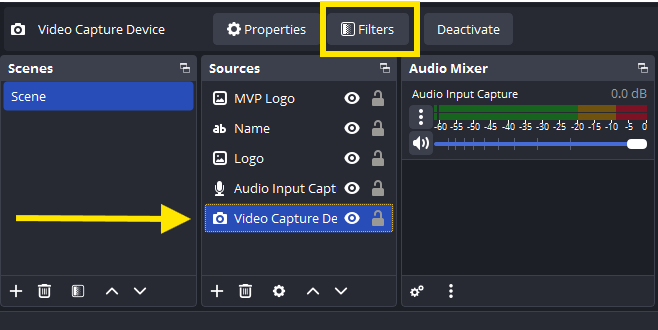

In the Effect Filters box we are going to click to + and select Chroma Key.
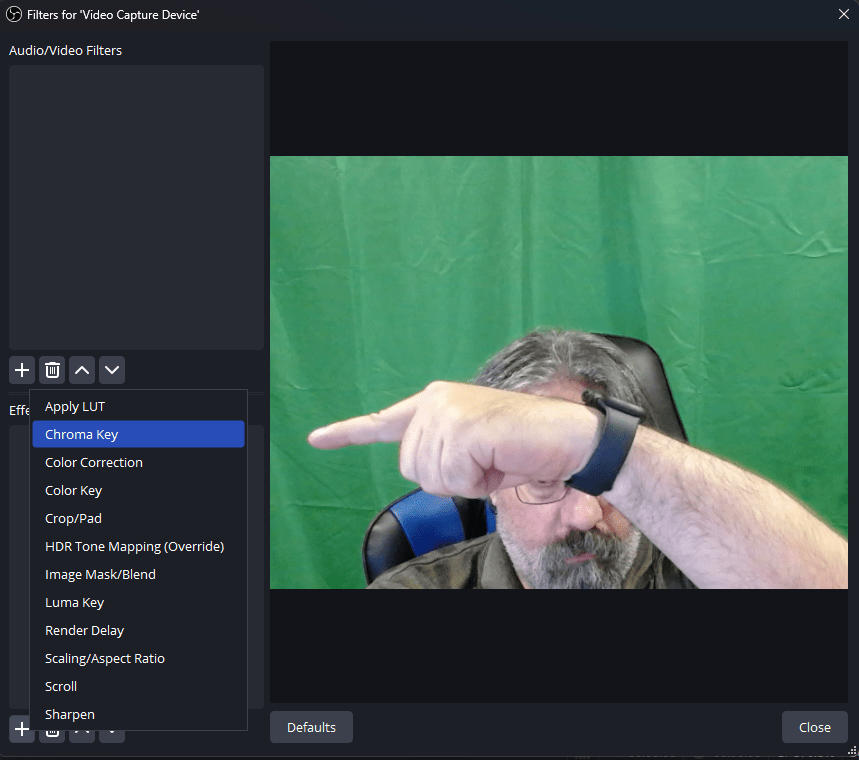
Give it a name if you like and click OK. You will now have some sliders to help tune your key.
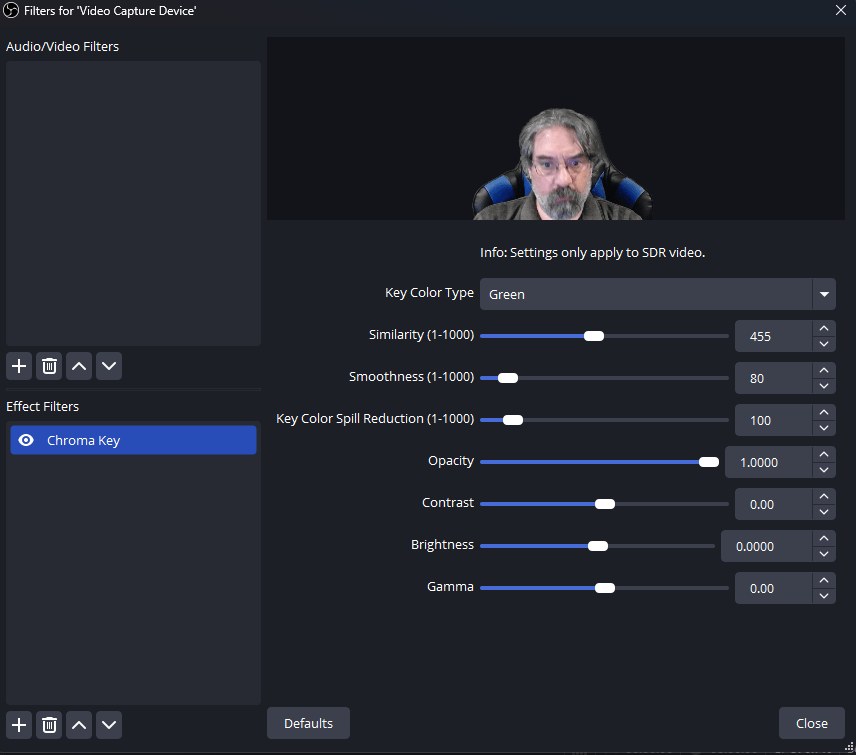
There is a color selector if you didn’t go with the traditional green. I had to dial up the similarity a little. The lighting isn’t even and as I pointed out my screen needs to be ironed.
Click Close when everything looks black behind you.
I’m going to use the Sources dialog to import another image. I’ll take that image and make it full screen.
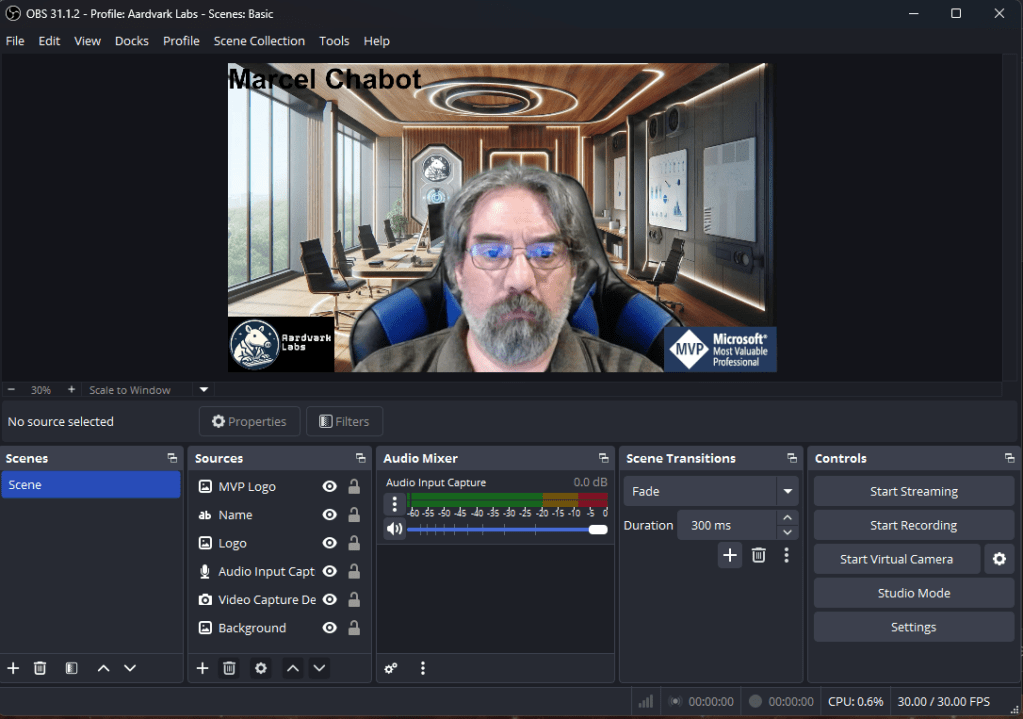
Changing the order of things, like placing the background image below the video capture device in the sources list changes how the sources stack and overlap each other.
You can even add a Media Source file, like an Animated GIF as the background.
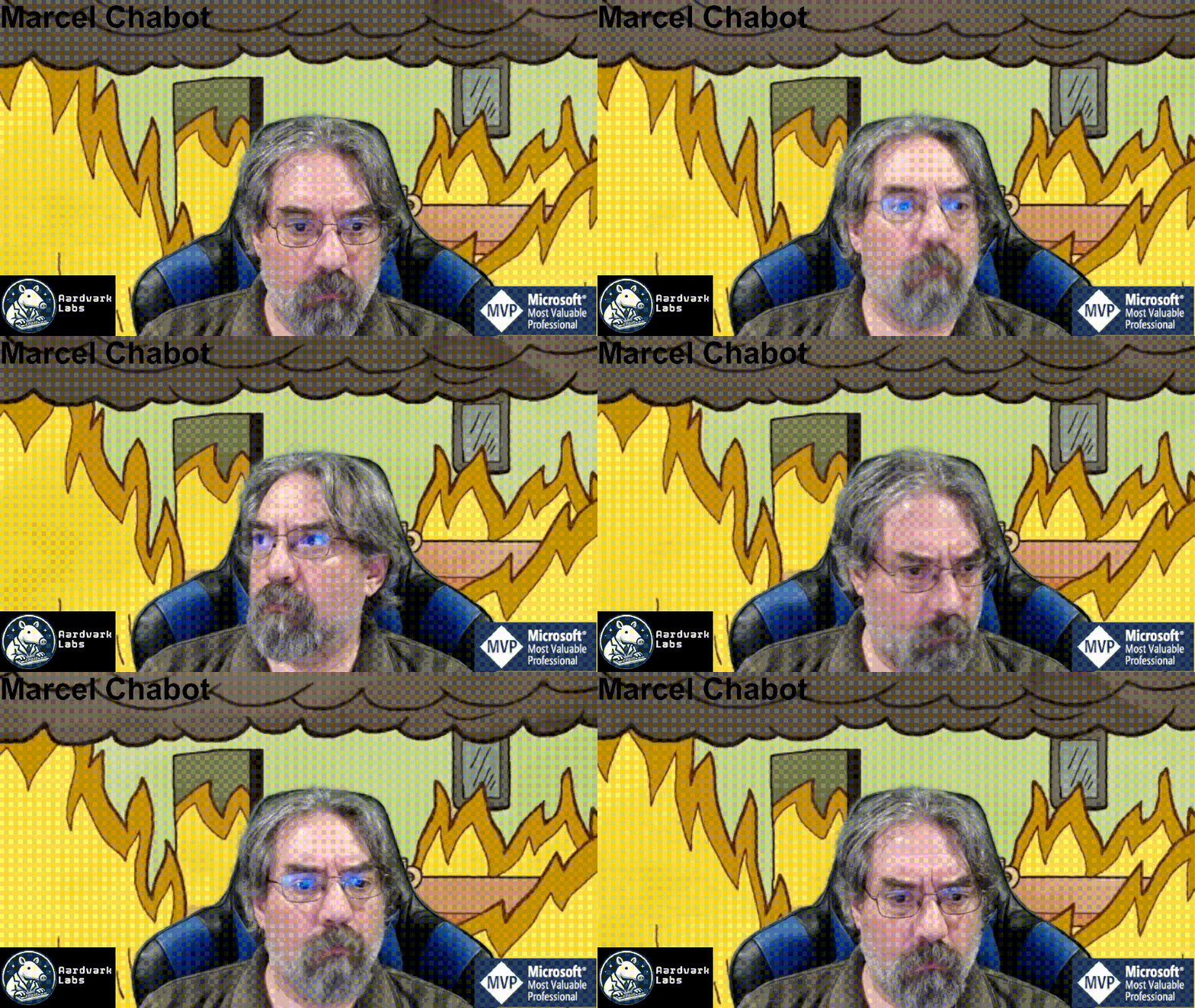
I think this is fine.
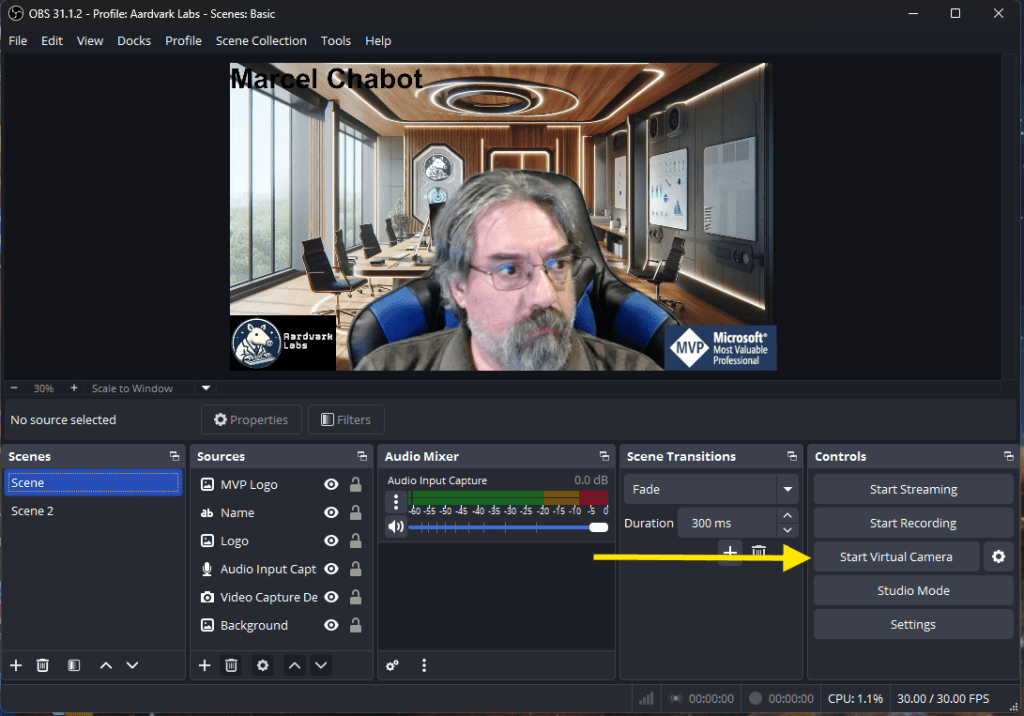
The last step is to activate the Virtual Camera. Inside the Controls box is a “Start Virtual Camera” button, click it.
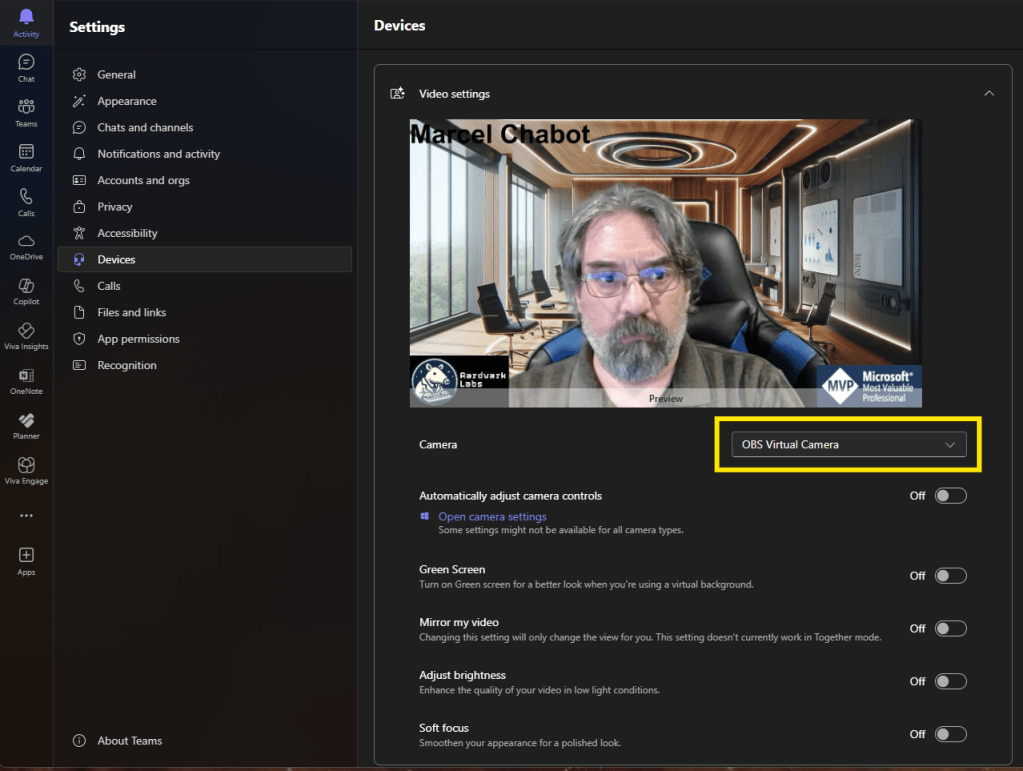
Now in your video conference software of choice, you will see “OBS Virtual Camera”, select that as your video source.
Now you are ready for your closeup!
Here is another configuration that I like, I’ve used the “Display Capture” source to grab a screen where I’m doing a Business Central Demo, and put my camera feed in the corner.
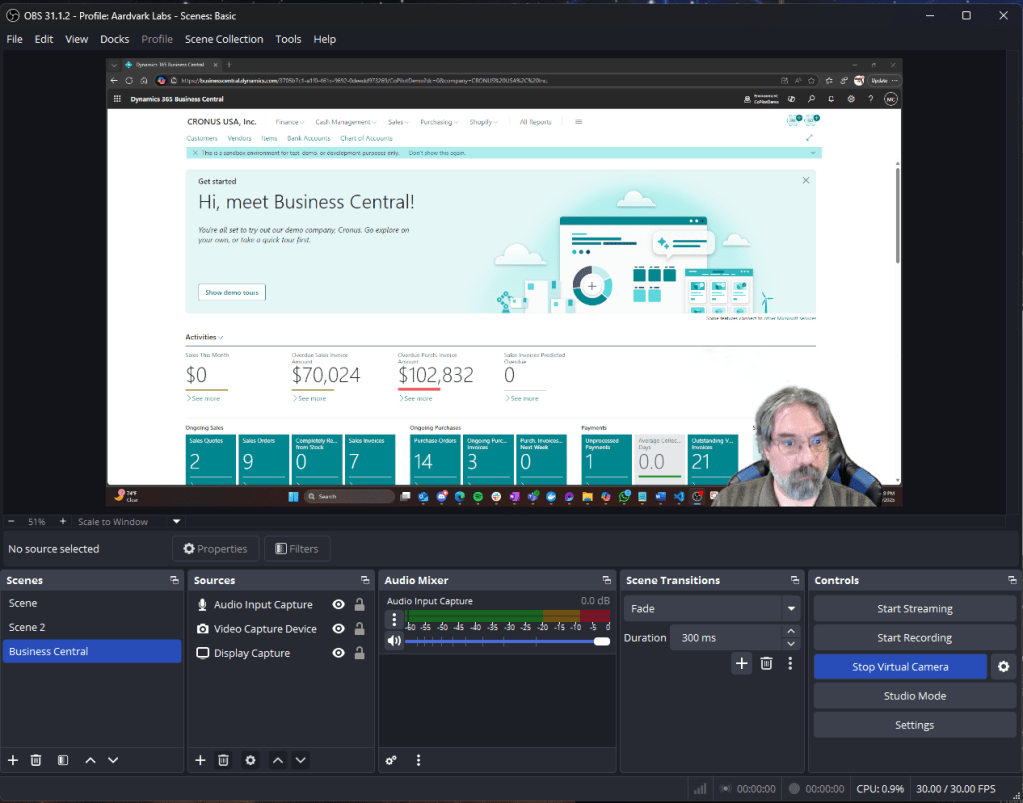
You can create many different “Scenes” as listed on the Left, and switch between them as needed.
I hope this encourages you to give OBS a try and give your video conferences a little something extra. Let me know how it goes and post your thoughts in the comments.




 Aardvark Labs
Leave a comment