

In a previous Excel joke filled post we explored data imports with Excel. This post will expand on that concept with a header / line example. If you haven’t already read the previous post, you can find it here.
With Header/Line, or any other relational data, we have the challenge of relationship management. How does the header row relate to the line rows. In Excel we can follow the same methods we had in the Delimited File Import, with normalized interlaced, or denormalized rows. With Excel we can also explore an additional option, such as the Header Tab and Line Tab, which relate on a common key.
Let’s start with some data, I’m going to create an Excel version of our Delimited File Import data.
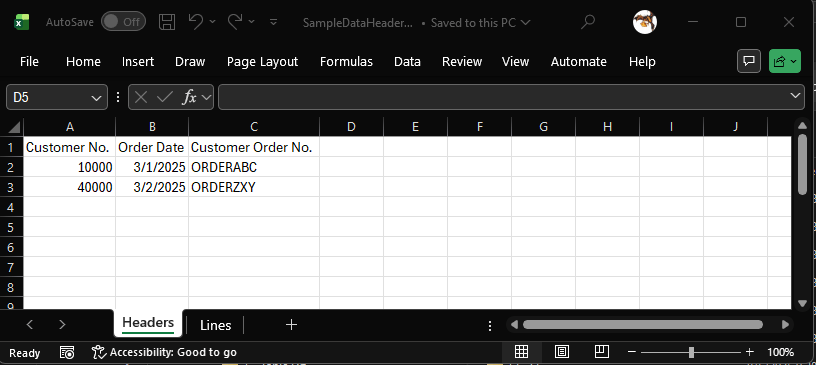
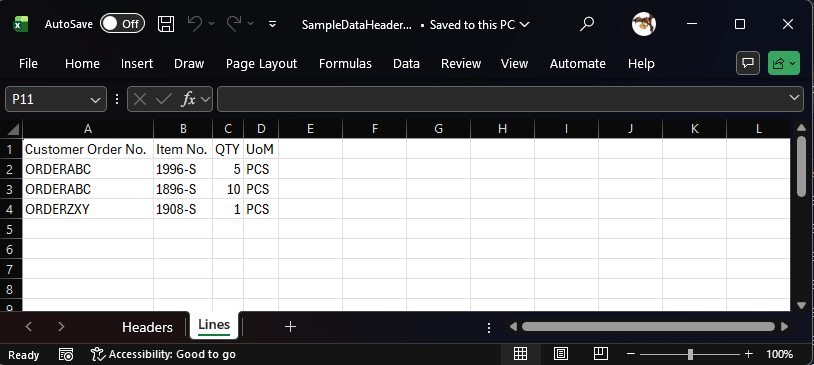
For this example, we are going to use the Sales Header and Sales Detail tables from the CSV Import example we did earlier. The data is the same, no need for new staging tables.
We are going to do all the import parsing in the ARDMultiTabImport.Page.Al file. When the user click the button to import we call our Import Excel File procedure. This code is NEARLY identical to the single tab example we did earlier.
procedure ImportExcelFile()
    var
        SalesHeaderRec: Record ARD_SalesHeader;
        FileManagement: Codeunit "File Management";
        TempBlob: Codeunit "Temp Blob";
        FileInStream: InStream;
        ImportFileLbl: Label 'Import file';
        DataKeys: Dictionary of [Text, Integer];
        ErrorMessage: Text;
        RowNo: Integer;
        MaxRows: Integer;
        TempDate: Date;
    begin
        RowNo := 0;

        // Select file and import the file to tempBlob
        FileManagement.BLOBImportWithFilter(TempBlob, ImportFileLbl, 'Excel Item Import', FileManagement.GetToFilterText('All Files (*.xlsx)|*.xlsx', '.xlsx'), 'xlsx');

        //Need to see if the temp blob is uninitialized.
        if TempBlob.HasValue() = false then exit;

        // Select sheet from the excel file
        TempBlob.CreateInStream(FileInStream);

        // Open the Header sheet
        ErrorMessage := TempExcelBuffer.OpenBookStream(FileInStream, 'Headers');
        if ErrorMessage <> '' then
            Error(ErrorMessage);

        //Read the sheet into the excel buffer
        TempExcelBuffer.ReadSheet();

        //Finding total number of Rows to Import
        TempExcelBuffer.Reset();
        TempExcelBuffer.FindLast();
        MaxRows := TempExcelBuffer."Row No.";

        SalesHeaderRec.Reset();
        SalesHeaderRec.DeleteAll();

        FOR RowNo := 2 to MaxRows DO begin //Assuming Row 1 has the header information
            SalesHeaderRec."ARD_No." := RowNo - 1;
            SalesHeaderRec."ARD_CustomerNo." := CopyStr(GetValueAtCell(RowNo, 1).Trim(), 1, 20);
            if Evaluate(TempDate, GetValueAtCell(RowNo, 2).Trim()) then
                SalesHeaderRec."ARD_DocumentDate" := TempDate;
            SalesHeaderRec."ARD_ExtDocNo." := CopyStr(GetValueAtCell(RowNo, 3).Trim(), 1, 100);

            if SalesHeaderRec.Insert() then
                DataKeys.Add(SalesHeaderRec."ARD_ExtDocNo.", SalesHeaderRec."ARD_No.");
        end;

        ImportExcelFileLines(FileInStream, DataKeys);
    end;
Notable exception is on line 26 we see that we specify the name of the tab to read. The other key difference is that we are using a Dictionary[Text, Integer] on line 49 to keep track of the Excel Key, the Customer Document Number, and the Business Central Key ARD_No. This tracking is important when importing the lines so that we don’t have to do excessive lookups to connect the header and line. Alternately we could have used the Customer Document Number as the table keys, but then this example would be too simple.
After we import all the headers into the holding table, we can import the lines. Line 52 send the file stream containing the excel file and the data keys we are storing to the next procedure.
procedure ImportExcelFileLines(FileInStream: InStream; DataKeys: Dictionary of [Text, Integer])
    var
        SalesLineRec: Record ARD_SalesDetail;
        ErrorMessage: Text;
        RowNo: Integer;
        MaxRows: Integer;
        TempDecimal: Decimal;
        RowKey: Text;
    begin
        RowNo := 0;

        // Open the Header sheet
        ErrorMessage := TempExcelBuffer.OpenBookStream(FileInStream, 'Lines');
        if ErrorMessage <> '' then
            Error(ErrorMessage);

        //Read the sheet into the excel buffer
        TempExcelBuffer.ReadSheet();

        // Finding total number of Rows to Import
        TempExcelBuffer.Reset();
        TempExcelBuffer.FindLast();
        MaxRows := TempExcelBuffer."Row No.";

        SalesLineRec.Reset();
        SalesLineRec.DeleteAll();

        FOR RowNo := 2 to MaxRows DO begin //Assuming Row 1 has the header information
            salesLineRec."ARD_No." := 0;
            RowKey := GetValueAtCell(RowNo, 1).Trim();
            if DataKeys.ContainsKey(RowKey) then begin
                salesLineRec."ARD_HeaderNo." := DataKeys.Get(RowKey);
                salesLineRec."ARD_ItemNo." := CopyStr(GetValueAtCell(RowNo, 2).Trim(), 1, 20);
                if Evaluate(TempDecimal, GetValueAtCell(RowNo, 3).Trim()) then
                    salesLineRec.ARD_Quantity := TempDecimal;
                salesLineRec.ARD_UoM := CopyStr(GetValueAtCell(RowNo, 4).Trim(), 1, 10);
                salesLineRec.Insert();
            end;
        end;
    end;
Here we parse out the lines tab, note that on line 13 we specify that we want to read the Lines tab into the TempExcelBuffer. Line 30 we make use of the Data Key dictionary to match the Line Customer Document Number with the Header ARD_No. value we saved earlier.
When we run through the code we get our headers listed out.
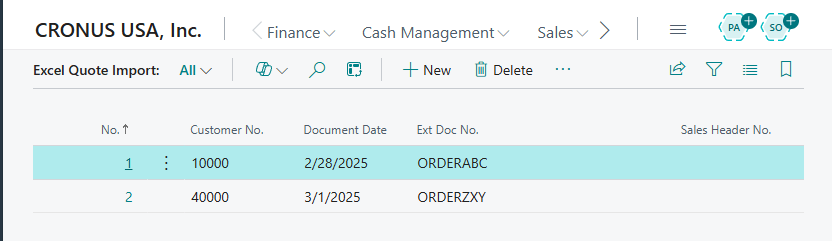
We can drill down and see the lines related to the header.
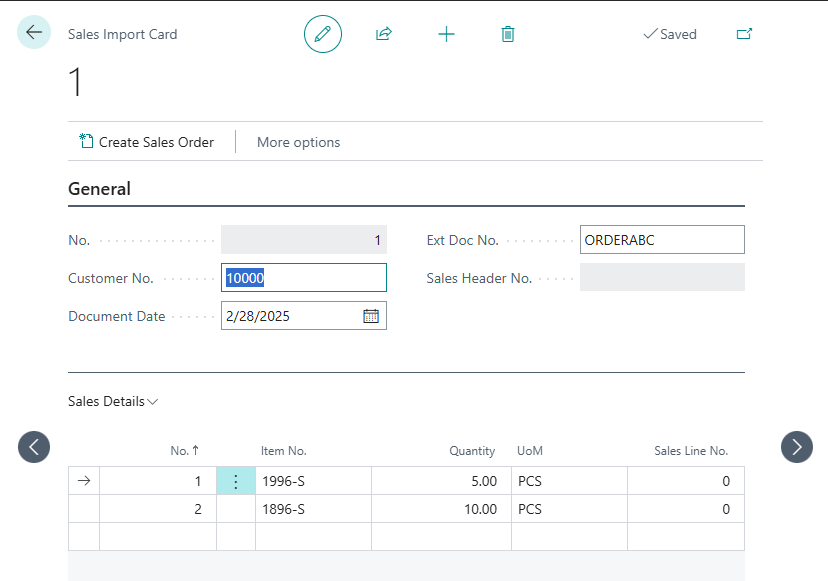
With that we have imported a multi-tab Excel data set into Business Central. I’ve only ever seen this format when dealing with database exports of data, which isn’t as common today as it was many years ago. Let me know if you have ever imported a format like this or if there is another Excel data format you would like me to explore.
As always, all examples are available in GitHub.




 Aardvark Labs
Leave a comment