

BC AL Journey #33
The Business Central analysis view is a super powerful technology allowing for users to create data analysis views quickly and efficiently. The Copilot integration makes it an amazing tool for users of all skill levels. I’ve seen some amazing views, and I’ve had to recreate them in many Business Central environments.
What if you could build a library of Analysis Views and include them in your Business Central Extension? Good News! The Business Central AL 17.0 Runtime adds a feature that allows for the packaging and deployment of Analysis Views. Let’s take a look!
At the time of writing this, the feature is pending release in Wave 1 2026, so some things may have changed in the user interface between now and release. The screenshots are from a Next Major release on a Docker environment.
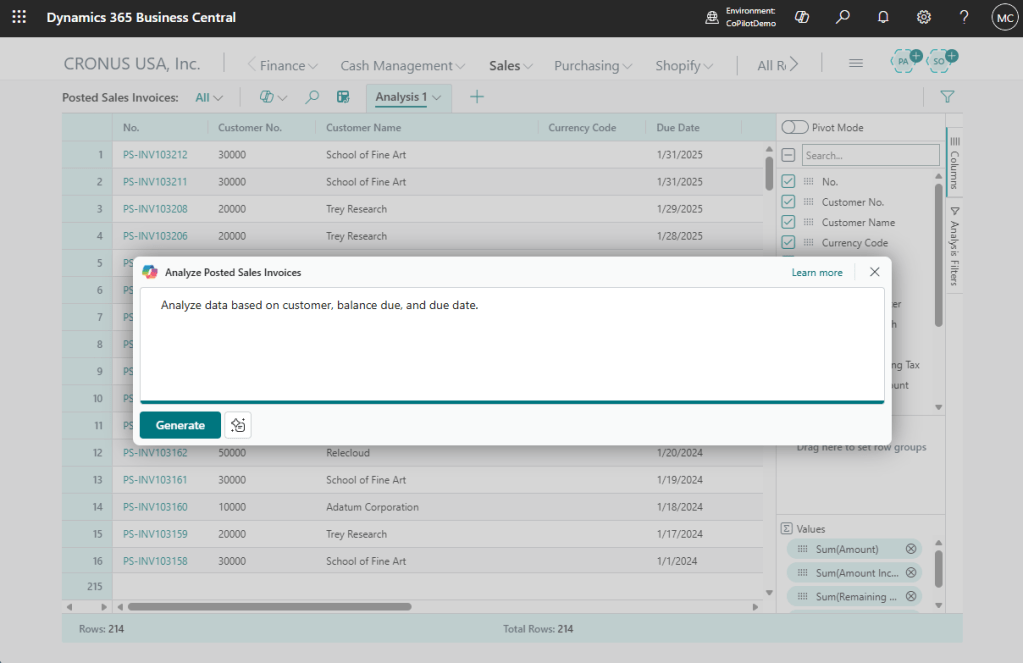
Let’s start with creating an Analysis View. I’m going to go to the Posted Sales Invoices list and click the Analysis View and use CoPilot to generate a view.
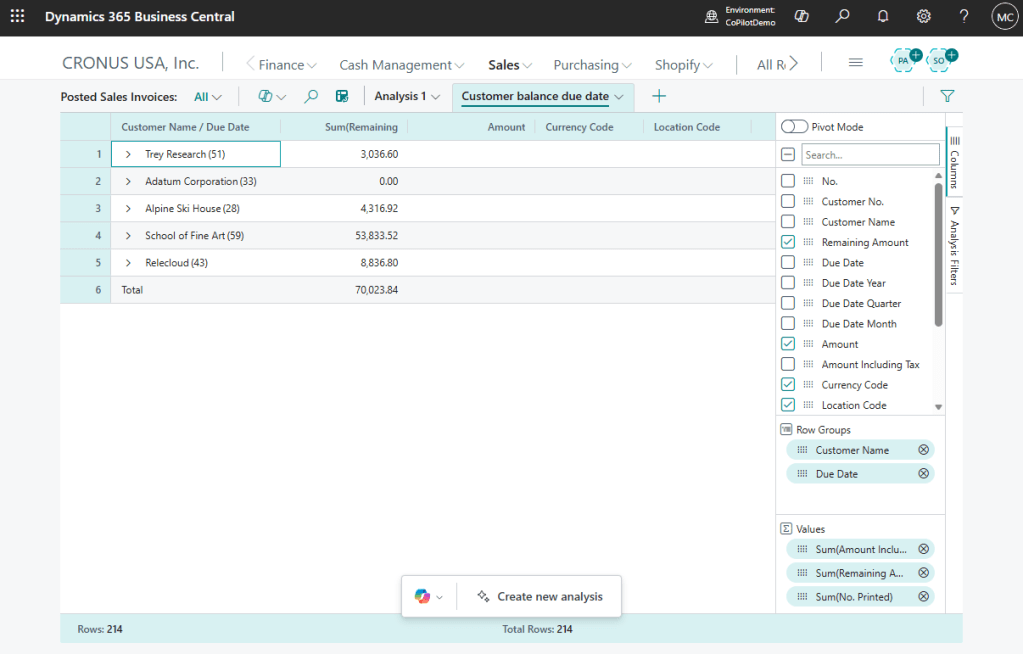
Here is the result of our prompt.
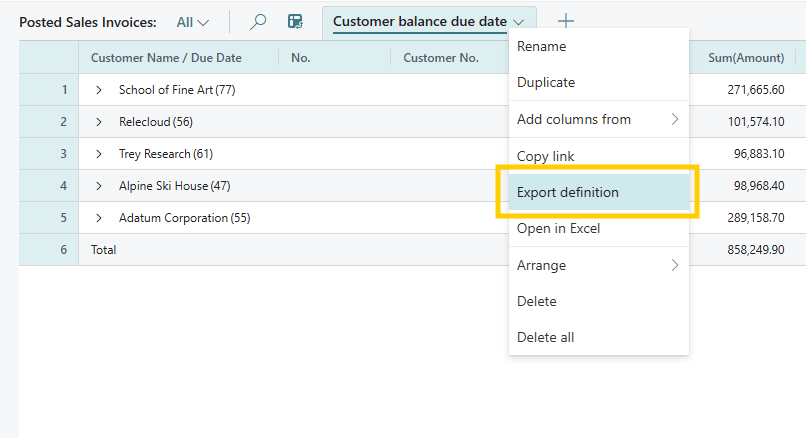
Now we export this Analysis View. There is an option to “Export Definition”, depending on your release it might be under a “Shared” menu option.
This will generate and download a file, in my case “Customer balance due date.analysis.json”. This is a JSON text file that describes the Analysis view. You could edit it if you want, but that chaos is out of scope for this introduction.
In Visual Studio Code we can now include this file in our Extension in either a page or page extension. I’ve created a folder in the project called “Analysis” and placed the downloaded JSON file there.
Now for the AL Code to bring the Analysis JSON back into Business Central. We are going to need a page or page extension. Because we want the analysis view to be on the Posted Sales Invoices, we need to create a page extension for the Posted Sales Invoices page.
Here is ARDPostedSalesInvoices.PageExt.al
namespace AardvarkLabs;
using Microsoft.Sales.History;

pageextension 50005 "ARD_Posted Sales Invoices" extends "Posted Sales Invoices"
{
    analysisviews
    {
        addlast
        {
            analysisview(CustomerBalance)
            {
                DefinitionFile = './Analysis/Customer balance due date.analysis.json';
                Caption = 'Customer Balance Due by Date';
                ToolTip = 'View customer balances by due date.';
                Visible = true;
            }
        }
    }
}
Note: “CustomerBalance” on line 10 is an arbitrary name.
As with most things in Business Central that extend other things, we require an anchor. In this example, I have an addlast section on line 8. I could also have an addfirst section. This will either add the new views to the beginning or end of the list of analysis views.
The extension I created only adds in the Analysis View, but it could include layout modification and/or actions. Analysis Views adds another definable section to the page/page extension definition.
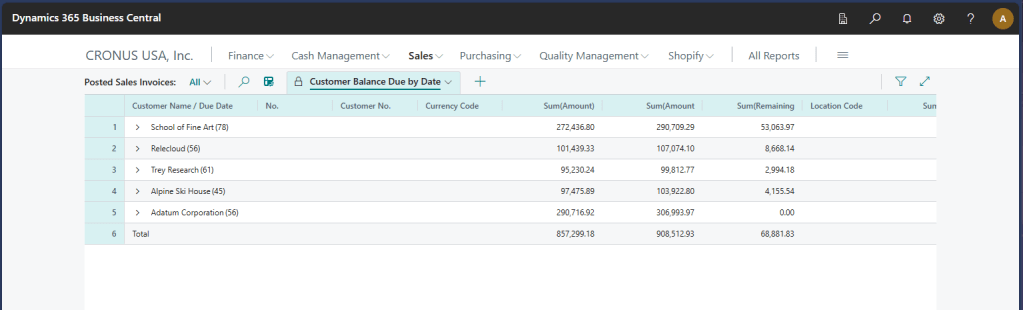
Here is the result of publishing the extension into a clean Business Central environment. When I go to the analysis view of the Posted Sales Invoice, here is our analysis view.
If we have our own page, for example a list of items and quantities by type.
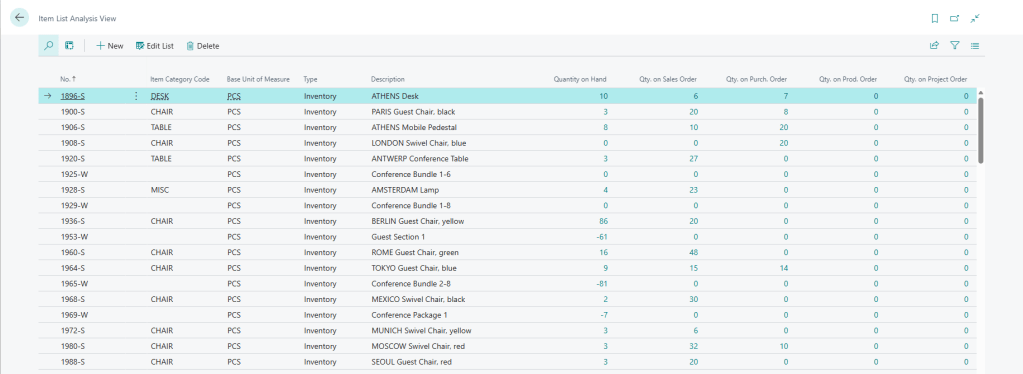
We can create an analysis view just like we did before, export it and include it in our code project. For this example, I created an Item Availability By Type analysis view.
Here is ARDItemListAnalysisView.Page.al
namespace BCJourney.BCJourney;

using Microsoft.Inventory.Item;

page 50005 ARD_ItemListAnalysisView
{
    ApplicationArea = All;
    Caption = 'Item List Analysis View';
    PageType = List;
    SourceTable = Item;
    UsageCategory = Lists;

    layout
    {
        area(Content)
        {
            repeater(General)
            {
                field("No."; Rec."No.")
                {
                }
                field("Item Category Code"; Rec."Item Category Code")
                {
                }
                field("Base Unit of Measure"; Rec."Base Unit of Measure")
                {
                }
                field("Item Type"; Rec.Type)
                {
                }
                field(Description; Rec.Description)
                {
                }
                field(Inventory; Rec.Inventory)
                {
                }
                field("Qty. on Sales Order"; Rec."Qty. on Sales Order")
                {
                }
                field("Qty. on Purch. Order"; Rec."Qty. on Purch. Order")
                {
                }
                field("Qty. on Prod. Order"; Rec."Qty. on Prod. Order")
                {
                }
                field("Qty. on Job Order"; Rec."Qty. on Job Order")
                {
                }
            }
        }
    }
    analysisviews
    {
        analysisview(ItemAvailability)
        {
            DefinitionFile = './Analysis/ItemByType.analysis.json';
            Caption = 'Item Availability By Type';
            ToolTip = 'View item availability details.';
            Visible = true;
        }
    }
}
We can see the analysis views section is almost the same, but it lacks the AddFirst/AddLast declaration. It is my page; I don’t need to specify an anchor.
Here is the result.
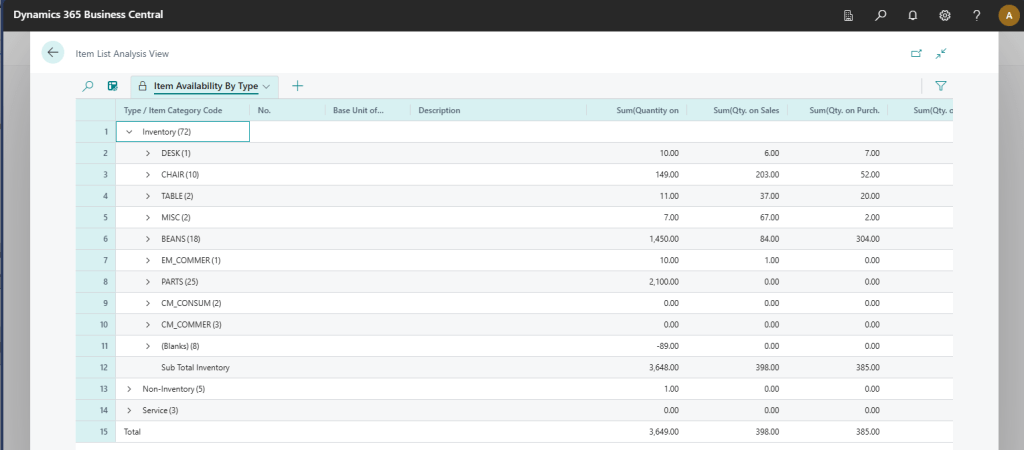
This new feature adds a new section to our page/page extension definition. We now have layouts for groups and fields, actions for buttons, and analysis views.
Object ObjectID "Object Name"
{
   PageType = List;
   SourceTable = "SomeTable"

   Layout{}
   Actions{}
   AnalysisViews{}
}
If you have more than one analysis view to add, just repeat the “AnalysisView” as you would repeat a field or action definition.
Analysis Views imported as a part of an extension cannot be edited. There is a little lock symbol on the tab indicating that this is not an editable analysis view. Users can duplicate the view and edit the duplication.
There is an option to hide a locked analysis view. But at the time of writing, I can’t find the unhide button.
For more details check out Brad Prendergasts post:
www.linkedin.com/posts/brad-prendergast_msdyn365bc-businesscentral-activity-7409018465711267840-IByV
Additional details available from Microsoft here:
https://marketplace.visualstudio.com/items/ms-dynamics-smb.al/changelog
Note that at the time of writing this, the change log had the implementation on Page Extensions incorrect, they left out the anchor.
Source code can be found in the BC AL Journey project on GitHub.




 Aardvark Labs
Leave a comment