

BC AL Journey #8
API, I’ve heard it said as a word “appy”, but everyone I work with treats it like a lot of other three-letter acronyms like FBI. But what are they? It is a broad term meaning an Application Programming Interface. Technologist Carl Malamud defined an API as “a set of services available to a programmer for performing certain tasks”.
The task we have in mind is efficiently getting data into and out of Business Central. We may want to extract data for reporting or insert data as a part of an integration with another software package. We will use APIs when we get to Power Automate and custom workflows.
In Business Central, the API takes the form of REST Web Services. Web Services are a method communicate with web application through the common HTTP web interface we use for web pages, but with special formatting for computers. REST or RESTful APIs are a type of web service, the other common web service being SOAP. The details of the REST/SOAP battle are out of scope for this post, but think VHS/BETA Max.
In Business Central every page and data query you create can be exposed as a web service by going to the “Web Services” configuration page and adding it. The pages we created in previous lessons can be exposed as a web service and accessed in applications like Power BI and Power Automate quite easily.
The issue we commonly run into is that Card and List pages are created for humans to type things into. As such they have rules and notifications to support a human entering data. Also, the Business Central concept of extensions extending extensions means that any page you expose as a web service could be edited. This is not a good thing when you are attempting to implement reliable communication between two computer systems.
To help support a stable communication between systems, we have the ability to create a special kind of Business Central Page, an API Page. An API page has some special features to support the REST API standards. They are predictable and stable.
Let’s get our requirements together and get started.
Use Case
User has requested a means to review the Item number, description, color, length, height, weight and width through an API call to an external system.
Implementation
- Create an API page with the following fields:
- ID
- Name
- Description
- ARD_Color
- ARD_Length
- ARD_Height
- ARD_Weight
- ARD_Width
- Include required fields for common REST API
Test Plan
- Connect to API and review data in Power BI for field completeness.
Let’s create an API Page to support our extended Item record from BC AL Journey #4.
I’ve created a new file in the 2-Page folder called ARDItemAPI.Page.al and here is the code I’ve written.
namespace AardvarkLabs;
using Microsoft.Inventory.Item;

page 50002 "ARD_ItemAPI"
{
    PageType = API;
    SourceTable = Item;

    APIGroup = 'aardvarkLabs';
    APIPublisher = 'aardvarkLabs';
    APIVersion = 'v1.0';
    Caption = 'ardItemAPI';
    EntityName = 'item';
    EntitySetName = 'items';
    ODataKeyFields = SystemId;

    Extensible = false;
    DelayedInsert = true;

    layout
    {
        area(content)
        {
            repeater(General)
            {
                field(id; Rec.SystemId){ }
                field(no; Rec."No."){ }
                field(description; Rec.Description){ }
                field(ardColor; Rec.ARD_Color){ }
                field(ardLength; Rec.ARD_Length){ }
                field(ardHeight; Rec.ARD_Height){ }
                field(ardWeight; Rec.ARD_Weight){ }
                field(ardWidth; Rec.ARD_Width) { }
                field(lastModifiedDateTime; Rec.SystemModifiedAt) { }
            }
        }
    }
}
If you look at the layout portion of the code, you will see a striking resemblance to a List type page we created in BC AL Journey #6. At the core, an API page is a list as your request for data may return more than one record.
What is new here is the header that provides additional information about the nature of the API we are creating. Let’s review the fields and what they mean.
PageType = API
This sets the page type to API. This is the same as when we used List or Card in previous page creations. It also sets the rules for what Business Central expects in the page definition.
SourceTable
The table where the API will retrieve its data. Same as all the other pages.
APIPublisher and APIGroup
Identifies the new API and appear when searching for the API in something like Power BI.
APIVersion
This value is critical to one of the fundamental elements of the API concept. If you need to apply a breaking change to an API, you must create a new version of the API and leave the old version functional. You can have an X.Y version number or “beta”.
Extensible = false
Tells Business Central that you do not want additional extensions to be permitted to extend this API. This is useful if you want to ensure that the API is not changed or utilized in another extension.
EntityName and EntitySetName
The singular and plural names we will see in systems that request the metadata about your API.
ODataKeyFields
Identifies the field to use when retrieving a record by ID. This can be a comma delimited list of the key fields used on the table that we source the API from, but more modern data consumers like Power Automate require a GUID for that record id. For this it is common to use the SystemId field, which is a Business Central generated GUID for the record. You will also need to include this field in your record set as a field named “id”.
It is also common to include the last modified datetime field in an API. It helps in data filtering and searching for the latest changes. Even if not requested, I find it to be a best practice to include the field in all API development.
DelayedInsert = true
This value is sometimes required. This value has to be true if you have an editable API. If you add Editable = false; to the header, then you can remove this value or set it false. It sets the expectation that the page will only write data when all the data has been received, as opposed to writing data field by field.
The API is Complete!
We can run this API in our Business Central online sandbox, however there is a challenge now, an API doesn’t have a user facing page we can test in our web browser. For this example, I opened Power BI Desktop (which can be installed from the Microsoft Store).
If this is your first introduction to Power BI, I strongly recommend checking out Savannah Dills Blog: NotAPickle. She is a Microsoft MVP and kind of a big Dill in the Power BI space.
Once installed, open Power BI and clicked “Get Data” and search for Business Central.

I was prompted to log into my Business Central account and was presented with a list of API calls available to me.
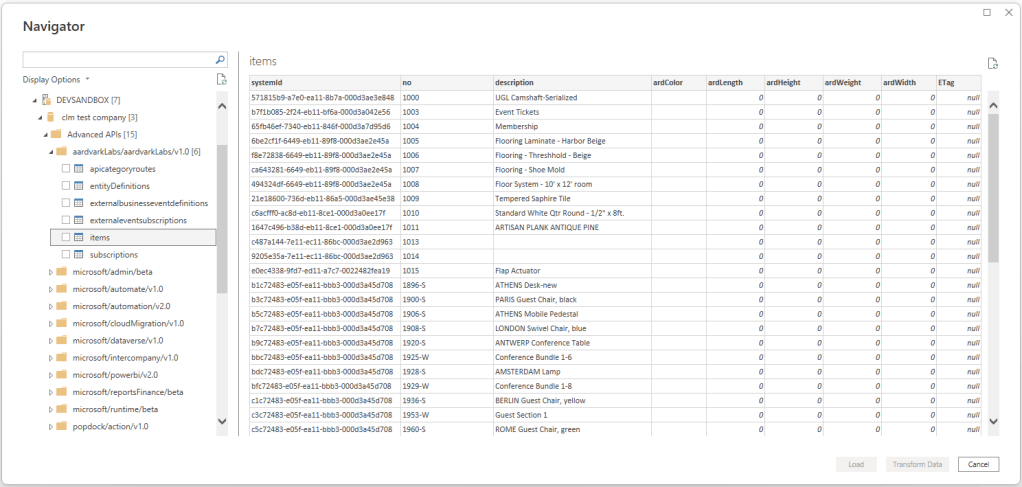
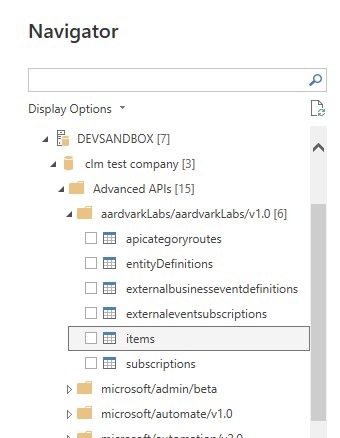
The list shows all the Business Central environments, then the companies, then the grouped APIs. We will find our new API in the Advanced APIs list, in a folder name based on our APIPublisher/APIGroup/APIVersion combination. The API will be the EntitySetName.
You can check the box and review the data that the API has loaded from Business Central.
The API we created is available for both read and write operations. If you are creating an API strictly for reporting and it will be read-only then we can improve system performance by adding a few header fields.
We can remove the DelayedInsert value and add the following values:
Editable = false;
DataAccessIntent = ReadOnly;
The API will no longer support data edits; however, it will use a replica of the database which improves performance. By using the read-only reporting replica we will not impact the performance of the users or other integration processes. This is a great option when the API will access a lot of data for reporting.
This API is a very simple example, and there are opportunities to expand on it much further. As we delve deeper into pages many of the things we learn there are applicable to API pages as well. The goal here is to introduce the topic with a simple working example and we will revisit it later to build on.
There is a detailed walk through by Microsoft, and it covers additional cases like Header and Line APIs.
Developing a custom API – Business Central | Microsoft Learn: Creating a Custom API in Business CentralThank you for going on this journey with me. I hope you are learning something new, and I look forward to sharing more in future posts.





Leave a Reply