

Once you start developing customizations for Business Central, you should be storing it somewhere safe, with features and controls specific to software development. This is what the core of what DevOps (Development Operations) software facilitates.
For those of us who grew up through Source Safe, Team Foundation Server, and early Azure DevOps, we worked with the check-out/check-in process of code management. This worked well for teams where the process was well controlled and managed, like a waterfall process. This process did not work well as we moved to open source and decentralized software development participation and more agile sprints.
The current paradigm is the decentralized development method used by GitHub. In GitHub the developer gets a copy of the repository as a branch, they perform development, testing, and documentation then generate a Pull Request to bring that branch back into the Main repository. That Pull Request is reviewed, validated, and regression tested by a designated user or team and then merged into the main code branch for production release.

The first difference here is that because I don’t check-out files, nobody really knows what I’m working on at any given point in time. However, my working speed has no impact on someone else working on code tangentially related to mine. This is a clear advantage in open source, decentralized software development where a citizen developer contributing to an open-source project can work at their own pace. It also allows for a core group of dedicated developers that review and approve code allowing for a high standard of quality.
This methodology also works well in the agile sprint process. Tasks are assigned, branches are created, work is done, and pull requests are performed. Quick iterations across a team of developers.
There is a huge advantage to the Branch – Work – Pull Request – Merge workflow. In this workflow we have opportunities to automate testing and validation of contributions. This automatic testing of pull request is called Continuous Integration (CI). We will do a deeper dive into the Business Central CI provided by the AL-GO Template in a later post.
Let’s walk through a Business Central development processing from Branch to Pull Request.
I’m going to go to GitHub and open my BC-Journey-AL-Go repository. This one has some extra features from the AL-Go PTE Template that we will be exploring later. Also note, that there are several ways to complete these tasks, this is just one path, there are others.
You will need GitHub Desktop installed for a portion of this walkthrough. https://github.com/apps/desktop
First we need a branch. This will create a copy of the code for me to work in which we will merge back with the Main branch later.
Click on the Branch button.

Click the “New branch” button
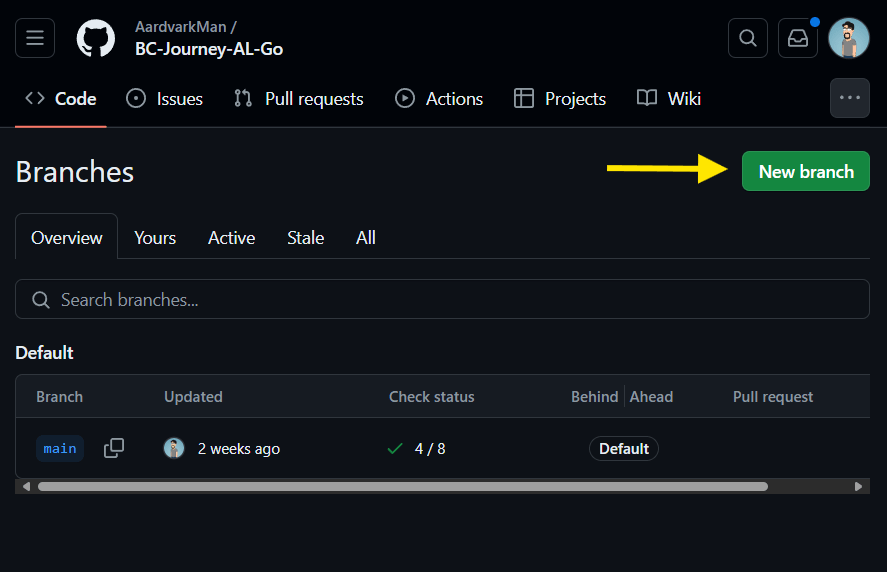
Here is the first important step, naming your branch. Depending on your company or team policies the name may have requirements around description, feature set, support ticket, whatever. It is best to have some kind of plan.

Note that the source branch is “main”. You can branch a branch if you need. This is common if you have a “midlevel branch” that is used for Quality Assurance or User Acceptance Testing that is published to a Business Central sandbox before being merged to Main and published to production.

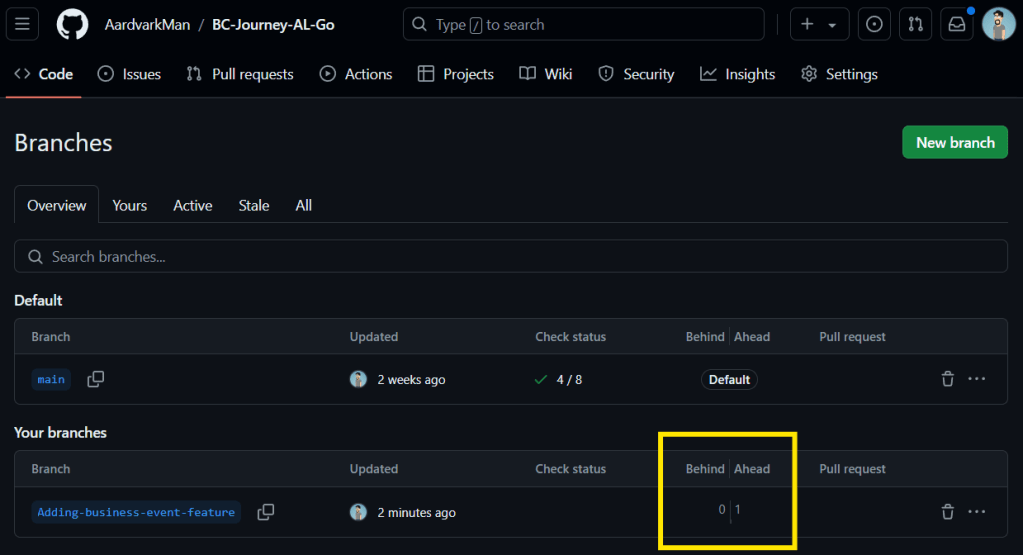
Here is the new branch. On the far right of the list you can see a “Behind | Ahead” counter. This is important as it show how many commits have been made to the branch (ahead) vs how many have been made to main (behind). If you are too many commits behind, your testing and validation may not be representative of the current code base. If you are too far ahead, then you may have too many changes in a single branch and validation/code review may be difficult.
Click the Code menu to get back to the Code view.

Next, we need to download the code to our desktop to work. Click on the green “<>Code” and select “Open with GitHub Desktop”.

You may be prompted to select a location to download the files. Select the root directory, GitHub Desktop will create a folder for the repository.
Be sure to Select your Branch in the top menu.

You can then click the button to Open it Visual Studio Code. Because this is a slightly different template, we will click the “Open in Explorer” button and navigate into the folder with our AL Code and open Visual Studio Code from there.
If you don’t see your branch name at the bottom of the window, click on the Source Control button on the Left. You will likely be prompted to connect to a Repository indicated by the parent folder.

We are now safely working on our code branch! From here we do our development, testing, validation, and documentation.
After making some updates to the code we can see the source code flag on the left side of the screen increasing in count. When we are done, we need to commit the changes to the branch.
Click the Source Code button, enter a message describing the commit, and click the commit button.

You will then need to Sync the changes to the branch. You can do that in either Visual Studio Code by clicking the “Sync Changes” button or in GitHub Desktop with the “Push origin” buttons.

When we return to the GitHub web page we can see an alert that there has been a push to our branch. We are going to ignore that for a moment and click on the Branches button.
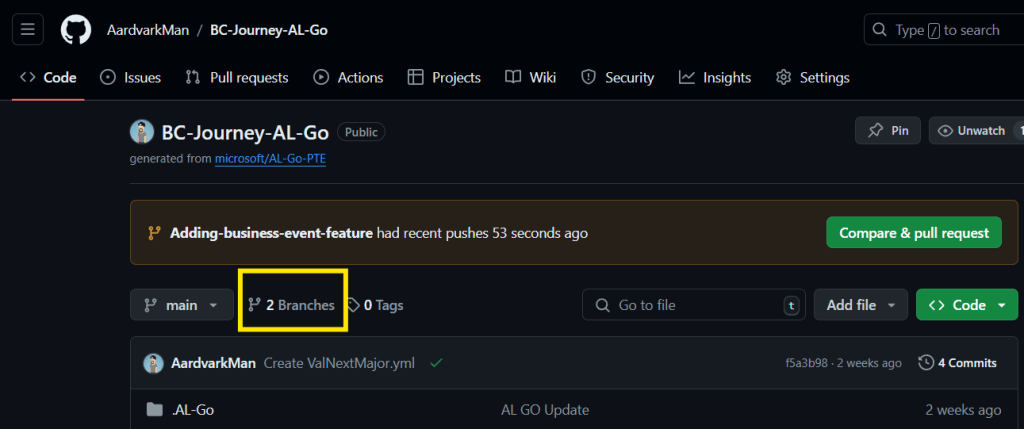
Note that our branch now shows that it is one ahead of Main.
We can now go back to the previous page and click that “Compare & pull request” button.
This begins the Pull Request process. This process can change quite a bit depending on the project and your organizations DevOps process.
Here we add a description to help the reviewer understand what we changed and why. We can connect this to support requests and other tracked data points.

Note that we have a review assigned.
Further down the page we can see a list of changes as well as a green “Create pull request” button”. Review the changes and click the green button.
A few things happen as soon as we click that button. Because this was built off the AL-Go PTE template, it begins a CI/CD pipeline that is checking that our extension compiles, it will also run any automatic tests we have provided. It also sent a note to the reviewer that there is a Pull Request awaiting review.
The CI pipeline will take a few minutes to complete. Once the CI is complete the reviewer looks over the file changes, compares them against the request, check for proper coding and adds comments and accept or reject the changes.
File conflicts can occur if the same file is edited multiple times through different branches and merged into Main. GitHub tries to sort out the chronological order of changes and sort out a means to merge the code, but occasionally intervention is required. Addressing those conflicts must be done before a merge can be completed. Thankfully for this basic example there are no conflicts, and we can merge the code.

It is the job of the reviewer to ensure that the proposed merge meets the DevOps standards and best practices of the organization. It is not uncommon for the reviewer to provide comments on required changes and reject the merge for additional updates.
A good reviewer will also take this opportunity to highlight exceptional code. This can be to encourage good development practices as well as to capture code to share with the rest of the development team. Code reviews shouldn’t be all about capturing issues, it should be about learning and sharing good code as well.
In our example there are no conflicts, and the CI/CD pipeline is successful. We can click the “Merge pull request” button. After clicking we get one more chance to back out.

Once the merge is done we are given the option to delete the branch. It is best not to leave abandoned branches around, so we click the “Delete branch” button.

That’s it! There are additional CI/CD pipelines that are running on the branch as part of the AL-Go PTE template.
In later posts we are going to take a deeper dive into the AL-Go Template and the CI/CD pipeline. Stay tuned for more GitHub fun!
A much deeper dive into working with Business Central and Source Control can be found here. Work with source control using Git in Visual Studio Code for Business Central – Training | Microsoft Learn





 Aardvark Labs
Leave a reply to GitHub Version Control for Power BI – Not a Pickle Cancel reply