

A Crystal Ball to your Codes Future
As Developers in the Business Central SaaS world, we have an additional challenge in the management of our software solutions. A solution that works today, passed our code reviews, passed the Continuous Integration (CI) tests, and is deployed to the production environment might break next week due to a Business Central update.
The Business Central update process is advanced, and it sends out a warning well in advance of the pending breaking change, but for a development team with a lot of customizations it is never soon enough. To add complexity, the client also gets the same warning email, and it reads very “doom and gloom”. What we need is a way to know in advance when a breaking change will happen, how it will impact our code, and have enough time to notify the appropriate people and schedule the work.
As a heads up, you will need a functional understanding of GitHub. You will need to be able to use GitHub Desktop to commit and sync changes from your desktop. If you are new to GitHub, check out my previous blog post on Business Central DevOps.
GitHub Actions are the tool we are going to use, along with some bits from the AL-Go template provided by the Business Central team. Let’s review the AL-Go Templates and the services they provide.
The AL-Go Templates are GitHub templates provided, and used, by the Business Central development team. They provide a series of templates and automation actions to help with the AL Extension development process. They can be found here: AL-Go
We are going to focus on the template designed for Per Tenant Extensions, which can be found here: AL-Go-PTE
On the GitHub page there is a HUGE “Use this template” button that you can press to create a new project based on the AL-Go template. Press the button (you know you want to) and create a new repository in your system.

Create a name and click Create Repository

I now have a nice clean copy of the repository.
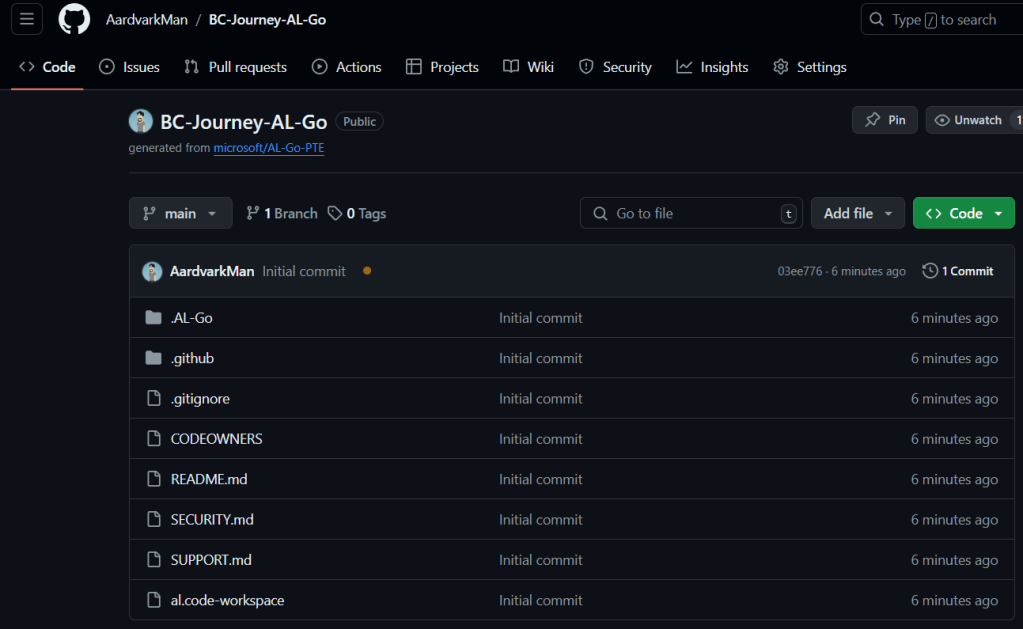
I’m going to download this with Github Desktop and make a few changes.
I’m going to take the BC-Journey folder that we have been working in for the BC Journey series and copy it into the new repository. We are going to be placing our Extension folder as a sub-folder in this template.
My folder structure now looks like this with my BC Extension code in its own sub-folder:
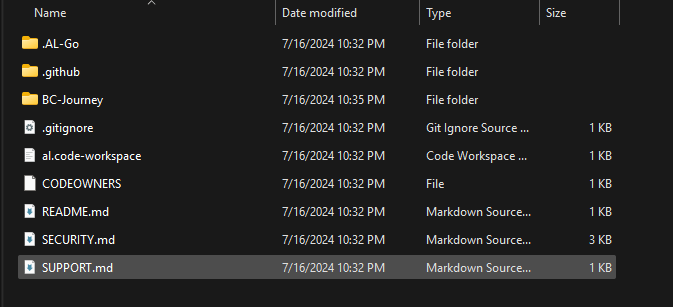
Now I have a single file to edit. In the .AL-Go folder, edit the Settings.JSON file. I’m going to add the name of the folder containing the Extension into the JSON array of string for the appFolders setting.

I’m going to Commit and Push to Main.
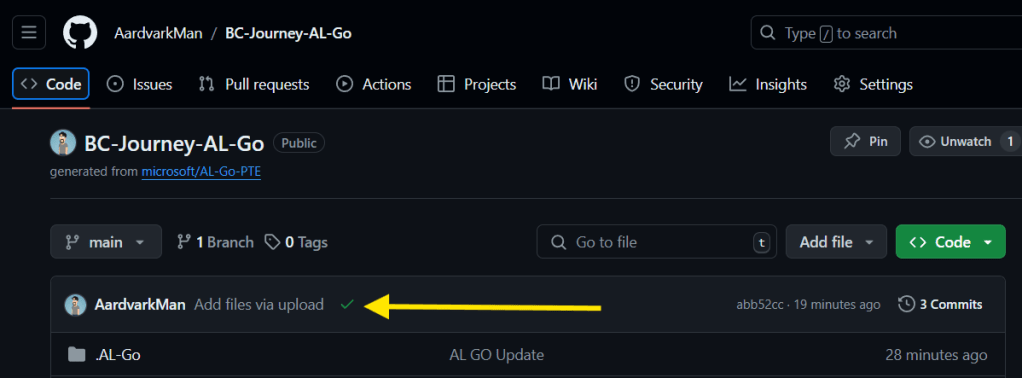
When complete, my repository looks like this:

This template has built in actions, one of which runs when code is checked in to Main. This is the CI/CD action, which will validate the code against the current release of Business Central.
Clicking on the Actions menu in GitHub will show you the current running workflows.

We can see it has been doing work in the background while we have been setting up. My last pull request to Main was called “Add files via upload”.
GitHub is creating a Virtual Machine, compiling my code against that machine to ensure that it compiles correctly. If we had automatic tests, it would run those as well (we will get to those later).
The workflow logs are fascinating, and we can see that is currently building against a 24.3 sandbox environment. This is the current latest release at the moment.

These take about 15-20 minutes to complete, and result in an ugly red x or pretty green check when complete, depending on if it fails or passes respectively. In this case, we passed.
This CI/CD process will also run on any pull requests, ensuring that the code will work properly after merging with the Main branch. This allows developers to validate their code against Main and perform an initial review before sending the pull request off for review and approval.
Now what I want to know how my code will perform in the Next Major release?
If we click over to Actions, there is a workflow for “Test Next Major”

Click “Test Next Major” then Run Workflow.

This will start a workflow to test your Extension against the next major release version from the Business Central Insiders channel.
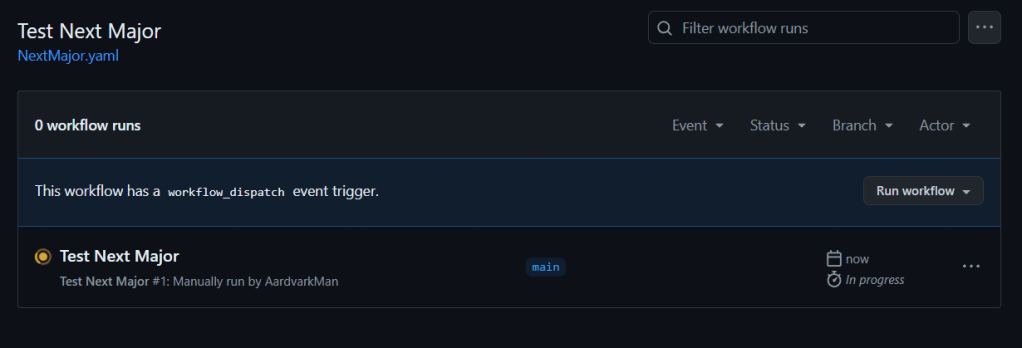
At the time of writing this, we are going to build and test against release 25.0.

It looks like everything is good for release 25.0!
There are a lot of settings for AL-Go and the extensive documentation can be found here: Settings | AL-Go for GitHub (freddydk.github.io)
One of the settings that is interesting to us is the “nextMajorSchedule” setting. This can be used to setup an automatic run of the Test Next Major action.
Edit the AL-Go-Settings.json file in the .github folder and add the value “nextMajorSchedule”: “5 0 * * *”. My file looks like this:
{
  "type": "PTE",
  "templateUrl": "https://github.com/microsoft/AL-Go-PTE@main",
  "templateSha": "81cff3d03e8fe6b88ee3fc0848594bfd4d9039a4",
  "nextMajorSchedule": "5 0 * * *"
}
The “nextMajorSchedule” value requires a cron job string to tell it when to run the process. In this case I’ve told it to run at 5:00 am every morning.
For the next step you will need to setup a Personal access token here Personal Access Tokens (Classic) (github.com). This short cut should bring you right into your GitHub account.
Click Generate new token and pick the Generate new token (classic).

Name your token and select the rights we need. We will need the repo rights and the workflow rights.

The expiration value sets how long the token is active. It is not recommended to create an unlimited life token.

When you are done applying your settings, the bottom of the page has a Generate token green button, click it.
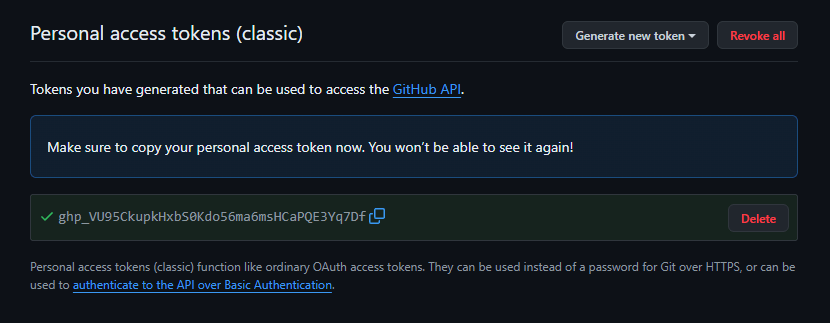
You now have a PAT. Once you leave this page, you will never be able to retrieve it again. Don’t lose it! It isn’t a big deal if you do, you can generate a new one, but everything using that old token will no longer have access to GitHub.
Back in your repository, click the Settings button.

Under the “Secrets and variables” menu select “Actions”. In the Repository secrets, click “New repository secret” and create a new secret named “GHTOKENWORKFLOW” with the secret token of our PAT.

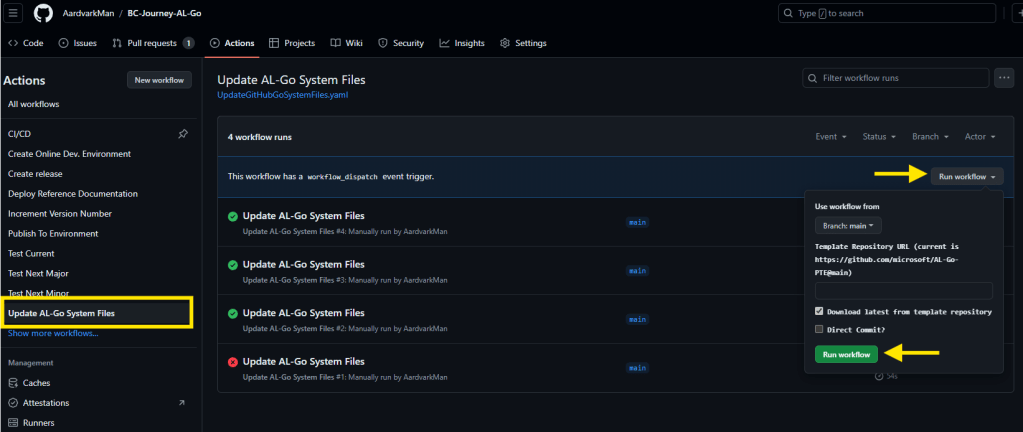
Last, we need to commit this update. Click on “Actions” in the top menu and select “Update AL-Go System Files”. Once selected, click the “Run workflow” button and the green “Run workflow” button.
This action edits the workflow files based on the settings we have applied. If you change the cron job string in your settings, you will need to run this action again.
Your solution will now be verified against the Next Major Business Central release every morning at 5:00am. That may be a bit excessive, especially for repositories that are private and have a cost related to these CI actions. You can change the cron schedule to best suite your needs, I would recommend monthly. Crontab.guru – The cron schedule expression generator is a great tool to create cron job strings.
To summarize; by using the CI/CD pipeline in AL-Go we can ensure that the code we merge into our Main solution is good. We can also use the Next Major Release workflow to validate our code against future releases of Business Central.
These are just two of the Actions inside AL-Go, we will be coming back later to review more of the functions available to us. If our next post we will be creating Power BI Dashboards to review the status of these processes.




 Aardvark Labs
Leave a reply to Business Central 2025 Wave 1: Prepare for Table Deletes – Aardvark Labs Cancel reply