

You are using GitHub, you have your Continuous Integration process running, and things are looking good. The next challenge is reporting on all the results of that CI data. If you are like me, this means you have a lot of CI Pipeline results to review, and it would be great to have a dashboard showing all of the CI across all of your repositories. Here is where Power BI can help.
As a Microsoft Partner working in the Dynamics Business Central space, each client has their own repository. Each repository has CI on all the Merges and CI against the next major release every month. GitHub doesn’t have a dashboard across all the repositories for Action results, but it does have a few API calls that we can use to get that data.
You are going to need a GitHub Personal Access Token (PAT). This is going to be how Power BI authenticates into GitHub to access the API. There are GitHub connectors for Power BI, but they don’t include the functionality we are looking for.
To create a PAT:
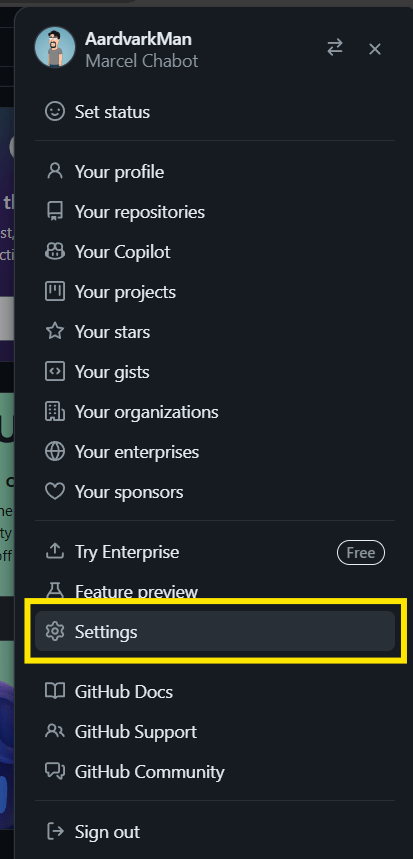
Click on your icon in the upper right and click on Settings.
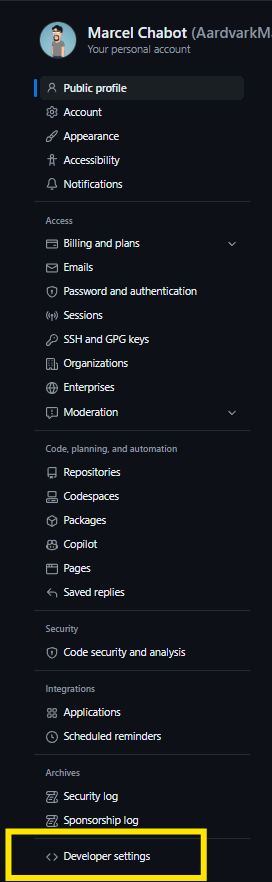
On the left-hand menu, go all the way down to the bottom to find “<> Developer settings” option.
Here we will find Personal access tokens with a sub menu for Tokens (classic). Here we click the Tokens (classic), select Generate new token, and pick the Generate new token (classic).

This is where we define what the token can do and generate the token value.
Name your token and select the rights we need. We will need the repo rights and the workflow rights.

The expiration value sets how long the token is active. It is not recommended to create an unlimited life token.
When you are done applying your settings, the bottom of the page has a Generate token green button, click it.
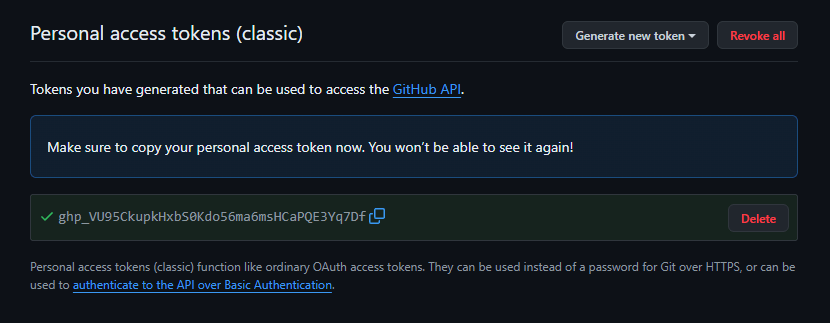
Yes, I deleted that PAT after grabbing the screen shot.
You now have a PAT. Once you leave this page, you will never be able to retrieve it again. Don’t lose it! It isn’t a big deal if you do, you can generate a new one, but everything using that old token will no longer have access to GitHub.
That is all the leg work done, now we can create some Power BI reports.
GitHub can be organized and accessed in two different ways, as a User or Organization. The Repositories for AardvarkMan and referenced by AardvarkLabs are all User repositories. A corporate entity would not want all the source code associated with a single person, so an organization structure is used. This is important as the user or organization nature of the repository changes the API URL.
To get a list of the top 200 Repositories owned by AardvarkMan, we would use the https://api.github.com/users/AardvarkMan/repos?per_page=200 REST API call. If this was for an Organization, the “users” in the URL would be replaced by “orgs”.
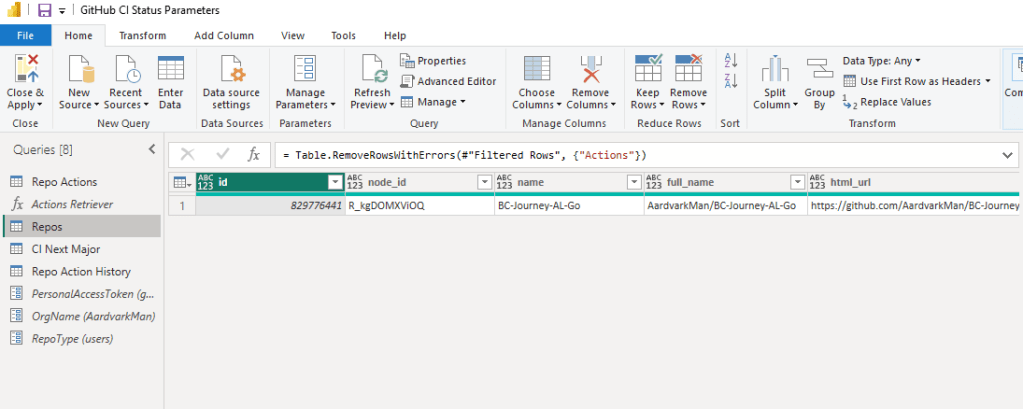
In Power BI I’ve created a parameterized query to load the API
let
    Source = Json.Document(Web.Contents("https://api.github.com/" & RepoType & "/" & OrgName & "/repos?per_page=200", [Headers=[Authorization="Bearer " & PersonalAccessToken]])),
    #"Converted to Table" = Table.FromList(Source, Splitter.SplitByNothing(), null, null, ExtraValues.Error),
    #"Expanded Column1" = Table.ExpandRecordColumn(#"Converted to Table", "Column1", {"id", "node_id", "name", "full_name", "html_url", "description", "url", "branches_url", "issues_url", "created_at", "updated_at", "pushed_at", "language", "archived", "disabled", "open_issues_count"}, {"id", "node_id", "name", "full_name", "html_url", "description", "url", "branches_url", "issues_url", "created_at", "updated_at", "pushed_at", "language", "archived", "disabled", "open_issues_count"})
in
    #"Expanded Column1"
I’ve parameterized the repo type, org name, and personal access token to make this query flexible.
This gets us a list of our Repositories, but we need the Actions to know if the CI has been passing or failing. This is a separate API call that needs the name of the Repository. The structure looks like this: https://api.github.com/repos/AardvarkMan/BC-Journey-AL-Go/actions/runs. Note that this URL doesn’t specify if it is a user or organization, it only needs the name and the repository.
We can use a Power BI Function to call the Actions API for each row of the Repositories API.
let
    Actions = (Repo) => let
    URL = "https://api.github.com/repos/" & OrgName & "/" & Repo & "/actions/runs",
    Source = Json.Document(Web.Contents(URL, [Headers=[Authorization="Bearer " & PersonalAccessToken]])),
    workflow_runs = Source[workflow_runs],
    #"Converted to Table" = Table.FromList(workflow_runs, Splitter.SplitByNothing(), null, null, ExtraValues.Error),
    #"Expanded Column1" = Table.ExpandRecordColumn(#"Converted to Table", "Column1", {"id", "name", "node_id", "head_branch", "head_sha", "path", "display_title", "run_number", "event", "status", "conclusion", "workflow_id", "check_suite_id", "check_suite_node_id", "url", "html_url", "pull_requests", "created_at", "updated_at", "actor", "run_attempt", "referenced_workflows", "run_started_at", "triggering_actor", "jobs_url", "logs_url", "check_suite_url", "artifacts_url", "cancel_url", "rerun_url", "previous_attempt_url", "workflow_url", "head_commit", "repository", "head_repository"}, {"id", "name", "node_id", "head_branch", "head_sha", "path", "display_title", "run_number", "event", "status", "conclusion", "workflow_id", "check_suite_id", "check_suite_node_id", "url", "html_url", "pull_requests", "created_at", "updated_at", "actor", "run_attempt", "referenced_workflows", "run_started_at", "triggering_actor", "jobs_url", "logs_url", "check_suite_url", "artifacts_url", "cancel_url", "rerun_url", "previous_attempt_url", "workflow_url", "head_commit", "repository", "head_repository"})
in
    #"Expanded Column1"
in
    Actions
I run two Continuous Integration loops. I have my regular merge CI, that I like to monitor to know the health of the active projects the team is working on, and one that runs off the next major release every month. To keep things simple, I create a few reference tables and apply some filtering, so I have tables breaking down my data sets.
Here is what my Continuous Integration dashboard looks like:
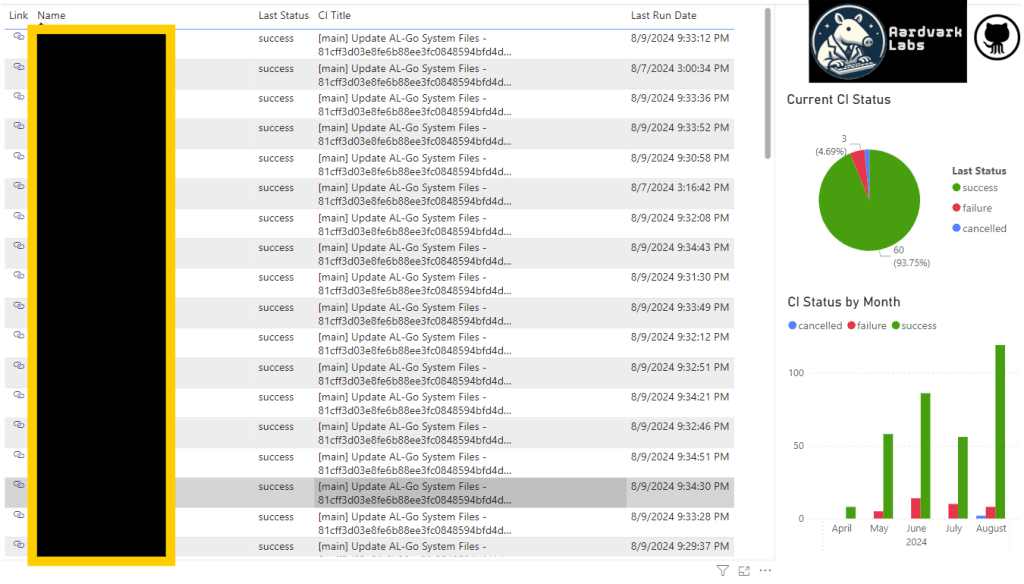
Now that I have a Power BI Report that reports on GitHub, it would be good to have this report in source control as well as have some version control. Savannah Dill at Not a Pickle has a write up on exactly that. Visit her post on GitHub Version Control for Power BI. I’ve placed the Power BI Template file here: Git-Dash.
In conclusion, when combined with Power BI Reporting, CI and Next Major Testing in GitHub allow us to monitor our Business Central extensions for breaking changes introduced by the growth and updates to Business Central.




 Aardvark Labs
Leave a comment