

The end is near for the “With” statement in Business Central AL code. In this post we will discuss a few of the problems inherent in the “With” statement, why we might have used it, and how to go about refactoring your code to remove it.
Let’s setup a quick example of some code. To make it meaningful I’ll expand on the example from Microsoft.
We start with Code Unit that does some work with the Customer record.
codeunit 50004 ARD_CustomerCode
{
    procedure DoStuff()
    var
        Customer: Record Customer;
    begin
        with Customer do begin
            // Do some work on the Customer record.
            Name := 'Foo';

            if IsDirty() then
                Modify();
        end;
    end;

    local procedure IsDirty(): Boolean
    begin
        exit(false);
    end;
}
The “With” on line 7 indicates that everything between the “do begin” and the “end” is all focused on the Customer record. Line 9 is the same as saying Customer.Name := ‘Foo’;
Some of my grey beard collogues already hate “With” statements. They reduce clarity. If this procedure was long, you could easily lose focus on what record you are working with. But “With” statements aren’t just messy, they are dangerous.
Let’s update Customer with a very simple table extension that returns True for an IsDirty procedure.
tableextension 50000 "ARD_Customer" extends Customer
{
    procedure IsDirty(): Boolean
    begin
        exit(true);
    end;
}
Now we have caused a problem! When our previous code runs, it will no longer execute the IsDirty() code in the code unit, but in the Customer record. This upstream change has caused our code to fail.
The solution: don’t use “With” statements. The code should be refactored to look like this.
// Safe version
codeunit 50140 MyCodeunit
{
    procedure DoStuff()
    var
        Customer: Record Customer;
    begin
        // Do some work on the Customer record.
        Customer.Name := 'Foo';

        if IsDirty() then
            Customer.Modify();
    end;

    local procedure IsDirty(): Boolean
    begin
        exit(false);
    end;
}
If you are new and have not fallen into the trap of having a lot of “With” statements, count yourself lucky. For many of us we have been taking chunks of Business Central code, copying it, and transforming it for our customer’s needs. For example, it is common to take the source code of an existing report, copy it, give it a new name and ID number, then modify it to meet the new requirements. Why reinvent the wheel? Well, the reports were full of “With” statements.
It can be a daunting task to fix all the “With” statements in a project. The Business Central team has provided a Code Action in Visual Studio Code to help. Run code action for ‘with’ for file, project, or workspace | Microsoft Learn
Here is how it works, find any offending “With” statement and click on the underlined variable name. You should see a light bulb appear on the left side of the code page.
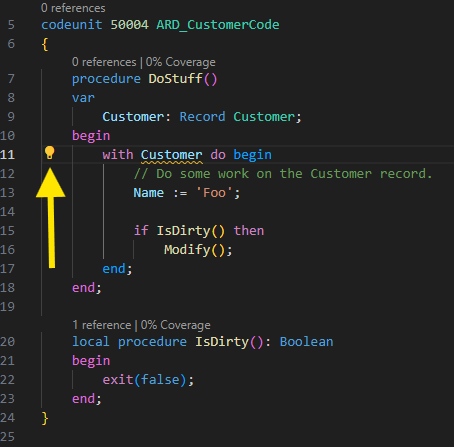
Click on the light bulb to get a list of code actions.

You can now automatically fix all the “With” statements in the document, project, or workspace.
In a perfect world this would be done and there would be no further issues, but we are software developers, we all know the world is not perfect. Here are a few pointers before you get started.
- Identify all instances where a “With” statements is used.
- Document your regression testing process for all impacted code elements.
- Run the “With” conversion code action.
- Regression test all code.
The majority of the “With” statements I find in the wild are in reports. Printing iterations of the reports before and after the conversion is a good start for the testing and documentation process.
Now you understand why Microsoft is removing the “With” statement from AL. If you have used it in the past, we now have an easy way to cleanup that code.




 Aardvark Labs
Leave a comment