

One of the newer features released in Business Central 25.2 is the ability to implement Full Text Search. Let’s explore this feature, what it does and how to implement it.
When defining fields that contain text, it’s often powerful to be able to search within that text for specific elements. For instance, in a product description, you might want to search for a particular word or phrase. Although this capability is highly beneficial, text search can be costly in terms of data handling. Therefore, it’s essential to carefully select which fields should be included in a Full Text Search system.
If you have been watching carefully, some tables and lists have been updated to include Full Text Search. Let’s look at the Item List (Page 31)
I’m going to search for items that contain the word “red”.
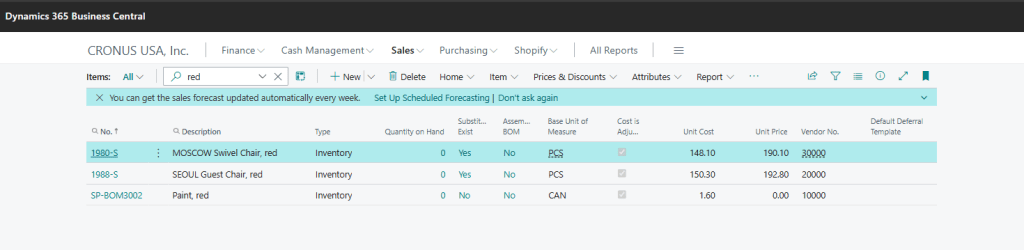
It found three items! There is also a slight graphical change to the list, let us look closer at the description column header.

There is a little magnifying glass! This is indicating which columns were searched. The other columns do not display this little magnifying glass and are not included in the Full Text Search.
Let’s take a look at how it works, as well as how we can add fields to the Full Text Search system.
Let’s create a new table, I’ll name it ARD_TextSearchDemo.Table.al.
table 50002 ARD_TextSearchDemo
{
    Caption = 'Text Search Demo';
    DataClassification = ToBeClassified;

    fields
    {
        field(1; "ARD_No."; Integer)
        {
            Caption = 'No.';
            ToolTip = 'No.';
            DataClassification = CustomerContent;
        }
        field(2; ARD_FullTextSearch; Text[100])
        {
            Caption = 'Full Text Search';
            ToolTip = 'Full Text Search';
            OptimizeForTextSearch = true;
            DataClassification = CustomerContent;
        }
        field(3; ARD_SimpleTextSearch; Text[100])
        {
            Caption = 'Simple Text Search';
            ToolTip = 'Simple Text Search';
            DataClassification = CustomerContent;
        }
    }
    keys
    {
        key(PK; "ARD_No.")
        {
            Clustered = true;
        }
    }
}
The only change here from the tables we have created before is the highlighted line “OptimizeForTextSearch = true;”. This informs the system that we want to include this text field in the Full Text Search functions.
I have a list page created so that we can play with the table data. I used AI 3 Word Story Generator [Free, Unlimited] – Generate Story to generate some simple stories about “A software engineer goes evil”.
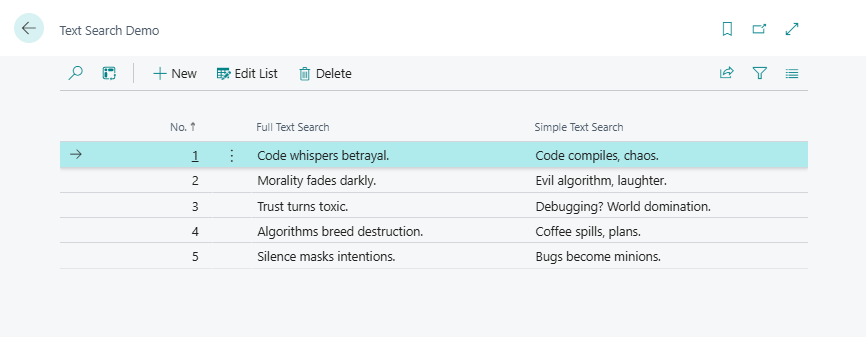
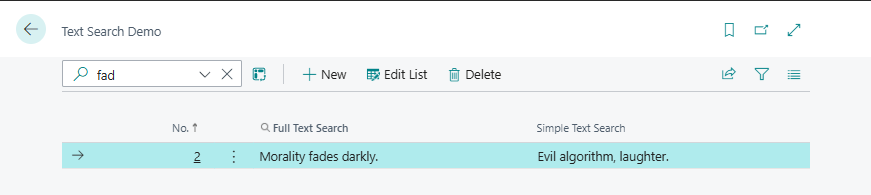
If we search for “fad” as part of “fades” the list immediately filters, and we get the tell tail magnifying glass icon in the Full Text Search enabled column.
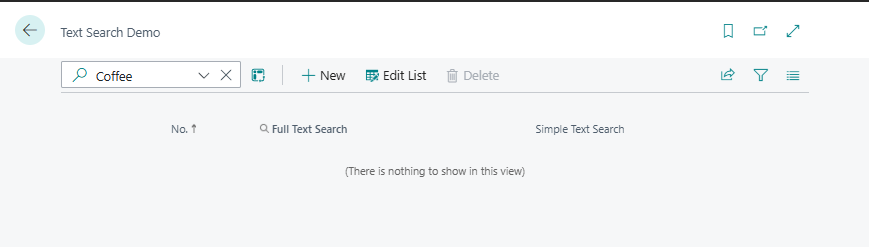
However, if I type in a word from the other column, the one without the OptimizeForTextSearch flag, I get no results.
As great as it is for the user interface, this search is also available in AL filtering. This code block here would result in the same results as our list search for “fad”.
SearchString := 'fade';
Rec.SetFilter(Rec."ARD_FullTextSearch", '&&' + SearchString);
Note the concatenation of the && to the search string. This indicates that we want to run a Full Text Search on the string. This is similar to the wildcard search we can do with the * character.
There are rules!
- Optimized text search is always case insensitive, where wildcard search is case sensitive unless either the dataset collation is insensitive or the
@operator is prefixed. - Optimized text search is always accent insensitive, where wildcard search is accent sensitive unless either the dataset collation is insensitive or the
@operator is prefixed. - Optimized text search searches for words within fields, where wildcard search for letters within fields. That means full-text search can find words or prefixes of words within a field, but wildcard search can find arbitrary substrings within words. Learn more in the following example.
| Query | Match |
|---|---|
*fade* | Yes |
&&fade | Yes |
*fad* | Yes |
&&fad | No |
&&fad* | Yes |
*fad* | Yes |
&&ade | No |
&&ade* | No |
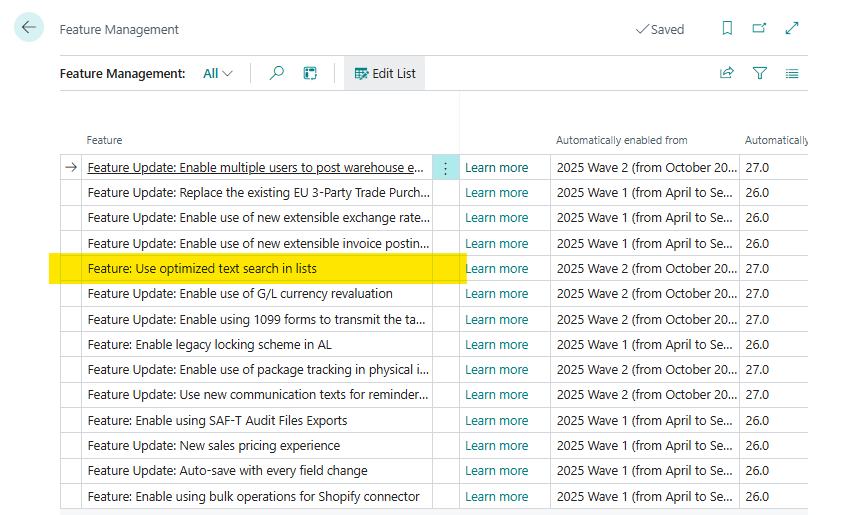
If Full Text Search is not activated in your instance, go to Feature Management and enable “Feature: Use optimized text search in lists”.
There is always more to learn: Enable optimized text search on table fields – Business Central | Microsoft Learn



 Aardvark Labs
Leave a reply to Implementing a Multi-Step Process for AI Recommendations in Business Central – Aardvark Labs Cancel reply