

BC AL Journey #25
We have worked with Business Central tables and data a few different ways. We have displayed the data in Pages and accessed it in APIs and CodeUnits. This is great for single source data, where one table contains everything we need. Things quickly get complicated when we want to provide data that spans several tables, or we want to greatly simplify a data set from a complex table. This is where Business Central Query Objects shine.
My fellow “gray beards”, or other developers that have worked on client/server systems before all this SaaS stuff, will be thinking of their SQL Queries. Longing for the day where they could:
Select *
From Accounts
Outer Join Employee on Employee.AccountNo = Accounts.No
We don’t actually get SQL Access, but we do get some of the Query capabilities. Let’s take a look at a query scenario and build out some data for people to review.
Queries are a nested set of linked and filtered data items. You start with a source table, like in a SQL Query a “From”, with the key table you are working with. You can then connect other tables to that initial table with a “join on where” type statement. At each level, we define the fields and calculations we want to return as part of the query.
Enough trying to explain this topic. Let’s write a query!
We would like to pull in all the Customers and their associated Invoice or Credit Memo ledger entries as well as the posting dates.
I’ll create a file in the 12 – Query folder named ARDCustomerLedger.Query.AL.
Here is the code for the Query:
namespace BCJourney.BCJourney;

using Microsoft.Sales.Customer;
using Microsoft.Sales.Receivables;

query 50000 ARD_CustomerLedger
{
    Caption = 'Customer Ledger';
    Description = 'Query to retrieve customer ledger entries with total sales amount.';
    QueryType = Normal;
    UsageCategory = ReportsAndAnalysis;

    elements
    {
        dataitem(Customer; Customer)
        {
            column(No; "No.")
            {
                Caption = 'Customer No.';
            }
            column(Name; Name)
            {
                Caption = 'Customer Name';
            }
            dataitem(CustomerLedgerEntry; "Cust. Ledger Entry")
            {
                DataItemLink = "Customer No." = Customer."No.";
                SqlJoinType = LeftOuterJoin;
                DataItemTableFilter = "Document Type" = filter(Invoice | "Credit Memo");

                column(SalesAmount; "Sales (LCY)")
                {
                    Caption = 'Sales Amount';
                }
                column(postingDate; "Posting Date")
                {
                    Caption = 'Posting Date';
                }
            }
        }
    }
}
We have a few header values:
| Caption | The name that appears when searching for the query. |
| Description | The description that appears when searching or viewing the Query. |
| Query Type | Normal or API |
| Usage Category | Must be set in order to appear in a search. Not needed if you only intend to use it for reporting or other purposes. |
You can see in the AL code on line 15 we declare a Data Item that is the Customer record type. We then describe the columns you want to display.
On line 25 we declare a dependent data item of the Customer Ledger Entries, and then the associated columns we want. When we declare a dependent data item, we also describe the Data Item link. This describes how the data item links to its containing data item. We also describe a Data item Table Filter which restricts the data to the filter values described. The last thing we describe in the data item is the SQL Join Type.
SQL Join Type describe how we want to link the data item to its parent data item. We can describe them in four different ways. These are a little difficult to understand at first, so we will break them down.
The first thing that confuses people is the concept of Left and Right in a query. In Business Central AL, Left is the parent Data Item and Right is the dependent Data Item. In this case the Customer is the parent data item and is to the Left of the Customer Ledger Entry data item. If we had a data item inside the Customer Ledger Entry data item, then it would be to the Right of Customer Ledger Entry.
Okay, easy mode, the stock indentations of AL code has you moving inward from Left to Right. If the record you are joining is indented in more, then it is to the Right.
Looking at the documentation in the Microsoft Learn article about Query Links, we see the typical Venn diagram of Table A and Table B. Table A is the Left table, Customer in our example and table B is the Right table Customer Ledger Entry.
Inner Join

This returns only the records that are in both data items. In this example it is all the Customers that also have Customer Ledger Entries. If we had a customer without any Customer Ledger Entries, they would not be returned by the query.
Left Outer Join

This returns everything from the Left, and only matching record from the Right. A null is returned when there is nothing on the Right.
This is useful in our example as we want all the customers, even if they don’t have any Customer Ledger Entries.
Right Outer Join
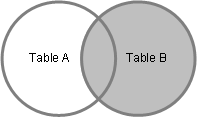
The opposite of a Left Outer Join, we get all the records from the Right. A null is returned for any missing Left side records.
Full Outer Join
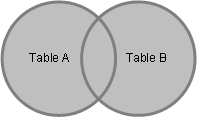
These return EVERYTHING, any record values unmatched from the Left or Right are returned with nulls.
Let’s say you want to return all the Items and their default Vendors. Some Items may not have default vendors; some vendors may not have items that they are the default vendors. This returns everyone and you can sort it out in reporting.
Cross Join
This is also called the “Cartesian Products”. It returns everything from both tables. You don’t provide a Data Item Link value, because it doesn’t use any filters. It is just everything in both tables.
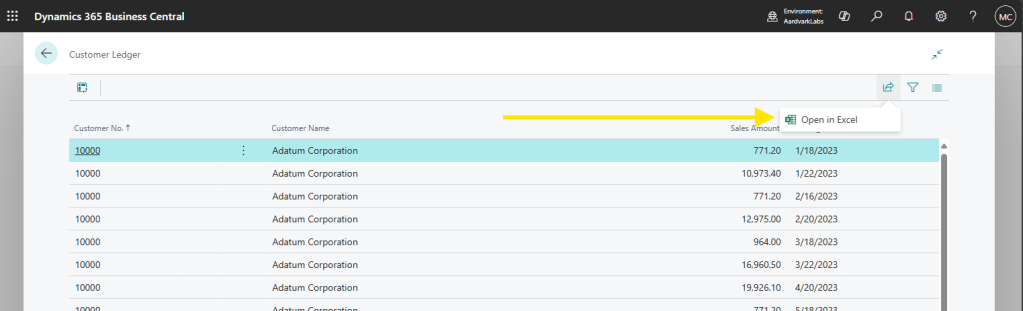
When we publish our extension, we can search and find the query by clicking the “Tell Me” magnifying glass and entering the Query Name.
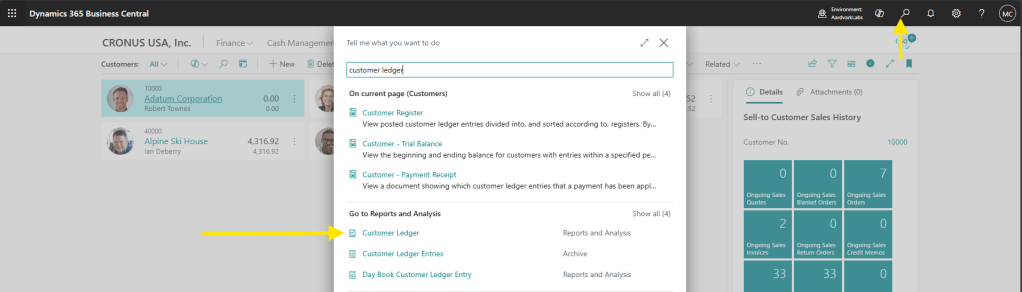
Here is the data:
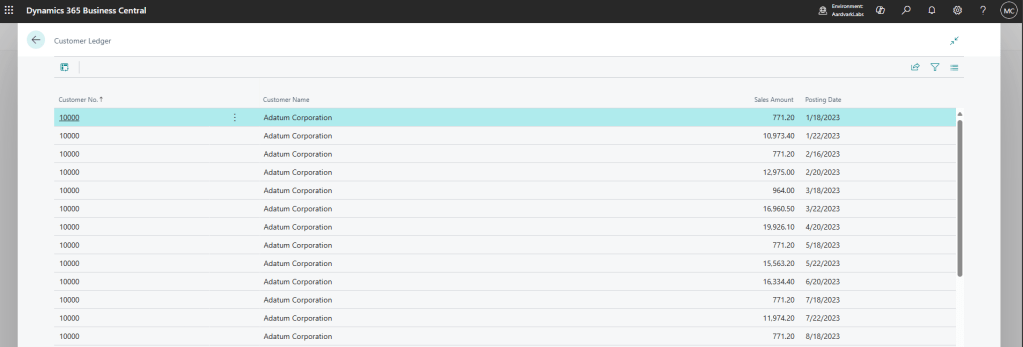
You can easily send this data to Excel if you like.
We can also switch it into Pivot Mode and do some analysis right here in Business Central.
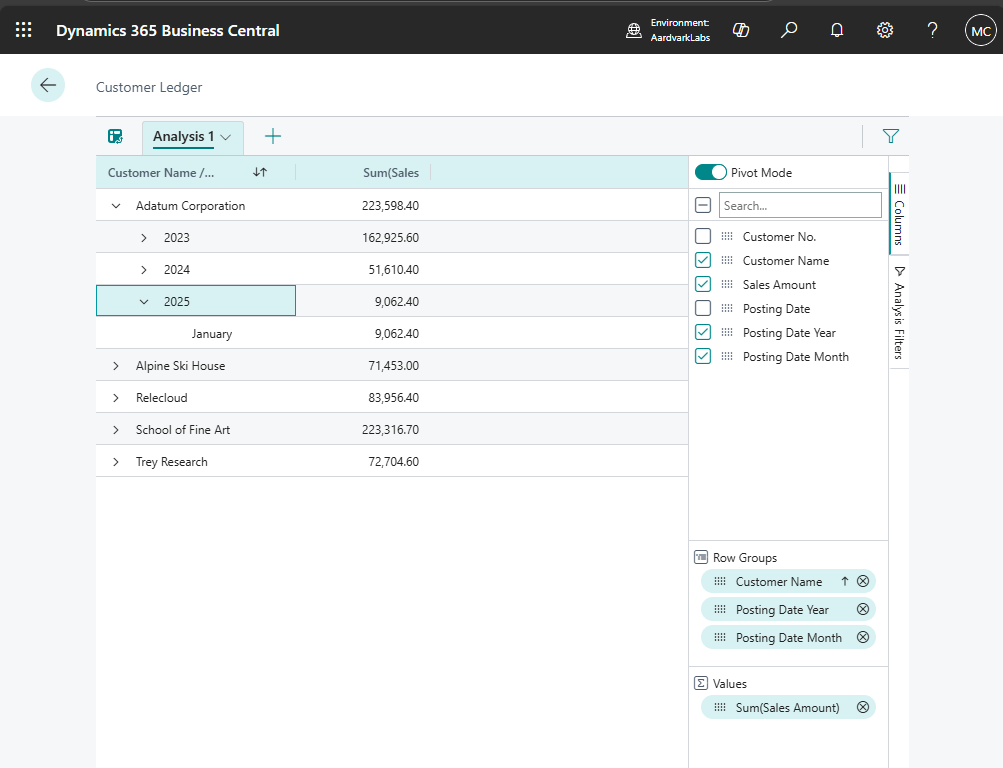
Queries are a great opportunity to “Work the Funnel”. In this case someone technical creates the query that is exposed in Business Central for Analysis.

In a good technology funnel few people need to be involved in the technical layer of creating a tool set. This highly technical, but mostly unrefined tool is shared with a larger group of power users. The power users transform the tool into specific deliverables that are consumed by specialists. The specialists use the refined tools to create output for the general consumer.
We are going to see that Business Central Queries are an excellent case for a technical deliverable that we will refine through several levels of technology into something that meets a requirement for a general consumer.
That is our first Business Central Query. We are going to create several more as we utilize them in APIs and Reports in the next several steps on our Business Central AL Journey.
There are more development details here: Business Central Query Objects
If my explanation isn’t working for you, please check out the BC Development Notebook by Tonya Bricco-Meske. Tonya (or her cat, I’m not 100% sure who writes the blog) has a great explanation of BC Queries. Even if my explanation works, check out her blog, it’s great!
Source code in the Aardvark Labs GitHub



 Aardvark Labs
Leave a comment