

I’m writing this for the 4th of July and as a holiday treat I’m going to share one of my most used tools: PowerToys!
This is for my Windows Peeps, sorry Mac and Linux folk. You can download it here.
PowerToys started out in November 17, 1996 for Windows 95 by the Windows Shell Development Team. It contained a few tools and features that helped tune the system and provide access to advanced features that were otherwise hidden. Development ebbed and flowed over the years until 2019 when Microsoft revived the project as open-source allowing developers to contribute on platforms like GitHub.
Running the current version brings up a Dashboard of tools and features that can be activated/deactivated.

There are several tools here I can’t live without!
Find My Mouse: Double click the Left CTRL button and the screen dims and the mouse pointer is circled. I use several screens, I’m old, and I lose the mouse pointer.
Image Resizer: Allows me to right click on an image in Explorer and resize it for different applications.
Color Picker: I’m color blind and I need the HEX codes to a color and the best I can get from my customer is “I want the same color as my logo”.
There are deeper tools for more nerdy issues like:
File Locksmith: The ability to see what processes are holding that file hostage.
Host File Editor: To help setup static IP DNS Resolutions for your computer.
Workspaces: Advanced Application Management
The list goes on and on!
Clicking on any of the blocks in the dashboard brings you deeper into the tool definition. For example, “Find My Mouse”
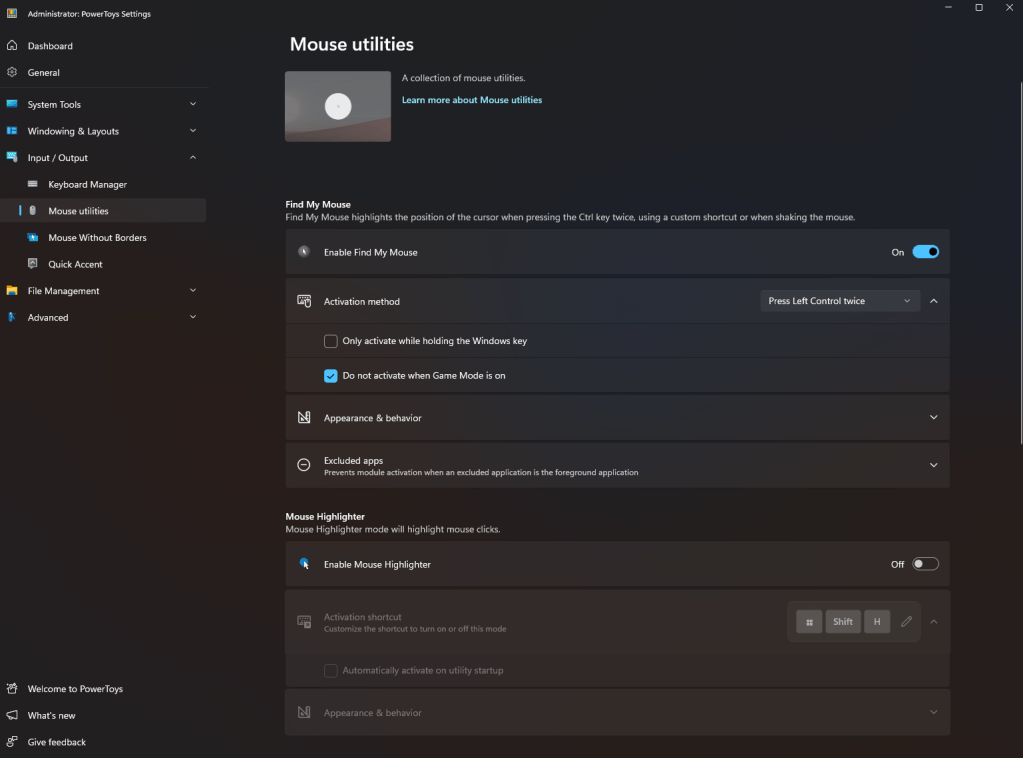
Here you can fine tune the action. Don’t want to use Left CTRL? How about shaking the mouse? Adjusting how the screen reacts, all sorts of knobs and dials to adjust.
There is also a Web Page link for the group, Find My Mouse is part of the Mouse Utilities group.
Most of the tools are quality of life tools or nice utilities to have available. These can’t break your system, and if you don’t like them, just turn them off. However, there are a few tools that are a bit more advanced and should be used with caution.
In the aptly named “Advanced” category are things like an Environmental Variables editor, Host File Editor, and Registry Preview. These should not be toyed with, and only users with knowledge of these systems should use them.
I encourage you to download PowerToys and improve your Windows experience. If you are a PowerToys user, let me know what your favorite PowerToy feature is!


 Aardvark Labs
Leave a comment