

There are several tools and technology in Business Central designed to help keeps data secure.
We have Secret Text and Isolated Storage:
The challenge I have is that I still need to enter that text and it would be great to have a masked input to prevent screen captures and shoulder surfers from seeing my sensitive data.
Business Central 27.1 introduces the Concealed Text Field to solve this problem!
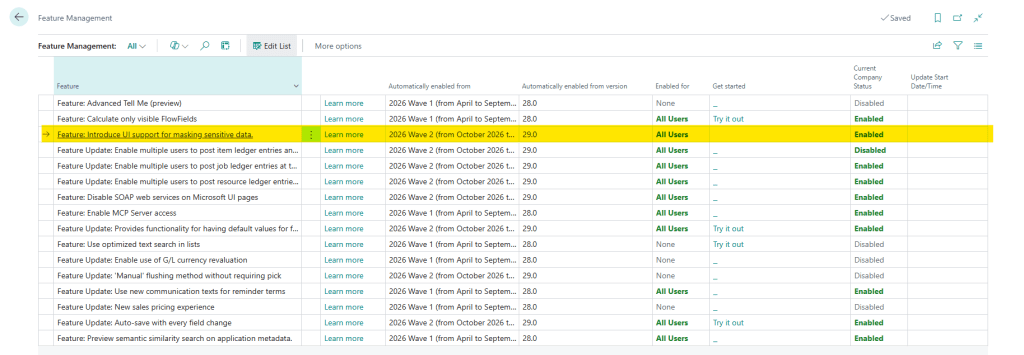
Step one, after updating to Business Central 27.1, is to ensure that it is activated in the Feature Management page.
In your Business Central Code, you can now set a fields Mask Type to Concealed.
field(APIKey; UserAPIKey)
{
    ApplicationArea = All;
    Caption = 'API Key';
    ToolTip = 'Enter the API key for the Copilot service.';
    MaskType = Concealed;
    trigger OnValidate()
    begin
        IsolatedStorageWrapper.SetSecretKey(UserAPIKey);
    end;
}
When you enter text into that field, it will display the masking we are all accustom too.
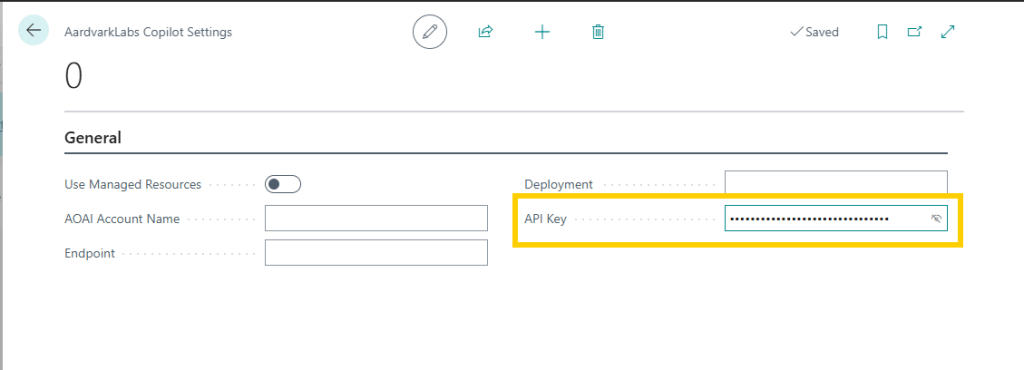
This will work on Code, Text, Decimal, and Integer fields.
More details available at Microsoft Learn: Use the Concealed text field type for sensitive data | Microsoft Learn



 Aardvark Labs
Leave a comment