

BC AL Journey #32
The Business Central User Interface is typically enough for our data display and interaction needs; however, there comes a time when you need more! In Business Central we can create our own controls for data input and display.
We are going to get into Custom Controls, but like all things in the BC AL Journey series, we are going to take small steps to get there. This is advanced stuff, and I want to meet people where they are, and let people get off the train when they have learned what they want.
Custom Controls requires the application of JavaScript and HTML5. On our way to the custom controls, we are going to look at embedding existing HTML resources into Business Central, like web pages. This is a foundation to creating our own controls.
An amazing option of a web page to embed in Business Central is the Power BI Report. Oddly enough, about the same time the Power BI reports were coming out, a new Business Central Page type was created to support hosting web pages without all that page overhead. Coincidence?!? No, they totally created this to help with the Power BI Reporting.
Introducing the User Control Host page type! It is so new, the Page Wizard from AZ AL Dev Tools doesn’t have an option for one.
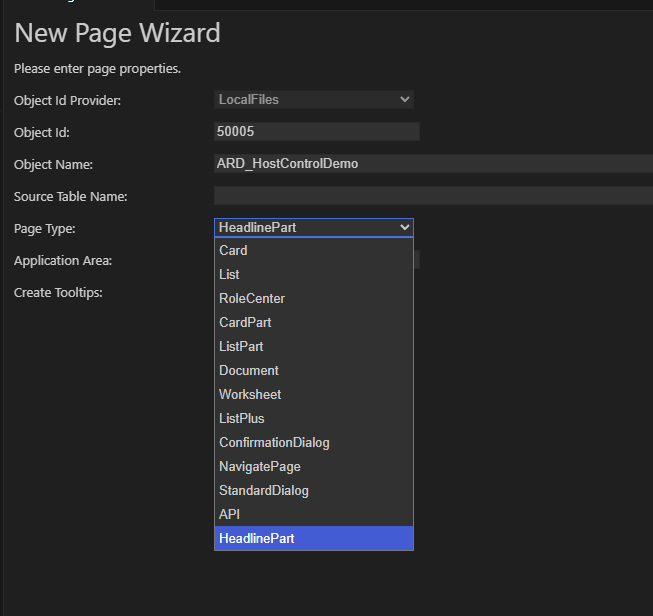
It’s okay, this page type is so simple we don’t need a wizard.
Here is the code in my ARDHostControlDemo.Page.AL
namespace BCJourney.BCJourney;
using System.Integration;

page 50005 ARD_HostControlDemo
{
    ApplicationArea = All;
    Caption = 'Host Control Demo';
    AboutText = 'This is a demo page for the Host Control.';
    AboutTitle = 'Host Control Demo';
    UsageCategory = Documents;
    PageType = UserControlHost;

    layout
    {
        area(Content)
        {
            usercontrol(Webpageview; WebPageViewer)
            {
                ApplicationArea = All;

                trigger ControlAddInReady(callback: text)
                begin
                    CurrPage.Webpageview.Navigate(HyperLinkTxt);
                end;

                trigger Refresh(CallbackUrl: Text)
                begin
                    CurrPage.Webpageview.Navigate(HyperLinkTxt)
                end;
            }
        }
    }
    //No Actions Permitted!

    var
        HyperLinkTxt: Label 'https://aardvarklabs.blog';
}
Note that the page type is UserControlHost. We don’t define a source table; it doesn’t need one. It isn’t editable, there is no insert, it is the most simplistic definition possible. We can’t even define Actions because there is no menu.
This page design is so restrictive that you can only have a layout, area, and a single usercontrol object on the page.
When it is run, it renders the single user control which loads a web page.
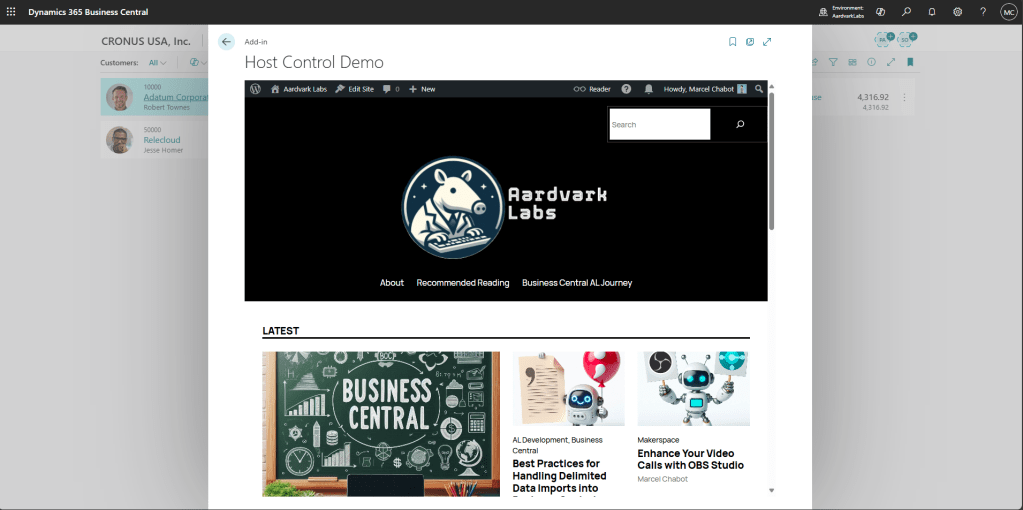
Fantastic, now I can learn about developing code in Business Central while in Business Central!
In the example code, on line 36 I assign a static text to HyperLinkTxt variable. This is how the control knows what page to load. Before loading this page, I could pass in a Customer Number, or other key data points and constructed a Dynamic URL to load a filtered Power BI Report or pass a parameter to another page to bring up data on another system.
Here is the Microsoft Learn article on User Control Host: The UserControlHost page type – Business Central | Microsoft Learn
This is just the start; we will be back later to work with the UserControl and create custom controls for user interaction and data display to take our Business Central to the next level.
Let me know if you have any questions about the user host control. We have a pending collaboration with Not A Pickle (notapickle.blog) for a Power BI Focused user case, watch for an announcement for that at a later date..



 Aardvark Labs
Leave a comment