
A few weeks ago, we reviewed Copilot Cowork and how Skills can advance your business workflow. This week we take a look at the development implementation of Skills in Claud / Visual Studio Code.
Review Copilot Cowork skills here:
Like Cowork skills, skills in development studio are similar in that they allow for a more advanced prompt to perform repeatable development processes. Skill installation changes slightly depending on your AI Provider and IDE. I’m use GitHub and Visual Studio Code.
To manage skills you will need a .github folder. This can be in the same directory as your .alpackages, .codeAnalysis, and .vscode folders.
Here is what it looks like including a part of a skill I created for the file management examples:

The skill I created here is not very good, I gave it some strange pages and asked it to create a skill. It really isn’t worth digging into, but I can’t leave you with some BC AL Development skills.
Javier Armesto Gonzalez has created an amazing extension for Visual Studio Code called the AL Development Collection.

Once installed press CTRL SHIFT P and enter “AL Development Install” and select AL Development: AL Collection: Install Toolkit to Workspace”
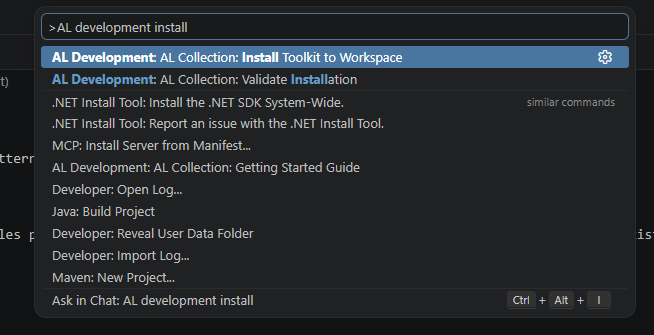
This will automatically install a library of tools into your workspace.
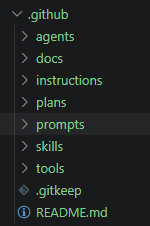
Not just Skills, but agents, docs, instructions, plans, prompts, skills, and tools. All of these we will explore at a later point. This little library will supercharge your Copilot AI Assisted development!
There are many excellent libraries such as this one, for example AL Copilot Skills Collection by Fernando Artigas Alfonso
If you are using an AI Support Library, please share a link in the comments below.





Leave a Reply