

Previously we have done a basic Copilot integration into Business Central. We accepted in user text and extracted a formatted address, then used that address in Business Central. It was a simple use case, but got our feet wet in the deep AI pool. This week, we are going to do work using data within Business Central to generate outputs.
If you have not run through the lab for Integrating AI with Business Central please complete that first, we are going to be using code developed in that post to go further. Don’t worry, this post will be here when you are done.
For this example, we are going to create a new tool for the end user. We are going to create a Copilot that generates reminder text for overdue balances. In order to create this reminder, we are going to need to feed data from Business Central to our GPT generator to create the reminder text.
In order for this reminder to work properly, we are going to need to feed the GPT system with a few facts from Business Central. At this point, we are not loading all of our BC data into the GPT system as a data source, we are in control of what we share. I think the contact’s name, balance due, and last invoice date should be enough for a personal sounding reminder. We can also pass a “tone” for how we want this reminder to sound.
We are going to start with a new Copilot CodeUnit. It is going to be 90% the same as the one we created earlier except for a few notable changes.
First off, the user prompt will need more details. As you may remember, the user prompt is the prompt that contains the dynamic data that we are going to use to generate the response. As opposed to the System Prompt that defines what the Copilot is doing. We are going to need not just the users entered text, but the customer’s name, balance due, last invoice date, and the tone. We will pass those in as parameters and combine them together into the User Prompt.
In the ARD_CopilotReminderGenerator code unit I’m going to change the SetUserPrompt to accept the additional parameters we need, and combine them into the final UserPrompt variable.
procedure SetUserPrompt(InputUserPrompt: Text; CustomerName: Text; Tone: Text; BalanceDue: Decimal; LastInvoiceDate: Date)
var
    UserPromptBuilder: TextBuilder;
begin
    if InputUserPrompt <> '' then UserPromptBuilder.AppendLine(InputUserPrompt);
    UserPromptBuilder.AppendLine('Customer Name: ' + CustomerName);
    UserPromptBuilder.AppendLine('Balance Due: ' + Format(BalanceDue));
    UserPromptBuilder.AppendLine('Last Invoice Date: ' + Format(LastInvoiceDate));
    UserPromptBuilder.AppendLine('Tone: ' + Tone);
    UserPrompt := UserPromptBuilder.ToText();
end;
We are also going to change the Chat procedure slightly. Note that we have set the temperature to 0.7 on line 22. Temperature is a value from 0.0 to 2.0 defining how “creative” we want to allow the GPT system to be. As this is a letter to a person, we can give it a little space, but not too much.
procedure Chat(ChatSystemPrompt: Text; ChatUserPrompt: Text): Text
var
    AzureOpenAI: Codeunit "Azure OpenAI";
    EnvironmentInformation: Codeunit "Environment Information";
    AOAIOperationResponse: Codeunit "AOAI Operation Response";
    AOAIChatCompletionParams: Codeunit "AOAI Chat Completion Params";
    AOAIChatMessages: Codeunit "AOAI Chat Messages";
    AOAIDeployments: Codeunit "AOAI Deployments";
    IsolatedStorageWrapper: Codeunit ARD_IsolatedStorageWrapper;
    Result: Text;
    EntityTextModuleInfo: ModuleInfo;
begin
    // Set up Azure OpenAI authorization using isolated storage values
    AzureOpenAI.SetAuthorization(Enum::"AOAI Model Type"::"Chat Completions",
        IsolatedStorageWrapper.GetEndpoint(), IsolatedStorageWrapper.GetDeployment(), IsolatedStorageWrapper.GetSecretKey());

    // Set the Copilot capability for customer detail processing
    AzureOpenAI.SetCopilotCapability(Enum::"Copilot Capability"::"Customer Detail");

    // Configure chat completion parameters
    AOAIChatCompletionParams.SetMaxTokens(2500); // Set maximum tokens for the response
    AOAIChatCompletionParams.SetTemperature(0.7); // Set temperature for deterministic responses
    AOAIChatCompletionParams.SetJsonMode(false); // Enable JSON mode for structured responses

    // Add system and user messages to the chat
    AOAIChatMessages.AddSystemMessage(ChatSystemPrompt); // Add the system prompt
    AOAIChatMessages.AddUserMessage(ChatUserPrompt); // Add the user prompt

    // Generate the chat completion using Azure OpenAI
    AzureOpenAI.GenerateChatCompletion(AOAIChatMessages, AOAIChatCompletionParams, AOAIOperationResponse);

    // Check if the operation was successful and return the result
    if AOAIOperationResponse.IsSuccess() then
        Result := AOAIChatMessages.GetLastMessage() // Retrieve the last message from the chat
    else
        Error(AOAIOperationResponse.GetError()); // Handle errors by raising an error with the response message

    exit(Result); // Return the result of the chat completion
end;
On the Prompt page, we add a procedure to capture the customer number and a field to allow for selection of the tone. The RunGeneration procedure utilizes these additional values to lookup the additional Business Central data values in the customer and customer ledger entry records. Finally the procedure calls the SetUserPrompt procedure in the Code Unit.
local procedure RunGeneration()
var
    InStr: InStream;
    Attempts: Integer;
    CustomerRec: Record Customer;
    CustomerLedgerEntry: Record "Cust. Ledger Entry";
    LastDocDate: Date;
begin

    CurrPage.Caption := ChatRequest;
//Get Customer Record
    CustomerRec.Get(CustomerNo);
//Find Customer Ledger Entry
    CustomerLedgerEntry.SetFilter("Customer No.", '%1', CustomerRec."No.");
    CustomerLedgerEntry.SetFilter(Open, '%1', true);
    CustomerLedgerEntry.SetFilter("Document Type", '%1', CustomerLedgerEntry."Document Type"::Invoice);
    CustomerLedgerEntry.SetCurrentKey("Customer No.", "Document Type", "Document Date");
    CustomerLedgerEntry.SetAscending("Document Date", false);
    if CustomerLedgerEntry.FindFirst() then
        LastDocDate := CustomerLedgerEntry."Document Date"
    else
        LastDocDate := 0D;

    CustomerRec.CalcFields("Balance Due (LCY)");

    GenerateReminderReminderText.SetUserPrompt(ChatRequest, CustomerRec.Contact, Format(ResponseTone), CustomerRec."Balance Due (LCY)", LastDocDate);
    ReminderText := '';
    Attempts := 0;
    while (StrLen(ReminderText) = 0) AND (Attempts < 5) do begin
        if GenerateReminderReminderText.Run() then
            ReminderText := GenerateReminderReminderText.GetCompletionResult();
        Attempts += 1;
    end;

    if (Attempts < 5) then begin
        CurrPage.Update();
    end else
        Error('Something went wrong. Please try again. ' + GetLastErrorText());
end;
We add another button to the Customer Card to bring up the prompt.
action(GenerateReminder)
{
    ApplicationArea = All;
    Caption = 'Generate Reminder';
    ToolTip = 'Generate reminder using Dynamics 365 Copilot.';
    Image = Sparkle;
    trigger OnAction()
    var
        GenerateReminder: PAge ARDReminderPrompt;
        ReminderText: Text;
    begin
        // Open the reminder generation process
        GenerateReminder.SetCustomer(Rec."No.");
        if GenerateReminder.RunModal() = Action::OK then begin
            ReminderText := GenerateReminder.GetResult();
            if ReminderText <> '' then begin
                // Display the generated reminder text
                Message('Generated Reminder: %1', ReminderText);
            end else begin
                Error('No reminder text generated.');
            end;
        end;
    end;
}
Here is what we get when we click the button. I’ve added extra to the prompt to remind the customer that we have extended their payment windows. The GPT system will incorporate this data into the reminder.
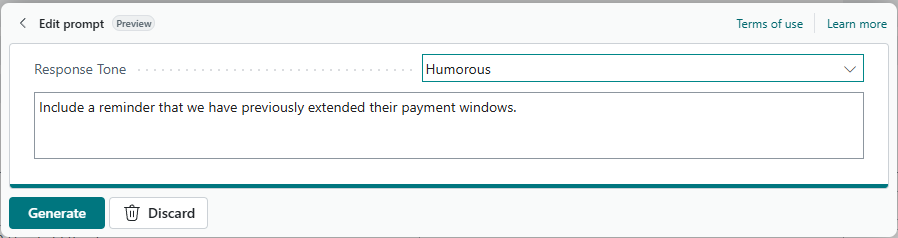
Then we click “Generate”.
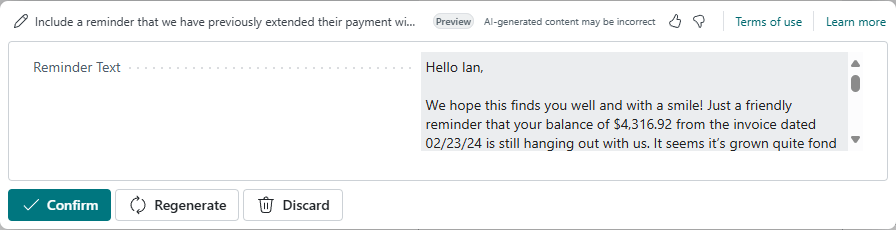
Here is what it generated:
| Hello Ian, We hope this finds you well and with a smile! Just a friendly reminder that your balance of $4,316.92 from the invoice dated 02/23/24 is still hanging out with us. It seems it’s grown quite fond of our company, but we’re sure it would much rather be home with you. Now, we know we’ve been pretty chill and extended your payment windows before, but even the most patient of us need a little closure. So, if you could settle up soon, that would be absolutely fantastic—like finding money in an old coat pocket, but in reverse! Thanks a million (or, well, $4,316.92 to be exact)! Looking forward to hearing from you soon! |
Okay, so a Humorous reminder might not be a good idea. This is why we test thing based on GPT!
When we review the code, we can see that the prompts look like this:
| System Prompt | The user will provide details about a customer including their name, account balance due, last invoice date, and the tone for the response. Please generate a reminder for the customer to pay their invoice. Please ensure the reminder is clear, concise, and includes all relevant details. Do not include a signature line or any personal information. Ensure that the tone matches the requested tone by the user. The output should be formatted as text and should not include any additional formatting or HTML tags. |
| User Prompt | Include a reminder that we have previously extended their payment windows. Customer Name: Ian Deberry Balance Due: 4,316.92 Last Invoice Date: 02/23/24 Tone: Humorous |
We could drive the resultant text into a field to go to an email or some other message to the customer. For this example, we will end with the ability to cut and paste.
We can now see how we can include limited Business Central data as part of the user prompt to drive a more advanced Copilot experience. We will continue to add complexity as we explore AI in Business Central. Let me know in the comments if you have any Copilot ideas you would like to explore.
Source code for this example can be found on the AardvarkLabs GitHub page.







Leave a Reply