

BC AL Journey #35 (Part 3)
We have previously covered creating an agent.
We have convered a bit about securing that agent.
Now you are into the deep AI waters, testing the agent, giving it a little of the Red Team testing, or the darn thing just isn’t working, and you are about to toss your keyboard. Hold on tight, let’s get into a bit of the testing and review options available to you.
First off, we have to understand that an agent works in incremental “Steps”. Access a screen, lookup a records, send an email, parse an email response, these are all steps, and the agent performs one step after the other.
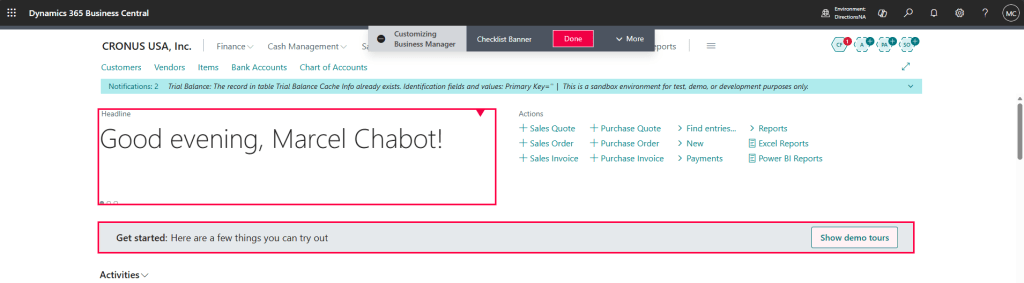
Here is a run of the Cash Flow agent:
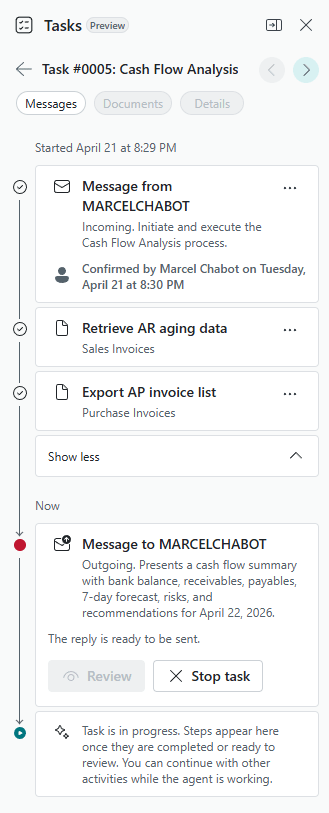
Note that this is Task #0005. We can then open the “Agent Tasks” page. Here we see all tasks associated with our Cash Flow agent.
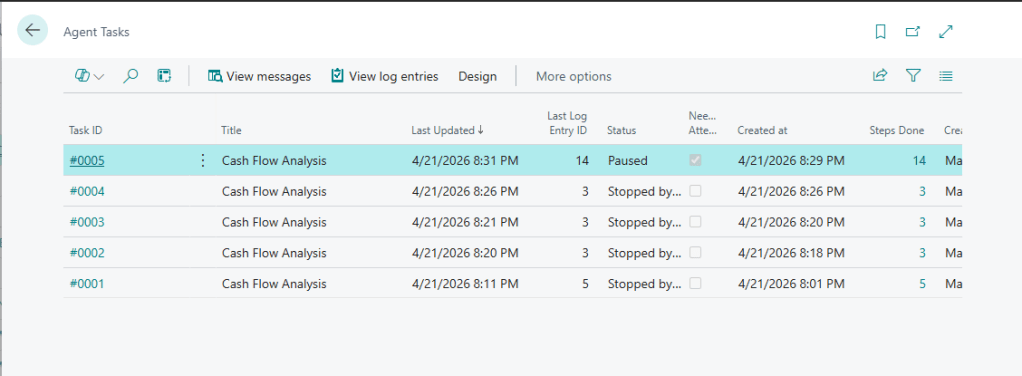
Looking at our Task #0005 we can see that it needs attention. It is done and ready for review, so we are not worried that it wants attention.
Let’s check out the “View Messages” button.
These are the messages and responses to and from the system. Typically these are the humans in the middle of the workflow.
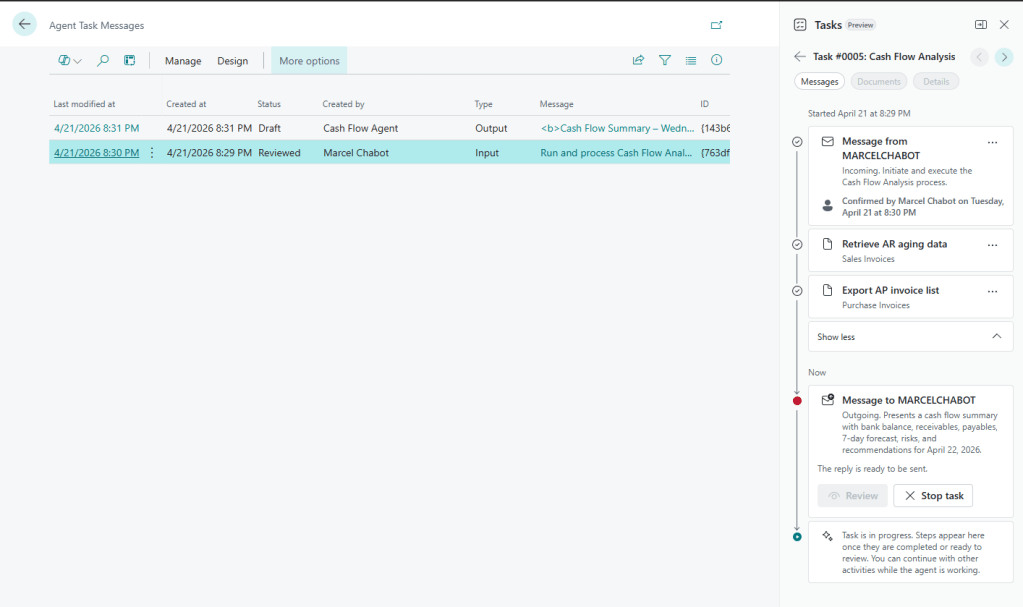
They are in reverse order; the last message is the input into the system starting the Task. The top message is the final output of the Task. If we had more back and forth discussions, there would be more input and output messages here.
The next button is the “View Log Entries”. Here we can see the discrete steps that the Agent took. Here is where we can analyze the logic and adjust the system for better performance and results.
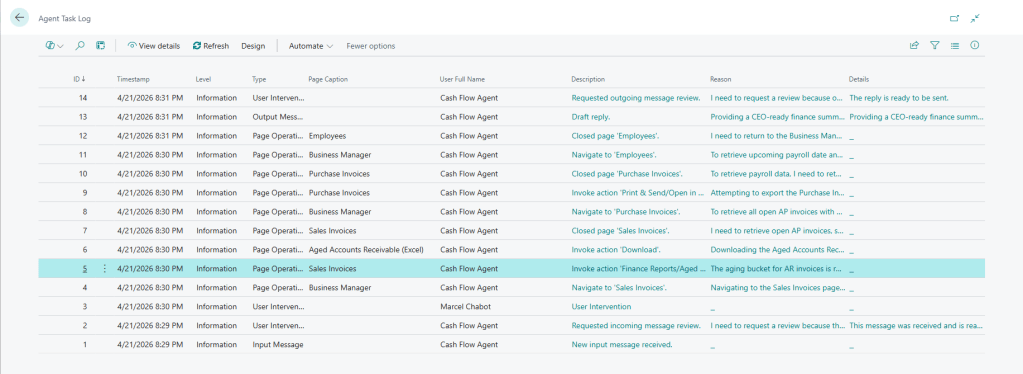
The page includes the Task Id, time stamp, type of operation and the user that ran or interacted with the step. The really interesting columns on this table are the Description, Reason, and Details columns.
Let’s walk through a few of the steps and review the reasoning the AI Agent performed.
Description: Navigate to 'Sales Invoices'

Reason: Navigating to the Sales Invoices page to retrieve open AR invoices for the cash flow analysis.
Looks reasonable for a Cash Flow report to go to Sales Invoices.
Description: Invoke action 'Finance Reports/Aged Accounts Receivable (Excel)'

Reason: The aging bucket for AR invoices is required for the cash flow analysis and is not visible in the current list, so I will run the 'Aged Accounts Receivable (Excel)' report to obtain this data.
Oh… look at that. I didn’t expose the data the agent was looking for, but it did find an appropriate report. The agent will now go and download and parse the Excel report.
Description: Invoke action 'Download'.

Reason: Downloading the Aged Accounts Receivable report to obtain aging bucket details for open AR invoices needed for the cash flow analysis.
There we go, downloading and parsing Excel. This will work, we get the results we expect, but at the cost of a lot of additional tokens.
Why did the agent go to the Excel files, didn’t we give it the data it needed on the screen? We can dig deeper into the process by selecting the row, in my case step 5, and clicking on the “View Details” button.
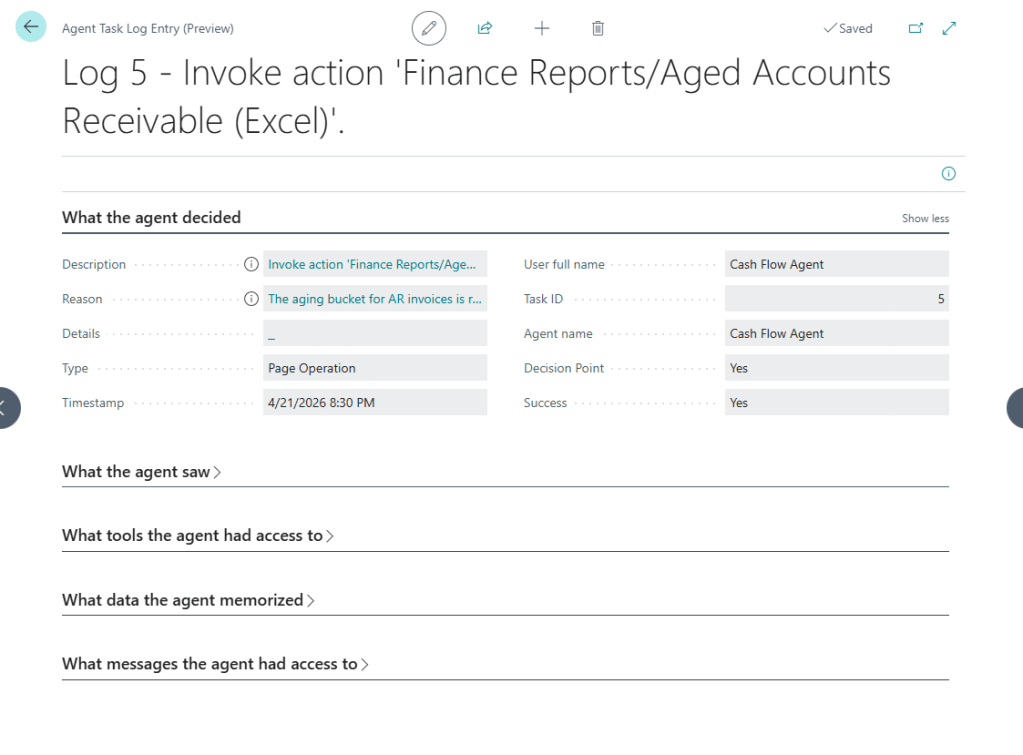
From this page we can review detailed aspects of how the agent was processing the page. Let’s take a look at the “What the agent saw”.
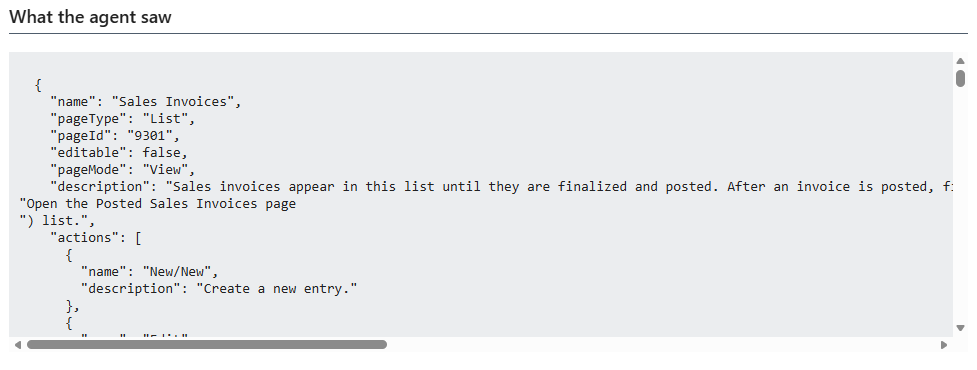
The Agent had navigated over to the Sales Invoice list looking for AR aging.
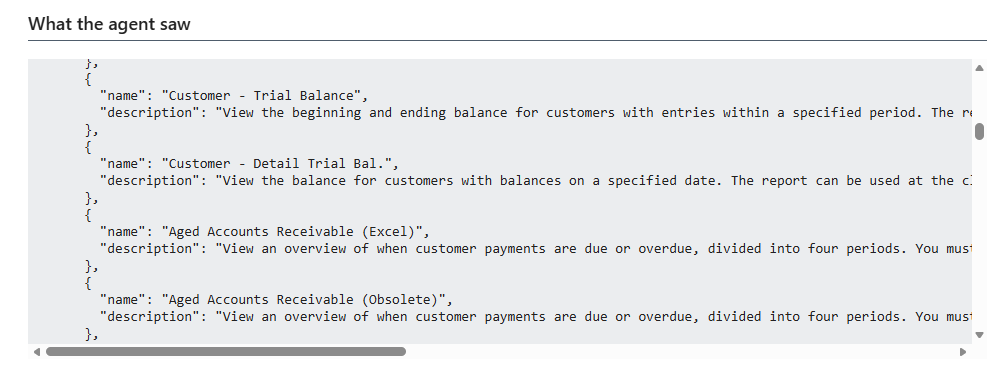
Here is where it found the Aged Account Receivable (Excel) report.
Next section is a list of tools that the agent had access to.
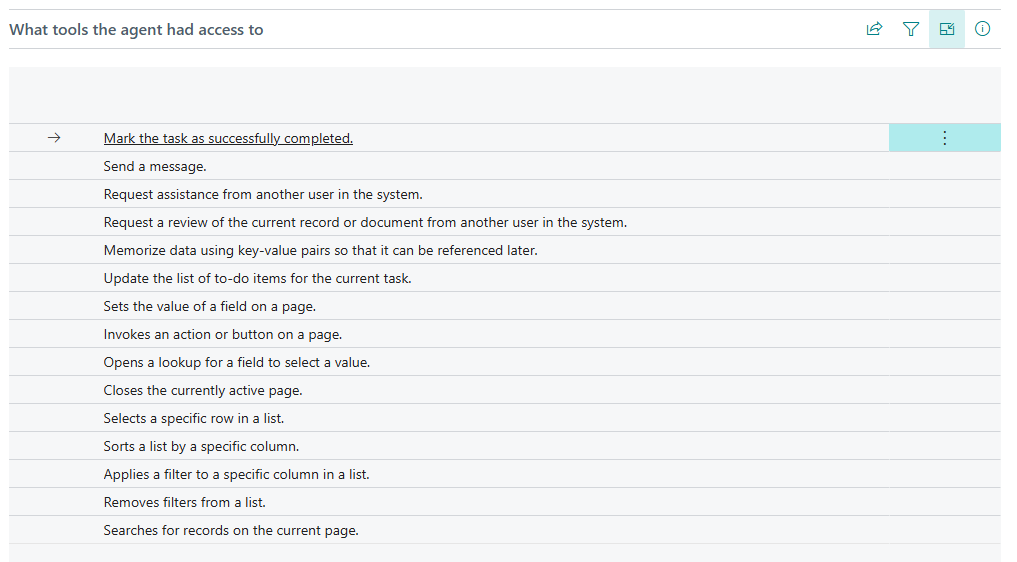
In this case it “Invokes an action or button on a page” to download a report.
We can then take a look at what data the agent had access to.
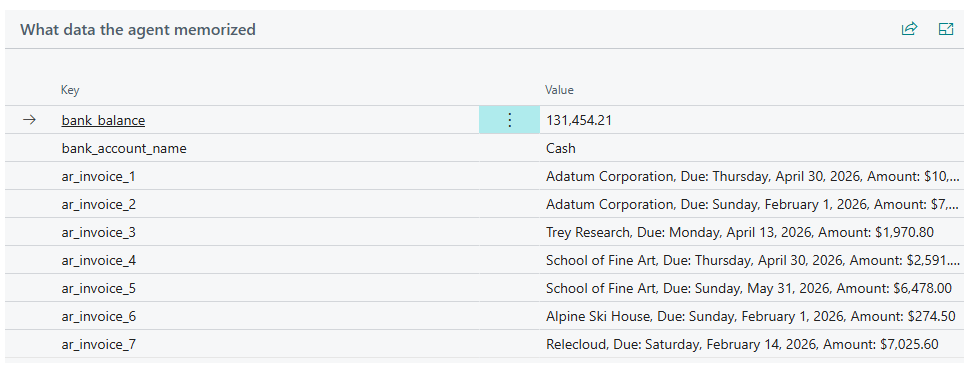
If there was some bad data, we would find it here.
Last is what messages the agent had access to.

Here is just the startup message. If there was a bad prompt, or someone fed it garbage data, we would be able to find it here.
After all this investigation, what we can do to adjust the behavior of the agent. Clicking the Design button, then Agent Setup will allow us to make some adjustments.
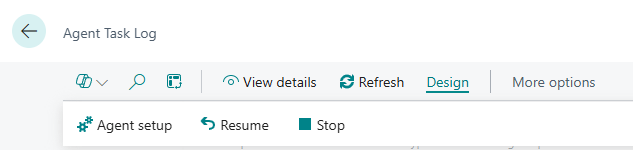
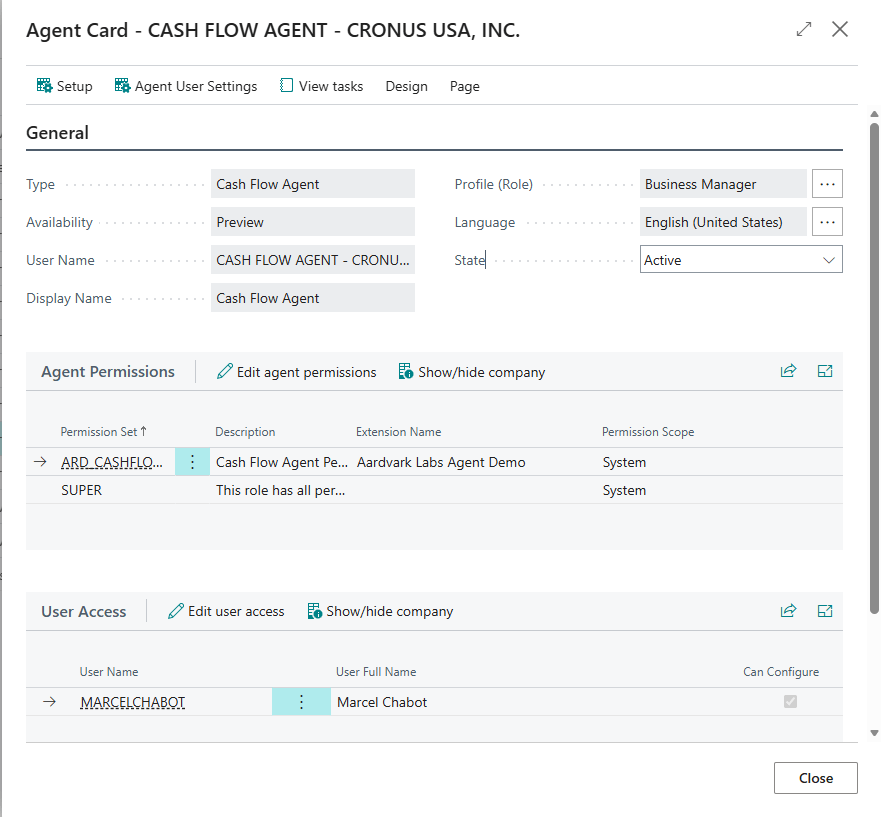
The first thing we need to do is set the Agent state to Inactive. We can’t make adjustments to an active agent.
From here we can adjust the Agent Permissions. Don’t ever give it Super, unless you are actively testing and using the Agent Task Log to tune your agent’s behavior. Solving a data visibility issue and data permissions issue at the same time is a pain, so giving the agent a lot of permissions, in a sandbox, can be useful to find the best data paths to make available. Locked it down to a tight permission set when you are done!
We can adjust the Profile (Role) that the agent is using. Everyone starts at the home page of their role, and that includes the Agent. If we want it to quickly find things a big role like Business Manager is not a great choice. Too many options may confuse the Agent, create a Profile with data visibility tuned to the Agent.
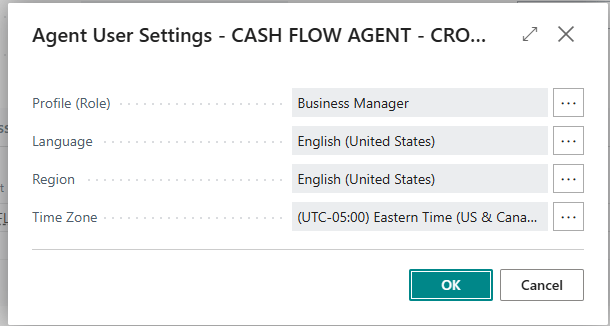
The Agent User Settings button lets you adjust the Profile (Role), language, region and time zone details your agent experiences.
Clicking Design then “Customize profile (role)” will bring up the Profile Editor. You can tune the profile right from the web page.
These edits apply to all user and agents assigned to the profile. Adding and removing options from the profile will help keep the agent utilizing the data you want. It will also make the agent faster as it has less screen information to parse.
The last bit of information we have is back on the Agent Tasks page. Here we can see the “Copilot credits”.
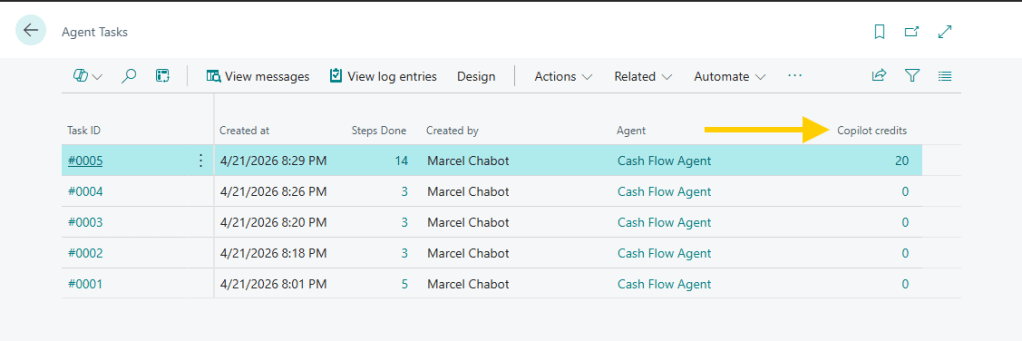
Clicking on the number will bring up a more detailed screen.
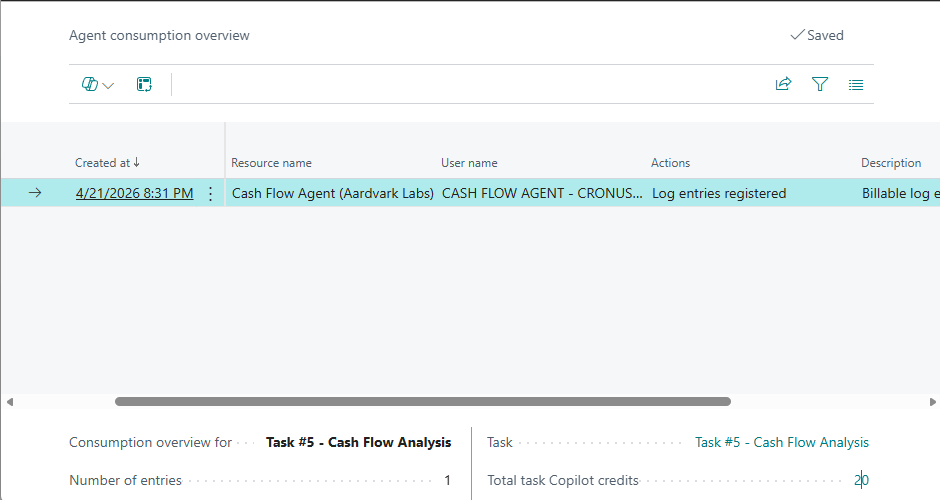
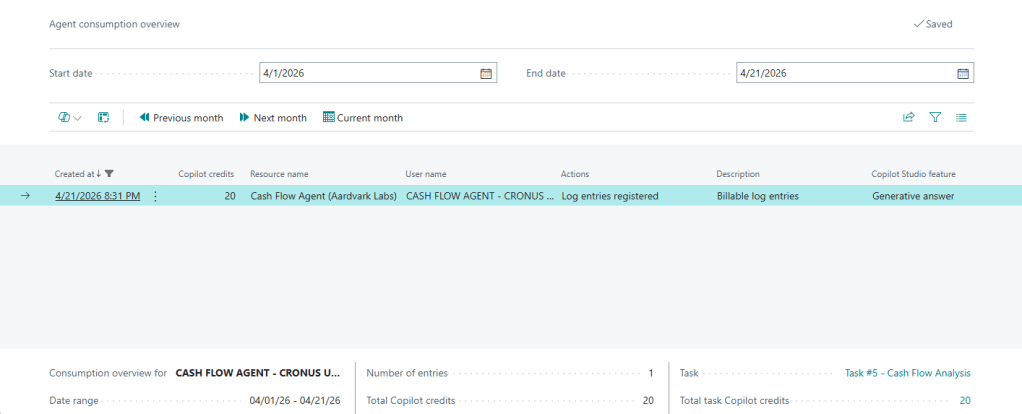
We can see for that run, we consumed 20 Copilot credits. Now that isn’t a relation to Tokens, but a different costing model. 1 credit, at the time of this article, is $0.01. This agent cost $0.20 to run.
If you want to view all your Agent usage, go to the “Agents” page, click Actions then “View consumption data”.
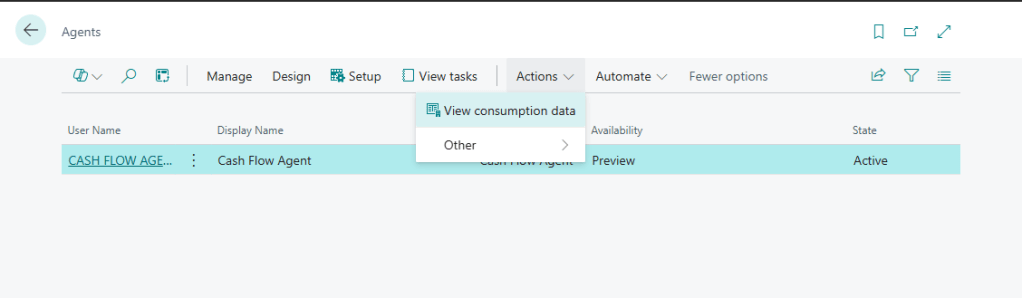
The resultant page gives you a month-by-month breakdown of your agent copilot usage.
Here is a Microsoft Learn article that dives deeper into the Copilot Credit system. Manage consumption-based billing – Business Central | Microsoft Learn
For us traditional developers, these things are challenging. AI, and agents are all squishy things, making decisions, following prompts, not commands, and not getting the results we expect is a real challenge. I hope these tools help you wrangle your AI and create successful, and helpful, agents.
Let me know in the comments how your AI journey is going. Subscribe to stay in the loop as we navigate this AI landscape together.





Leave a Reply