

We have covered a few AI scenarios on this blog already, and in this example, we are going to incorporate AI in a multi-step process. I recommend reading the earlier blog posts before this post as we are going to be using concepts we have already covered.
Integrating AI in Business Central: A Step-by-Step Guide and Creating Data Driven Text with AI in Business Central both cover the concepts of driving data into an AI engine and getting a data result back. In those cases, the AI result was the entire product. This week AI is going to help facilitate a more complex process.
For this example, we are going to take a Sales Order and generate a list of recommendations for additional items based on the descriptions of the current Sales Lines on the Sales Order. We are NOT going to share our items catalog with the AI Agent; we are only going to share the descriptions of the sales lines and then use some Business Central tools to find the recommended items.
Could we add all the Business Central Items to the knowledge base of the AI Agent? Sure, but it would be a more expensive implementation. Also, not everyone is ready to share that information with a third party. We will get into those deep trust systems later.
We are going to need some supporting elements for this:
ARD_CopilotItemRecommendations.Table.AL: This is a temporary table that we will populate with the recommended item number, description, selection flag, and quantity.
ARD_ItemRecomendations.Page.AL: This is a List Part Page to display the Copilot Item Recommendations. There is a Load and AddSelectedItems procedure that we will review, the rest is a standard List Part.
The process starts on the Sales Order Subform where we add an Action to Generate Recommendations.
/// <summary>
/// Triggered when the action is executed.
/// Iterates through all sales lines related to the current sales order, accumulating the total length of their descriptions.
/// If the accumulated description length exceeds 10,000 characters, adds the current sales line's description to the item recommendation prompt.
/// Tracks the maximum line number among the sales lines.
/// Sets up the item recommendation prompt page with the current document number and the maximum line number found.
/// Opens the item recommendation prompt page and handles the result if the user confirms the action.
/// </summary>
trigger OnAction()
var
    SalesLine: Record "Sales Line";
    ItemRecommendationPrompt: Page "ARD_ItemRecommendationPrompt";
    MaxSalesLineCount: Integer;
    DescriptionCount: Integer;
begin
    // Initialize counters
    MaxSalesLineCount := 0;
    DescriptionCount := 0;

    // Filter sales lines for the current sales order
    SalesLine.Setfilter("Document No.", '%1', Rec."Document No.");

    // Iterate through all sales lines for the current document
    if SalesLine.FindSet() then begin
        repeat
            // Accumulate the total length of descriptions
            DescriptionCount += StrLen(SalesLine."Description");

            // If the accumulated description length does not exceeds 10,000, add the current description to the prompt
            if DescriptionCount <= 10000 then
                ItemRecommendationPrompt.AddItemDescription(SalesLine."Description");

            // Track the maximum line number
            If SalesLine."Line No." > MaxSalesLineCount then
                MaxSalesLineCount := SalesLine."Line No.";
        until SalesLine.Next() = 0;
    end;

    // Set up the item recommendation prompt page with the document number and max line number
    ItemRecommendationPrompt.SetSalesHeader(Rec."Document No.", MaxSalesLineCount);

    // Open the item recommendation prompt page and handle the result if the user confirms
    if ItemRecommendationPrompt.RunModal() = Action::OK then begin
        // Handle confirmed action (add logic here if needed)
    end;
end;
This routine finds all the line items and passes their descriptions on to the Prompt page procedure called “AddItemDescription” on line 31. Note that we are keeping track of the number of characters we are collecting. Why? Because these are going into the user prompt, and ever 4-ish characters is a token and tokens cost money. Also, after 10,000 characters of description data, we are well beyond being useful and I think our results will be rather poor.
In the ARD_ItemRecommendationsPrompt.Page.Al we have the AddItemDescription procedure. This procedure adds the description text to a JSON array variable in the page. Click the link if you need to brush up on your Business Central JSON Skills.
// Adds a new item description to the JSONDescriptions array
procedure AddItemDescription(Description: Text)
begin
    JSONDescriptions.add(Description);
end;
We can then prompt the user for additional information, combine that with the descriptions and send them all to the AI Agent in the ARD_CopilotItemRecommendations.CodeUnit.Al file. The agent will need a system prompt, and this is what I’m using.
The user will provide details on several items they are purchasing.
        Your task is to identify keywords the describe the items so that the user can easily find similar items in the future. The output should be a list of words that describe the items based on the descriptions provided.
        The descriptions should be concise and relevant to the items avoiding product names or specific brands. The descriptions should be common to all items, not specific to any one item. Results should be ordered by relevance to all items provided.
        You will return a JSON Object with an array named "Keywords".
        The response should be in JSON format.
Let’s see this all in action.
First, we are going to open a Sales Order. Notice the Generate Recommendations button we added.
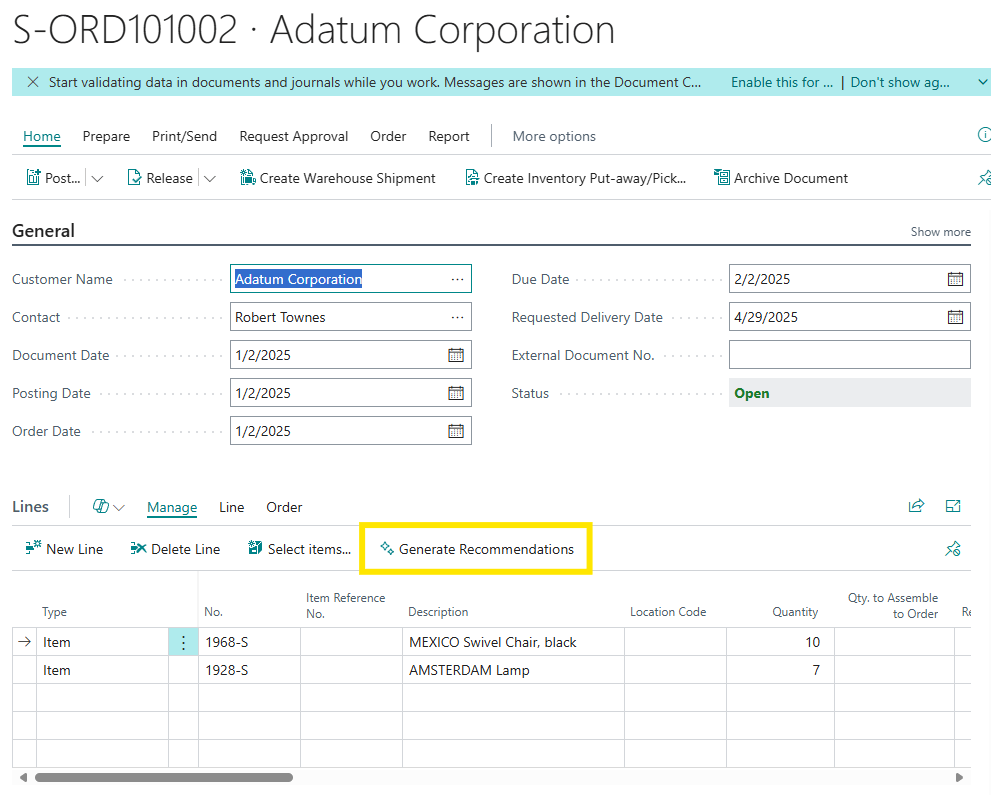
Clicking that button brings up the Copilot Prompt page. Behind the scenes we have already passed in the critical details such as the Sales Line Descriptions, Sales Header number, and the current maximum line number.

If we click generate at this point the descriptions are sent to the AI Agent, and it returns this JSON array of keywords that describe the sales lines in the list.
{ "Keywords": ["furniture", "home decor", "chair", "lamp", "swivel", "black", "lighting", "seating"] }
We then iterate through the array using the keywords to find similar items.
// Searches for items matching the provided descriptions and loads them into the temporary recommendations table
procedure SearchItemDescriptions(Descriptions: JsonArray)
var
    ItemRec: Record Item;
    DescriptionToken: JsonToken;
    SearchText: Text;
    FoundItems: list of [code[20]];
begin
    // Clear previous recommendations
    TmpItemRecommendations.Reset();
    TmpItemRecommendations.DeleteAll();

    // Iterate over each description keyword
    foreach DescriptionToken in Descriptions do begin
        SearchText := DescriptionToken.AsValue().AsText();
        clear(ItemRec);
        // Use the Full Text Search features to find items matching the description
        ItemRec.setfilter(Description, '&&' + SearchText + '*');
        if ItemRec.findset() then
            repeat
                // Avoid duplicates
                if not FoundItems.Contains(ItemRec."No.") then begin
                    TmpItemRecommendations.Init();
                    TmpItemRecommendations."ARD_No." := ItemRec."No.";
                    TmpItemRecommendations."ARD_Description" := ItemRec.Description;
                    TmpItemRecommendations.Insert();
                    FoundItems.Add(ItemRec."No.");
                end;
            until ItemRec.next() = 0;
    end;

    // Load the found recommendations into the subpage
    CurrPage.SubItemRecommendations.Page.Load(TmpItemRecommendations);
end;
On line 18 we use the Full Text Search functions of Business Central that were introduced in release 25.2. We use each found item to create an Item Recommendation record. We also use a Found Items list to prevent us from attempting to add the same item more than once. Finally on line 33 we send that list of recommendations to the List Part for display and interaction.
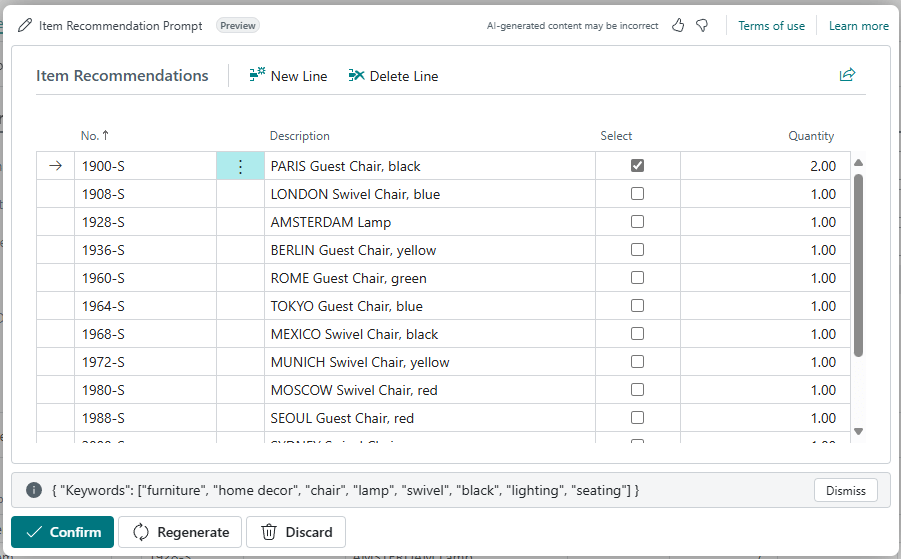
The user can now set the Select flag and a Quantity on the lines that they feel would be good additions. Once the Confirm button is clicked the OnQueryClosePage trigger is fired with the OK Close Action. It is at this point that we tell the Sub Grid to add the items to a specific Sales Header number, starting at the Max Sales Line value we captured earlier.
/// <summary>
/// Trigger executed when the page is about to close.
/// If the close action is OK, it adds the selected items from the SubItemRecommendations page
/// to the current context using the provided SalesHeaderNo and MaxSalesLineCount.
/// </summary>
/// <param name="closeAction">The action that caused the page to close.</param>
/// <returns>Boolean indicating whether the page should close.</returns>
trigger OnQueryClosePage(closeAction: Action): Boolean
begin
    if CloseAction = Action::OK then
        CurrPage.SubItemRecommendations.Page.AddSelectedItems(SalesHeaderNo, MaxSalesLineCount);
end;
Here is what the code looks like to add the selected items to the Sales Header.
// Adds the selected recommended items to the Sales Order as new Sales Lines.
// Parameters:
//   SalesHeaderNo: The document number of the Sales Order.
//   MaxSalesLineCount: The current maximum line number in the Sales Order (used to avoid conflicts).
procedure AddSelectedItems(SalesHeaderNo: Code[20]; MaxSalesLineCount: Integer)
var
    SalesLine: Record "Sales Line";
    SelectedItemRecommendations: Record "ARD_CopilotItemRecommendations" temporary;
begin
    // Copy all records from the current page to a temporary record variable.
    SelectedItemRecommendations.copy(Rec, true);
    // Filter to only those recommendations that are selected.
    SelectedItemRecommendations.SetRange(ARD_Select, true);
    if SelectedItemRecommendations.FindSet() then
        repeat
            // Increment line number to avoid conflicts.
            MaxSalesLineCount += 1000;
            SalesLine.Init();
            SalesLine.Validate("Document Type", SalesLine."Document Type"::Order);
            SalesLine.Validate("Document No.", SalesHeaderNo);
            SalesLine.Validate("Line No.", MaxSalesLineCount);
            SalesLine.Validate("Type", SalesLine."Type"::Item);
            SalesLine.Validate("No.", SelectedItemRecommendations."ARD_No.");
            SalesLine.Validate(Quantity, SelectedItemRecommendations.ARD_Quantity);
            // Insert the new Sales Line.
            SalesLine.Insert(true);
        until SelectedItemRecommendations.Next() = 0;
end;
Here is the Sales Header with our added lines.
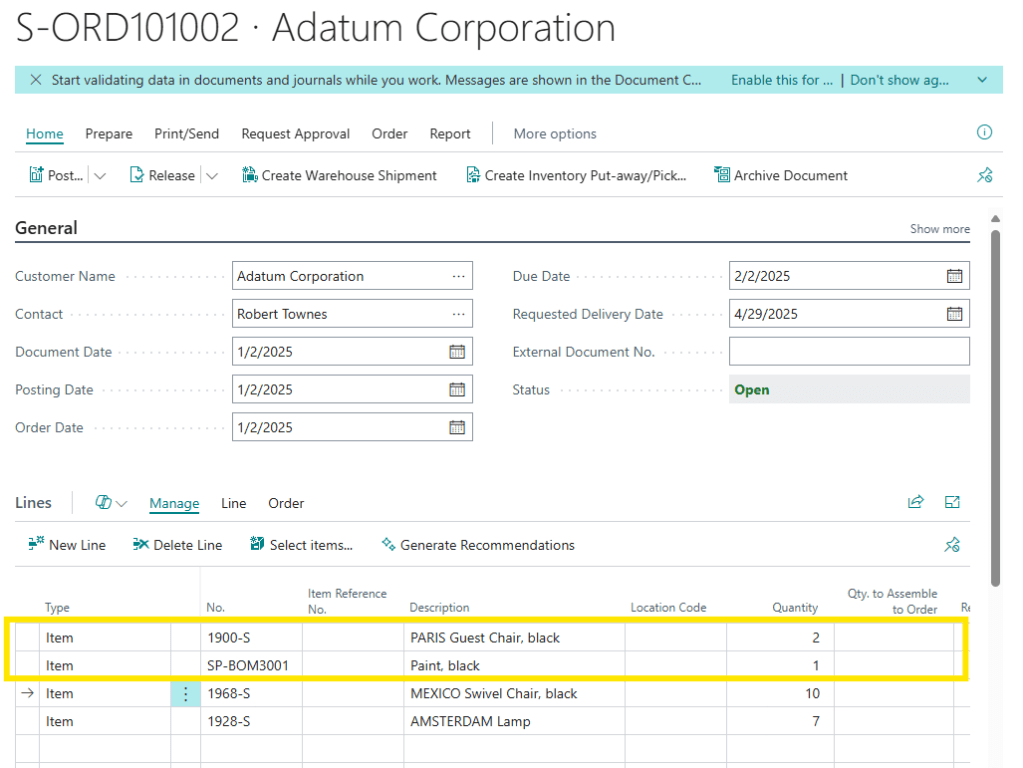
Our Goal was to go from Sales Lines to Recommended Items, back to Sales Lines. As we can see, there isn’t a single step path to achieve this goal. In this example the AI Agent was just one step in the process.
This is a case where we gathered information from a data source in Business Central, the sales line descriptions, and used that data in an AI User Prompt. The result of that AI Agent was data that we used in a secondary process to gather additional data, Business Central Items, that was presented to the user for action.
When designing your AI assisted process it is important to consider the role the AI Agent is playing. The AI Agent doesn’t have to provide the entire answer. In this case it digested data that we could use in our process. Can you think of other processes where the AI Agent plays a supporting role?
Source code for this example can be found on the AardvarkLabs GitHub page.




 Aardvark Labs
Leave a reply to Enhancing Business Central with Address Validation AI – Aardvark Labs Cancel reply