
In a previous post we covered the ability to download a document from an SFTP site and push it to Business Central using Power Automate. Using similar technology, we can reverse the process and push a document from within Business Central to an SFTP site or any other document handling site like SharePoint.
We will be using concepts from previous posts, you can read them here:
In this example, we want to push a Sales Invoice document to an SFTP site whenever an Invoice is posted.
For this to work neatly and allow for retries and other advanced management tools we are going to start with a staging table. ARDPAFTPSend.Table.al
table 50009 ARD_PAFTPSend
{
    Caption = 'PA_FTPSend';
    DataClassification = CustomerContent;

    fields
    {
        field(1; "ARD_No."; Integer)
        {
            Caption = 'No.';
            tooltip = 'Unique number for each file sent to FTP. It is automatically generated.';
            DataClassification = CustomerContent;
            AutoIncrement = true;
        }
        field(2; ARD_GeneratedDate; DateTime)
        {
            Caption = 'Generated Date';
            tooltip = 'Date and time when the file was generated to be sent to FTP.';
            DataClassification = CustomerContent;
        }
        field(3; ARD_Handled; Boolean)
        {
            Caption = 'Handled';
            tooltip = 'Indicates whether the file has been handled (sent) to FTP.';
            DataClassification = CustomerContent;
        }
        field(4; ARD_HandledDateTime; DateTime)
        {
            Caption = 'Handled Date Time';
            tooltip = 'Date and time when the file was handled (sent) to FTP.';
            DataClassification = CustomerContent;
        }
        field(5; ARD_Invoice; Blob)
        {
            Caption = 'Invoice';
            ToolTip = 'The invoice data associated with the record.';
            DataClassification = CustomerContent;
        }
        field(6; ARD_InvoiceFileName; Text[255])
        {
            Caption = 'Invoice File Name';
            ToolTip = 'The file name of the invoice data.';
            DataClassification = CustomerContent;
        }
    }
    keys
    {
        key(PK; "ARD_No.")
        {
            Clustered = true;
        }
    }
}
Basic table with a BLOB field to hold the file.
We are going to need a List Page to show the status of the file uploads. ARDFileStaging.Page.al
namespace AardvarkLabs.FileParsingExamples;

page 50017 ARD_PAFileStaging
{
    ApplicationArea = All;
    Caption = 'PA File Staging';
    PageType = List;
    SourceTable = ARD_PAFTPSend;
    UsageCategory = Lists;

    layout
    {
        area(Content)
        {
            repeater(General)
            {
                field("ARD_No."; Rec."ARD_No.")
                {
                }
                field(ARD_InvoiceFIleName; Rec.ARD_InvoiceFileName)
                {
                }
                field(ARD_GeneratedDate; Rec.ARD_GeneratedDate)
                {
                }
                field(ARD_Handled; Rec.ARD_Handled)
                {
                }
                field(ARD_HandledDateTime; Rec.ARD_HandledDateTime)
                {
                }
            }
        }
    }
}
Another API Type page for the Power Automate workflow to utilize. ARDFileStagingAPI.Page.al
namespace AardvarkLabs.FileParsingExamples;

page 50018 ARD_PAFileStagingAPI
{
    APIGroup = 'aardvarkLabs';
    APIPublisher = 'aardvarkLabs';
    APIVersion = 'v1.0';
    ApplicationArea = All;
    Caption = 'ardPAFileStagingAPI';
    DelayedInsert = true;
    EntityName = 'ftpStage';
    EntitySetName = 'ftpStaging';
    PageType = API;
    SourceTable = ARD_PAFTPSend;
    ODataKeyFields = SystemId;

    layout
    {
        area(Content)
        {
            repeater(General)
            {
                field(systemId; Rec.SystemId)
                {
                    Caption = 'SystemId';
                }
                field(ardNo; Rec."ARD_No.")
                {
                    Caption = 'No.';
                }
                field(ardInvoiceFileName; Rec.ARD_InvoiceFileName)
                {
                    Caption = 'Invoice File Name';
                }
                field(ardGeneratedDate; Rec.ARD_GeneratedDate)
                {
                    Caption = 'Generated Date';
                }
                field(ardHandled; Rec.ARD_Handled)
                {
                    Caption = 'Handled';
                }
                field(ardHandledDateTime; Rec.ARD_HandledDateTime)
                {
                    Caption = 'Handled Date Time';
                }
                field(ardInvoice; Rec.ARD_Invoice)
                {
                    Caption = 'Invoice';
                }
            }
        }
    }
}
All of the real action happens in a single Code Unit. ARDPAFTPSend.Codeunit.al
namespace AardvarkLabs.FileParsingExamples;

using Microsoft.Finance.GeneralLedger.Posting;
using Microsoft.Foundation.Reporting;
using Microsoft.Sales.Document;
using Microsoft.Sales.History;
using Microsoft.Sales.Posting;
using Microsoft.Sales.Receivables;
using System.Integration;

codeunit 50001 ARD_PAFTPSend
{
    var
        EventCategory: Enum "EventCategory";

    [EventSubscriber(ObjectType::Codeunit, Codeunit::"Sales-Post", OnAfterPostSalesDoc, '', false, false)]
    local procedure "Sales-Post_OnAfterPostSalesDoc"(var SalesHeader: Record "Sales Header"; var GenJnlPostLine: Codeunit "Gen. Jnl.-Post Line"; SalesShptHdrNo: Code[20]; RetRcpHdrNo: Code[20]; SalesInvHdrNo: Code[20]; SalesCrMemoHdrNo: Code[20]; CommitIsSuppressed: Boolean; InvtPickPutaway: Boolean; var CustLedgerEntry: Record "Cust. Ledger Entry"; WhseShip: Boolean; WhseReceiv: Boolean; PreviewMode: Boolean)
    var
        SalesInvoiceHeader: Record "Sales Invoice Header";
    begin
        if NOT SalesInvoiceHeader.Get(SalesInvHdrNo) then
            exit;

        GenerateInvoice(SalesInvHdrNo, SalesInvoiceHeader.SystemId);

    end;

    procedure GenerateInvoice(SalesInvHdrNo: Code[20]; SalesInvoiceRecId: Guid)
    var
        PAStaging: Record ARD_PAFTPSend;
        SalesInvoiceHeader: Record "Sales Invoice Header";
        mRecRef: RecordRef;
        ReportNo: Integer;
        mOutStream: OutStream;
        Parameters: Text;
    begin
        PAStaging.Init();
        PAStaging."Ard_No." := 0;
        PAStaging.ARD_InvoiceFileName := SalesInvHdrNo + '.pdf';
        PAStaging.ARD_GeneratedDate := CurrentDateTime();
        PAStaging.ARD_Handled := false;
        PAStaging.ARD_Invoice.CreateOutStream(mOutStream, TEXTENCODING::UTF16);

        mRecRef.GetTable(SalesInvoiceHeader);
        ReportNo := GetInvoiceReportByUsage(Enum::"Report Selection Usage"::"S.Invoice");

        Parameters := GenerateReportParameters(SalesInvHdrNo);

        if Report.SaveAs(ReportNo, Parameters, ReportFormat::Pdf, mOutStream) then begin
            PAStaging.Insert();
            // Trigger Business Event
            OnPAInvoiceReady(PAStaging.SystemId);
        end;
    end;

    Procedure GetInvoiceReportByUsage(ReportUsage: Enum "Report Selection Usage"): Integer
    var
        RepSel: Record "Report Selections";
    Begin
        RepSel.SetRange(Usage, ReportUsage);
        RepSel.SetFilter("Report ID", '<>0');

        if RepSel.findfirst() then
            Exit(RepSel."Report ID")
        else
            exit(GetInvoiceReportByUsage(ReportUsage::"S.Invoice"))
    End;

    local procedure GenerateReportParameters(InvoiceNo: Code[20]): Text
    var
        BaseParametersLbl: Label
@'<?xml version="1.0" standalone="yes"?>
<ReportParameters name="Standard Sales - Invoice" id="1306">
	<Options>
		<Field name="LogInteraction">true</Field>
		<Field name="DisplayAssemblyInformation">false</Field>
		<Field name="DisplayShipmentInformation">false</Field>
		<Field name="DisplayAdditionalFeeNote">false</Field>
		<Field name="HideLinesWithZeroQuantity">false</Field>
	</Options>
	<DataItems>
		<DataItem name="Header">VERSION(1) SORTING(Field3) WHERE(Field3=1(%1))</DataItem>
		<DataItem name="Line">VERSION(1) SORTING(Field3,Field4)</DataItem>
		<DataItem name="ShipmentLine">VERSION(1) SORTING(Field1,Field2,Field3)</DataItem>
		<DataItem name="AssemblyLine">VERSION(1) SORTING(Field2,Field3)</DataItem>
		<DataItem name="WorkDescriptionLines">VERSION(1) SORTING(Field1)</DataItem>
		<DataItem name="VATAmountLine">VERSION(1) SORTING(Field5,Field9,Field10,Field13,Field16)</DataItem>
		<DataItem name="VATClauseLine">VERSION(1) SORTING(Field5,Field9,Field10,Field13,Field16)</DataItem>
		<DataItem name="ReportTotalsLine">VERSION(1) SORTING(Field1)</DataItem>
		<DataItem name="USReportTotalsLine">VERSION(1) SORTING(Field1)</DataItem>
		<DataItem name="LineFee">VERSION(1) SORTING(Field1)</DataItem>
		<DataItem name="PaymentReportingArgument">VERSION(1) SORTING(Field1)</DataItem>
		<DataItem name="LeftHeader">VERSION(1) SORTING(Field1)</DataItem>
		<DataItem name="RightHeader">VERSION(1) SORTING(Field1)</DataItem>
		<DataItem name="LetterText">VERSION(1) SORTING(Field1)</DataItem>
		<DataItem name="Totals">VERSION(1) SORTING(Field1)</DataItem>
		<DataItem name="ContractBillingDetailsMapping">VERSION(1) SORTING(Field1)</DataItem>
		<DataItem name="ContractBillingDetailsGrouping">VERSION(1) SORTING(Field1)</DataItem>
		<DataItem name="ContractBillingDetails">VERSION(1) SORTING(Field1)</DataItem>
	</DataItems>
</ReportParameters>', Comment = 'Generates report parameters for the given invoice number. %1 is replaced with the invoice number.';

        Parameters: Text;
    begin
        Parameters := StrSubstNo(BaseParametersLbl, InvoiceNo);
        exit(Parameters);
    end;

    procedure TriggerPOVIDTSInvoiceReadyEvent(PAInvoiceId: Guid)
    begin
        OnPAInvoiceReady(PAInvoiceId);
    end;

    [ExternalBusinessEvent('PAInvoice', 'PA Invoice Ready', 'Handles the PA Invoice Ready event', EventCategory::AardvarkLabs)]
    local procedure OnPAInvoiceReady(PAInvoiceId: Guid)
    begin
        // Handle the event
    end;
}
This is where things get interesting.
The code unit subscribes to the OnAfterPostSalesDoc integration event. This fires anytime a sales document is posted. We grab the sales invoice header record then generate the invoice.
The GenerateInvoice procedure created the staging records, generates the report, and fires the Business Event. Getting the parameters to generate the report can be a challenge. ARDReportLayouts.PageExt.al extends the Report Layouts page and provides a way to get the raw parameters that are sent to the report as XML. The XML is parameterized, and used to generate the report.
namespace AardvarkLabs.FileParsingExamples;

using Microsoft.Shared.Report;

pageextension 50000 ARD_ReportLayouts extends "Report Layouts"
{
    actions
    {
        Addafter(RunReport)
        {
            action(ARD_ReportXML)
            {
                ApplicationArea = All;
                Caption = 'Get Report XML';
                tooltip = 'Get the XML of the report layout.';
                Image = Export;

                trigger OnAction()
                var
                    ReportParameterXML: Text;
                begin
                    ReportParameterXML := report.RunRequestPage(rec."Report ID");
                    Message(ReportParameterXML);
                end;
            }
        }

    }
}
Here in this example, I’ve filtered down to Sales Invoices and selected the report I want to generate report parameters for. I then click the “Get Report XML” action.
I fill out the parameters for the report.
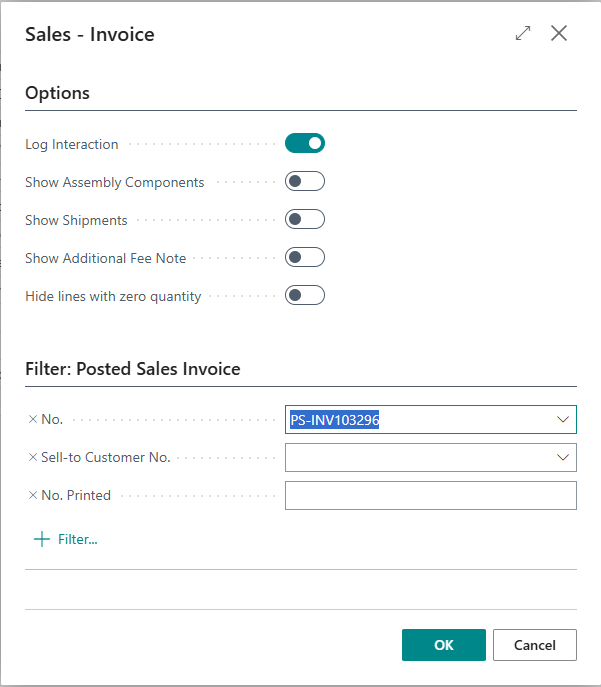
When I click “OK” I get a message block.

Here is all the XML in that message block.
<?xml version="1.0" standalone="yes"?>
<ReportParameters name="Standard Sales - Invoice" id="1306">
	<Options>
		<Field name="LogInteraction">true</Field>
		<Field name="DisplayAssemblyInformation">false</Field>
		<Field name="DisplayShipmentInformation">false</Field>
		<Field name="DisplayAdditionalFeeNote">false</Field>
		<Field name="HideLinesWithZeroQuantity">false</Field>
	</Options>
	<DataItems>
		<DataItem name="Header">VERSION(1) SORTING(Field3) WHERE(Field3=1(PS-INV103296))</DataItem>
		<DataItem name="Line">VERSION(1) SORTING(Field3,Field4)</DataItem>
		<DataItem name="ShipmentLine">VERSION(1) SORTING(Field1,Field2,Field3)</DataItem>
		<DataItem name="AssemblyLine">VERSION(1) SORTING(Field2,Field3)</DataItem>
		<DataItem name="WorkDescriptionLines">VERSION(1) SORTING(Field1)</DataItem>
		<DataItem name="VATAmountLine">VERSION(1) SORTING(Field5,Field9,Field10,Field13,Field16)</DataItem>
		<DataItem name="VATClauseLine">VERSION(1) SORTING(Field5,Field9,Field10,Field13,Field16)</DataItem>
		<DataItem name="ReportTotalsLine">VERSION(1) SORTING(Field1)</DataItem>
		<DataItem name="USReportTotalsLine">VERSION(1) SORTING(Field1)</DataItem>
		<DataItem name="LineFee">VERSION(1) SORTING(Field1)</DataItem>
		<DataItem name="PaymentReportingArgument">VERSION(1) SORTING(Field1)</DataItem>
		<DataItem name="LeftHeader">VERSION(1) SORTING(Field1)</DataItem>
		<DataItem name="RightHeader">VERSION(1) SORTING(Field1)</DataItem>
		<DataItem name="LetterText">VERSION(1) SORTING(Field1)</DataItem>
		<DataItem name="Totals">VERSION(1) SORTING(Field1)</DataItem>
		<DataItem name="ContractBillingDetailsMapping">VERSION(1) SORTING(Field1)</DataItem>
		<DataItem name="ContractBillingDetailsGrouping">VERSION(1) SORTING(Field1)</DataItem>
		<DataItem name="ContractBillingDetails">VERSION(1) SORTING(Field1)</DataItem>
	</DataItems>
</ReportParameters>
On line 11, you can see the invoice number I selected. We can replace that with a %1 and feed in the Sales Invoice Number as a parameter with string substitution, which happens on line 105 of the code unit.
Once everything is saved to the staging table and the Business Event is fired, Power Automate takes over.
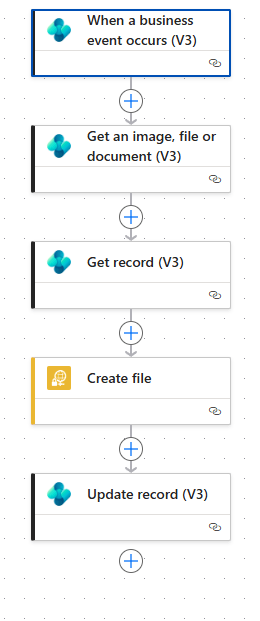
The first block listens for the PA Invoice Ready Business Event.

The second block retrieves the file from the staging table.

Block three grabs the rest of the staging data, which includes the file name. The order of these blocks 2 and 3 can be swapped.

Block four uploads the file to the root of the SFTP that I’m hosting with the file name from block 3 and the body of the file from block 2.

The last block updates the staging record to indicate that the file has been handled.

Back to Business Central, if I post a Sales Invoice.

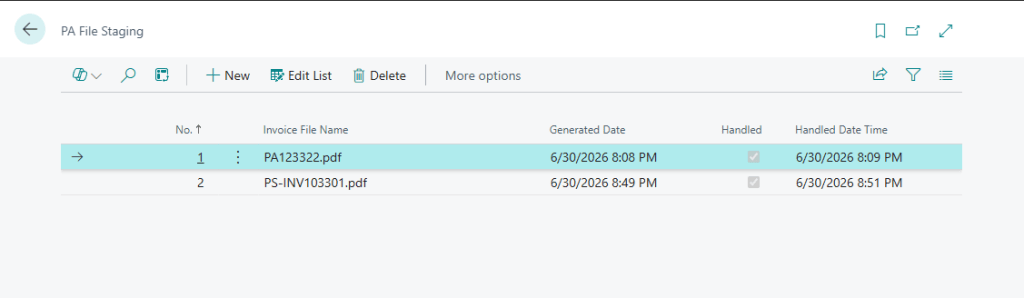
We can then go and take a look at the PA File Staging list.

We can see it is staged and ready to go. After a few moments we can see that it has completed.
In my SFTP server directory we can see a PDF file.
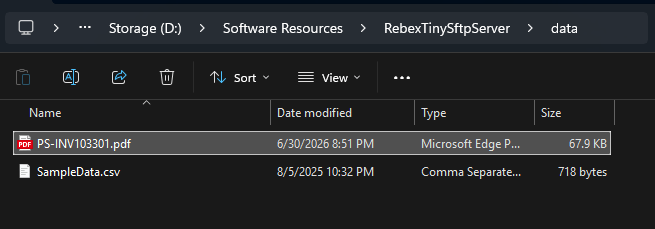
That PDF looks about right.

The Power Automate did its job perfectly.

The nice thing about this process is that if something did go wrong, like the SFTP server being down, we can add an action to the staging page to fire the business event again. With the handled flag, we could create a job that deletes the old records, so we save database space. Lastly, if SFTP isn’t your desired endpoint, we can swap the “Create file” block with any other file handling block in Power Automate.
This doesn’t need to be done with a report either, you could generate an Excel, CSV, or other file type and place it into the BLOB storage and fire the Business Event for the same results, but without using the reporting system.
I hope this help you with your file handling tasks. Do you have SFTP files to upload? Would you use this pattern to target SharePoint or even a network file storage system? Let me know if you have any questions.
As always, the code can be found in GitHub. This is all included in the File Handling examples.






Leave a Reply