

In lieu of the fact that Microsoft made my Native SFTP Support post useless; I feel like I owe everyone some alternatives. Here is the first alternative method of handling SFTP files with Business Central.
The issue is the SFTP communication, so we need to hand that off to something outside of the Business Central AL code space. For this example, we are going to use Power Automate.
First, we are going to need a place to upload that file to, so I will create a table and some supporting pages.
The table is in file ARDPAFTPPush.Table.al
table 50008 ARD_PA_FTPPush
{
    Caption = 'PA_FTPPush';
    DataClassification = ToBeClassified;

    fields
    {
        field(1; "ARD_No."; Integer)
        {
            Caption = 'No.';
            tooltip = 'Unique number for each file pushed to FTP. It is automatically generated.';
            DataClassification = CustomerContent;
            autoIncrement = true;
        }
        field(2; ARD_FileContent; Blob)
        {
            Caption = 'File Content';
            tooltip = 'Content of the file pushed to FTP.';
            DataClassification = CustomerContent;
        }
        field(3; ARD_DateTime; DateTime)
        {
            Caption = 'Date Time';
            tooltip = 'Date and time when the file was pushed to FTP.';
            DataClassification = CustomerContent;
        }
        field(4; ARD_FileName; Text[255])
        {
            Caption = 'File Name';
            tooltip = 'Name of the file pushed to FTP.';
            DataClassification = CustomerContent;
        }
    }
    keys
    {
        key(PK; "ARD_No.")
        {
            Clustered = true;
        }
    }
}
The only interesting thing here is the ARD_FileContent filed, which is a BLOB (Binary Large OBject).
The other critical element is the API Page so that Power Automate can connect with it. Here is ARDFTPPushAPI.Page.al
namespace AardvarkLabs.FileParsingExamples;

page 50015 ARD_FTPPushAPI
{
    APIGroup = 'aardvarklabs';
    APIPublisher = 'aardvarklabs';
    APIVersion = 'v1.0';
    ApplicationArea = All;
    Caption = 'ardFTPPushAPI';
    DelayedInsert = true;
    EntityName = 'ftpFile';
    EntitySetName = 'ftpFiles';
    PageType = API;
    SourceTable = ARD_PA_FTPPush;
    ODataKeyFields = SystemId;

    layout
    {
        area(Content)
        {
            repeater(General)
            {
                field(systemId; Rec.SystemId)
                {
                    Caption = 'System Id';
                }
                field(ardNo; Rec."ARD_No.")
                {
                    Caption = 'No.';
                }
                field(ardFileName; Rec.ARD_FileName)
                {
                    Caption = 'File Name';
                }
                field(ardFileContent; Rec.ARD_FileContent)
                {
                    Caption = 'File Content';
                }
                field(ardDateTime; Rec.ARD_DateTime)
                {
                    Caption = 'Date Time';
                }
            }
        }
    }
}
If you are rust on your Business Central APIs, you can do some reading here:
Critical here is the inclusion of the System Id and the ODataKeyFields being set to the System ID. This allows us to reference this record by immutable GUID alone.
We need a list page ARD_FTPFiles.Page.al.
namespace AardvarkLabs.FileParsingExamples;

page 50014 ARD_FTPFiles
{
    ApplicationArea = All;
    Caption = 'FTP Files';
    PageType = List;
    SourceTable = ARD_PA_FTPPush;
    UsageCategory = Lists;
    cardPageId = "ARD_FTP File Card";

    layout
    {
        area(Content)
        {
            repeater(General)
            {
                field("ARD_No."; Rec."ARD_No.")
                {
                }
                field("ARD_FileName"; Rec.ARD_FileName)
                {
                }
                field(ARD_FileContent; Rec.ARD_FileContent)
                {
                }
                field(ARD_DateTime; Rec.ARD_DateTime)
                {
                }
            }
        }
    }
}
Lastly a Card page ARD_FTPFilesCard.Page.al.
namespace AardvarkLabs.FileParsingExamples;

page 50016 "ARD_FTP File Card"
{
    ApplicationArea = All;
    Caption = 'FTP File Card';
    PageType = Card;
    SourceTable = ARD_PA_FTPPush;

    layout
    {
        area(Content)
        {
            group(General)
            {
                Caption = 'General';

                field("ARD_No."; Rec."ARD_No.")
                {
                }
                field(ARD_FileName; Rec.ARD_FileName)
                {
                }
                field(ARD_DateTime; Rec.ARD_DateTime)
                {
                }
            }
            group(FileContent)
            {
                field(FileText; GetFileText())
                {
                    Caption = 'File Content';
                    tooltip = 'Content of the file pushed to FTP.';
                    multiline = true;
                }

            }
        }
    }

    procedure GetFileText(): TEXT
    var
        inStream: InStream;
        FileContent: Text;
    begin
        Clear(FileContent);
        Rec.CalcFields(ARD_FileContent);
        if Rec.ARD_FileContent.HasValue() then begin
            Rec.ARD_FileContent.CreateInStream(inStream, TEXTENCODING::UTF8);
            InStream.Read(FileContent);
        end;

        exit(FileContent);
    end;
}
Note the GetFileText procedure. This is how we get the text out of the BLOB so that we can parse it and such.
Now on to the Power Automate!
This is going to be a rather simple flow, we are assuming a static file that is updated daily. We could do a lot more, but this example is going to be simple.
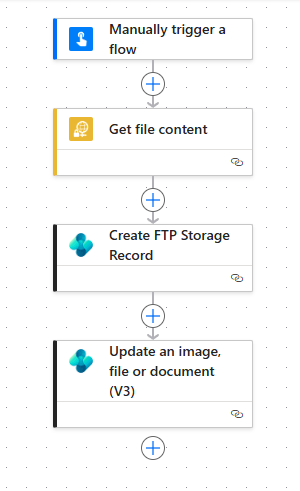
When you drop in your Get File Content it will ask you to create an SFTP connection.
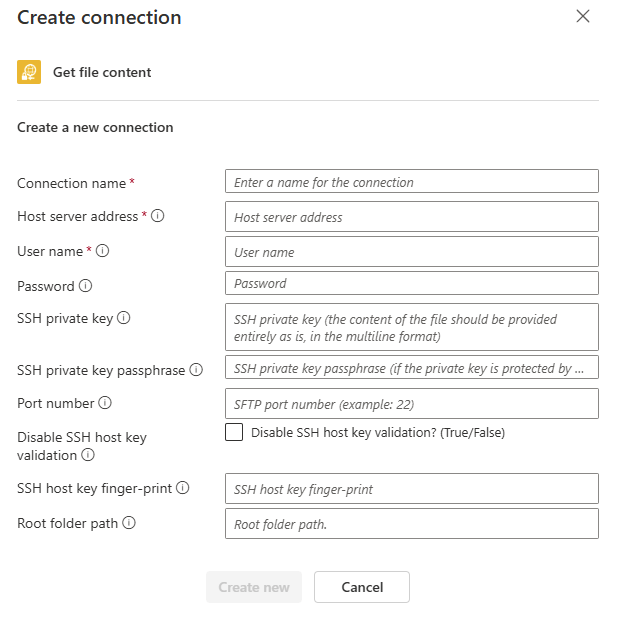
Fill this in per your SFTP server.
Getting the file content only requires the name of the file to get.
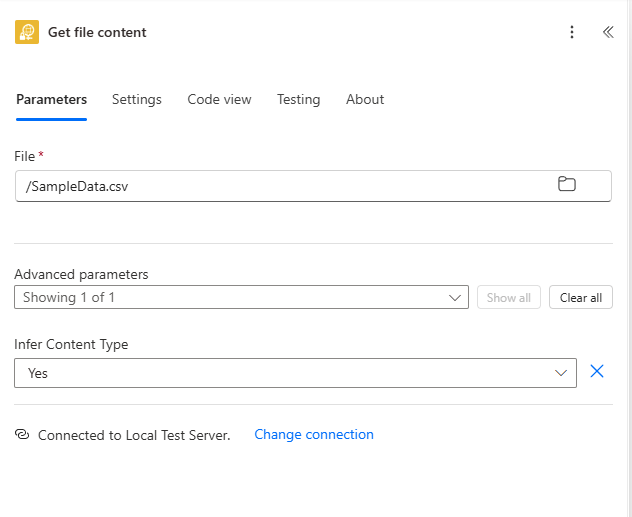
If the file name is dynamic, or otherwise non-static, you may need to list the file names and use some logic to find the correct file. In this case, it is a static daily example, and our file name is SampleData.csv.
Uploading the file to Business Central is a two step process. Step One is to create the record with the BLOB to store the file, step Two is to upload the file to the record.
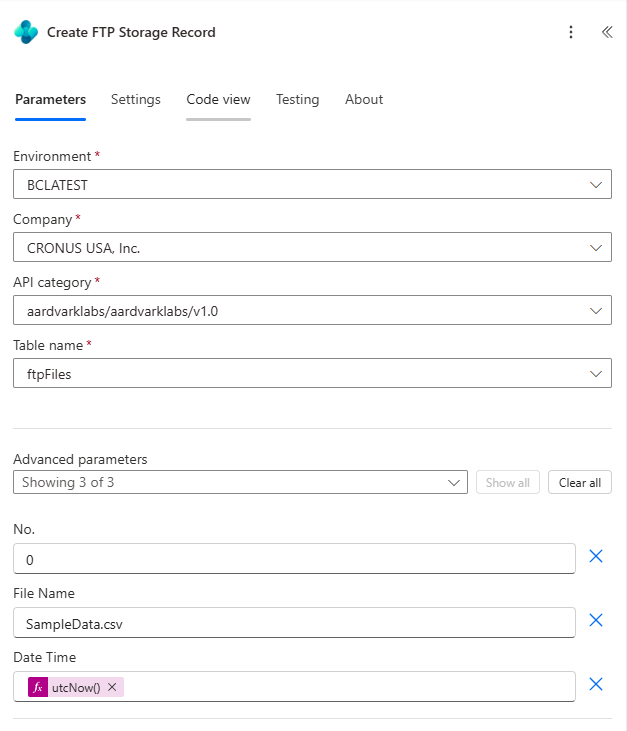
Notice how the first part points to our new API, and we give it all the details EXCEPT the file content.
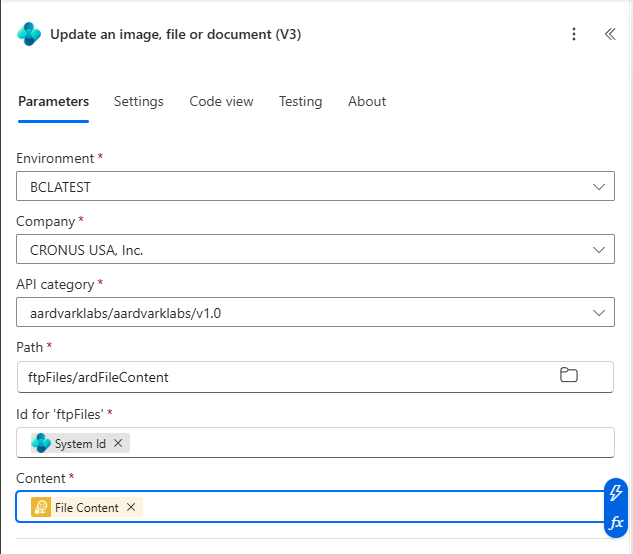
The last module uses the System Id returned with the record was created to upload the file to the BLOB in the API. The Path system is a little odd, but when configured correctly the folder system will lead you to your field.
The Power Automate could include things like moving the file to another folder when processed, with a copy then delete action. Or renaming the file. You could even trigger a Teams message to let people know the file has been downloaded. All of Power Automate is at your fingertips!
When this Power Automate is triggered, we get a copy of the file in Business Central.
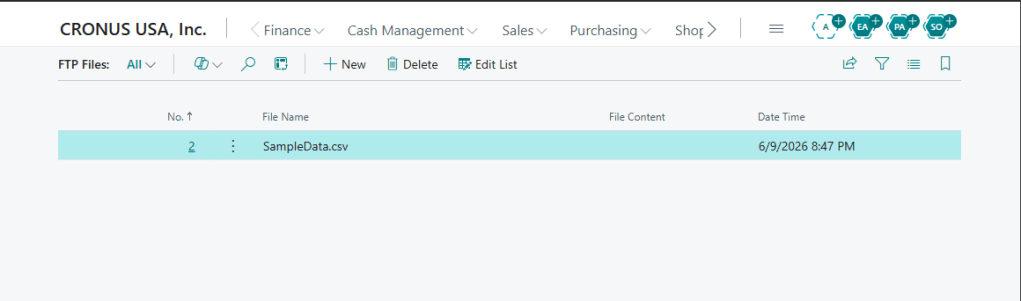
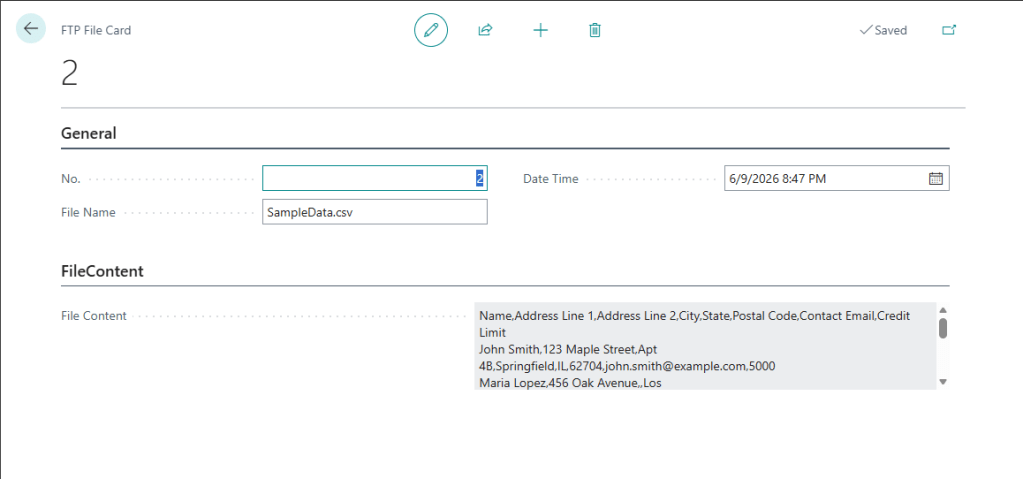
From here we could pass this text off to any of the parsers we created earlier. In this case the Delimited Hander we created a while back would work great.
This process also works perfectly well in reverse; we can create a record in Business Central with a file stored in a BLOB. We can trigger Power Automate with a Business Event and push that file into an SFTP server.
We could also use a Business Event to trigger the Power Automate, so we could “ask” it to go get the file.
While this isn’t as smooth as a native process, it does provide a means of retrieving a file from an SFTP server and processing it inside Business Central.
Let me know if this is a process you might use.
I added this example to the File Import extension in GitHub.
UPDATE: If you are looking to push documents from Business Central to SFTP, check out this post:




 Aardvark Labs
Leave a comment